What Is Anti-Aliasing in Games and How to Set It Up
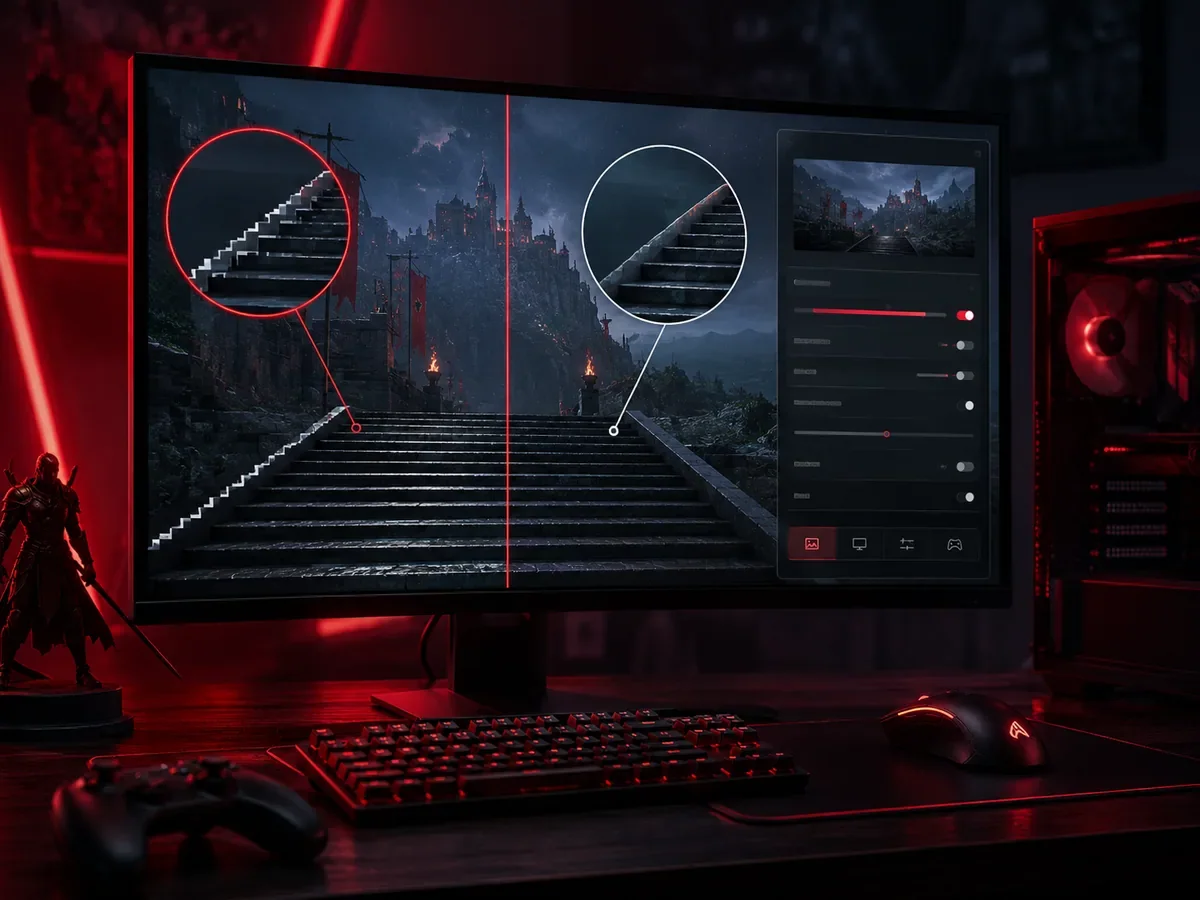
Anti-aliasing in games is a graphics technique that smooths jagged, staircase-like edges you see on objects, especially along diagonal and curved lines. Those jagged edges are nicknamed "jaggies," and once you notice them they are hard to ignore. Anti-aliasing softens them so the image looks cleaner and more natural. It is one of the most common settings in any graphics menu, yet it confuses many players because there are several methods with strange acronyms, and each one trades image quality, performance, and blur differently. This guide explains what anti-aliasing actually does, why aliasing happens in the first place, and how to choose the right option for your hardware and resolution.
Why Aliasing Happens
To understand anti-aliasing you first need to understand the problem it solves. Your monitor is a grid of tiny square pixels, and every image on screen has to be built out of those squares. A perfectly horizontal or vertical line maps cleanly onto that grid, but a diagonal line or a curve does not. The game has to approximate a smooth slope using square blocks, and the result is a stepped, staircase pattern along the edge. That stepping is called aliasing, and the visible steps are the jaggies players complain about.
This effect is most obvious on high contrast edges, like a dark rooftop against a bright sky, thin wires, fences, foliage, and distant geometry. It also tends to shimmer or crawl as you move, because the edges shift from one set of pixels to another frame by frame. The lower your resolution, the larger each pixel is relative to the scene, so aliasing looks worse. A 4K display has many more pixels packed into the same space, which makes each step smaller and harder to see, which is exactly why resolution and anti-aliasing are linked.
What Anti-Aliasing Actually Does
Anti-aliasing reduces the harshness of those steps by blending the edge pixels with the colors around them. Instead of a hard jump from black rooftop to blue sky, the technique inserts intermediate shades along the boundary so your eye reads it as a smooth slope rather than a series of blocks. The trick is doing this convincingly without smearing the whole image or costing too much performance. Different methods attack the problem in different ways, and that is where the various acronyms come from.
Broadly, the methods fall into a few families. Some sample the scene at a higher detail and average the result, which looks excellent but is expensive. Others scan the finished frame and smooth out edges they detect, which is cheap but can soften fine detail. A third group uses information from previous frames to clean up edges over time, which gives wide coverage but can introduce blur when things move. Knowing which family a setting belongs to tells you most of what you need about its strengths and weaknesses.
Supersampling: SSAA, DSR, and DLDSR
Supersampling, often labeled SSAA, is the brute force approach and the gold standard for quality. The game renders the scene at a much higher resolution internally, then shrinks it down to your display resolution. Because the larger image has more detail packed into every edge, averaging it down produces beautifully smooth lines with no shimmering. The catch is cost: rendering at two or four times the pixels is extremely demanding, so true supersampling is the most performance hungry option of all.
Driver based versions of this idea include DSR from one major GPU vendor and a similar feature from the other. DLDSR is a smarter variant that uses AI to get close to the quality of a big resolution downsample while rendering fewer pixels, so it is more efficient than plain DSR. These tools are great for older games that lack good built in anti-aliasing, or when you have performance to spare and want the cleanest possible picture. For modern, demanding titles, though, full supersampling is usually too heavy for smooth frame rates.
MSAA: Sharp but Costly
Multisample anti-aliasing, or MSAA, was the standard for many years and is still prized for its sharpness. Rather than supersampling the entire scene, MSAA only does extra sampling along the edges of objects where aliasing actually appears, which makes it far cheaper than full supersampling while keeping textures crisp. You usually see it offered in levels like 2x, 4x, and 8x, with higher numbers meaning more samples, better edges, and a bigger performance hit.
MSAA looks excellent on geometric edges and does not blur the rest of the image, which is its main appeal. Its weaknesses are that it can be heavy on memory and performance at higher levels, and it does little for aliasing inside textures, transparent surfaces like foliage and fences, or shader effects. It also works best with older rendering pipelines and is offered in fewer modern games, where deferred rendering and complex lighting make it harder and more costly to apply. When a game does offer it and you can afford the cost, MSAA still produces a clean, sharp result.
FXAA and SMAA: Cheap Post-Processing
FXAA, or fast approximate anti-aliasing, works completely differently. It runs as a filter on the already rendered frame, scanning for edges and blurring them to hide the steps. Because it ignores how the scene was built and just smooths the final image, it is extremely cheap and works in almost any game with barely any performance cost. That makes it a great choice for weaker hardware or for squeezing out extra frames.
The downside of FXAA is blur. By smoothing the whole frame it softens fine detail and text along with the jaggies, which can make the image look slightly smeary. SMAA, or subpixel morphological anti-aliasing, detects edge patterns more intelligently and blurs less than FXAA, giving a cleaner result at a similarly low cost. If a game offers both, SMAA is usually the better pick for image quality, while FXAA is the lightest option when every frame counts.
TAA: Wide Coverage, Possible Motion Blur
Temporal anti-aliasing, or TAA, is the dominant method in modern games, and for good reason. It combines information from the current frame with data from previous frames, gathering more samples over time rather than all at once. This gives it excellent coverage: it smooths object edges, textures, transparent surfaces, and the shimmering specular highlights that other methods miss, all at a reasonable performance cost. That broad coverage is why so many recent titles rely on it by default.
The trade-off with TAA is motion. Because it blends across frames, fast movement can introduce ghosting, where a faint trail follows moving objects, and a general softening or smearing of the image while you move. Some implementations are much better than others, and many games add a sharpening slider to counteract the softness. If TAA looks too blurry to you, look for a sharpening option, try SMAA instead, or render at a higher resolution to give the technique more detail to work with.
The Connection to DLSS, FSR, and Upscalers
Modern upscaling technologies like DLSS and FSR are closely tied to anti-aliasing. These features render the game at a lower internal resolution and then intelligently upscale it to your display resolution to boost frame rates. Crucially, the same temporal process that reconstructs the higher resolution image also performs anti-aliasing as part of its work, so turning on an upscaler usually gives you smooth edges for free, often replacing the separate TAA setting entirely.
Many of these upscalers also offer a quality mode that renders at native resolution purely for the anti-aliasing benefit, sometimes called a native AA mode. The result can rival or beat traditional methods while sometimes improving performance, which is why upscalers have become the default way many people handle both frame rate and edge smoothing at once. If your game and graphics card support a modern upscaler, it is well worth trying, both for the extra frames and for the clean, stable image it produces.
| Method | Best for | Main trade-off |
|---|---|---|
| FXAA | Entry-level GPUs | Low cost, softer image |
| SMAA | Sharp low-cost smoothing | Limited temporal coverage |
| TAA | Motion shimmer | Possible blur or ghosting |
| MSAA | Older forward-rendered games | High GPU cost |
| DLSS or FSR | Supported modern games | Implementation varies |
How to Choose by GPU and Resolution
Your display changes how much aliasing you can see. Higher pixel density makes stair-step edges less obvious, while a lower-resolution panel benefits more from careful smoothing.
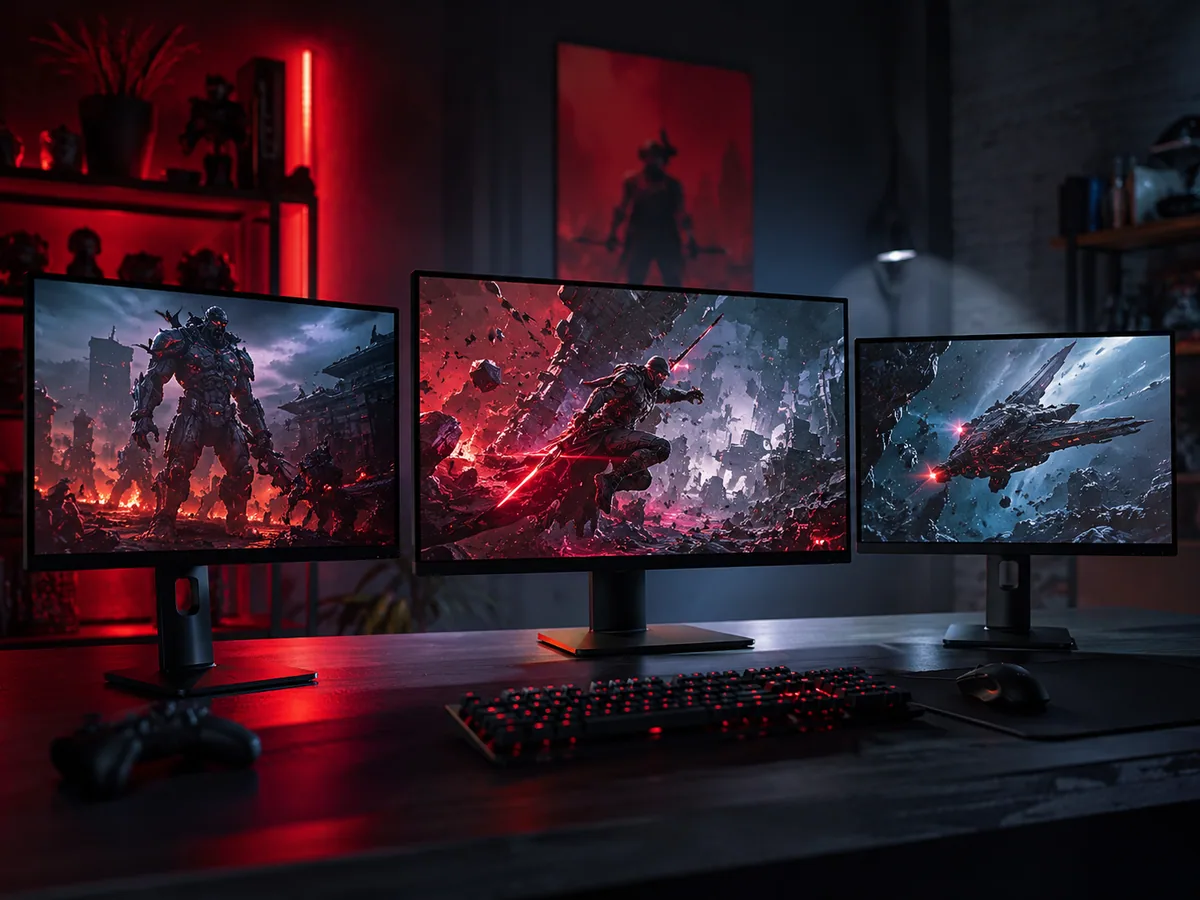
The right setting depends heavily on your screen resolution and how powerful your graphics card is. The higher your resolution, the smaller each pixel and the less aliasing you see, so you need less anti-aliasing to get a clean image. On a 4K display you can often use a light method, or even turn it down, and still get smooth edges. On a 1080p screen, where pixels are larger and jaggies are more visible, stronger anti-aliasing matters much more.
For weaker hardware, lean toward cheap post-process options like SMAA or FXAA, or a built in upscaler set to a performance mode, which smooths edges while also lifting your frame rate. For mid range setups, TAA or a balanced upscaler quality mode usually gives the best mix of coverage and performance. If you have power to spare or are playing an older game, MSAA or a touch of supersampling such as DLDSR can deliver the sharpest, cleanest picture. Always weigh the visual gain against the frames you lose.
If frame pacing is still uneven, use our PC gaming optimization guide before lowering resolution blindly. Compare panel resolution and refresh rate with our gaming monitor guide. On portable hardware, our Steam Deck performance tips explain the same quality-versus-battery trade-off.
| Symptom | First adjustment |
|---|---|
| Jagged static edges | Try SMAA or MSAA 2x |
| Shimmer while moving | Try TAA or temporal upscaling |
| Soft image | Use modest sharpening |
| Large FPS loss | Lower MSAA or SSAA |
How to Tune Anti-Aliasing
Tuning is mostly about testing and personal taste, since edges and blur look different to everyone. Start by enabling the method the game recommends, then move around and look at high contrast edges, distant fences, and foliage while in motion, not just standing still, because shimmering and ghosting only show up when things move. If the image looks soft, lower the anti-aliasing level, switch to a sharper method, or use a sharpening slider if one is available. If jaggies still bother you, step up to a heavier method or raise your resolution.
It helps to change one setting at a time so you can clearly see what each option does to both image quality and frame rate. Keep an eye on your frame counter as you adjust, because some methods cost far more than others. There is no single correct answer, only the balance that looks good to you and runs smoothly on your machine. Once you find a combination you like, you can usually reuse the same approach across similar games, since the underlying methods behave consistently from title to title.
FAQ
What is anti-aliasing in simple terms?
Anti-aliasing is a graphics setting that smooths the jagged, staircase-like edges on objects in a game. Screens are made of square pixels, so diagonal lines look stepped. Anti-aliasing blends those edge pixels with surrounding colors so the lines appear smooth and natural rather than blocky.
Which anti-aliasing method is best?
There is no single best method; it depends on your hardware. Supersampling and MSAA give the sharpest results but cost the most. FXAA and SMAA are cheap but can blur detail. TAA offers wide coverage but may soften motion. Modern upscalers like DLSS and FSR often provide the best balance of quality and performance.
Does anti-aliasing reduce FPS?
Yes, anti-aliasing uses extra processing, so it lowers frame rate to some degree. Cheap post-process methods like FXAA barely affect performance, while supersampling and high level MSAA can cost a lot of frames. Upscalers can actually raise FPS while still smoothing edges, since they render at a lower internal resolution.
Why does TAA look blurry?
TAA blends data across multiple frames, which can soften the image and cause ghosting trails during fast movement. Many games include a sharpening slider to counteract this. If TAA still looks too soft, try SMAA, enable a modern upscaler, or render at a higher resolution to give the method more detail.
Do I need anti-aliasing at 4K?
You need less of it. At 4K each pixel is much smaller, so jaggies are far less visible and a light method is often enough. At 1080p, pixels are larger and edges look rougher, so stronger anti-aliasing makes a bigger difference. Higher resolution always reduces how much smoothing you need.
What is the difference between FXAA and MSAA?
FXAA is a cheap post-process filter that blurs edges on the finished frame, which is fast but can soften detail. MSAA samples only object edges during rendering, keeping textures sharp at a higher performance cost. MSAA looks cleaner on geometry, while FXAA is lighter and works in almost any game.
Are DLSS and FSR the same as anti-aliasing?
Not exactly, but they include it. DLSS and FSR are upscalers that render at a lower resolution and rebuild a higher resolution image. The temporal process that reconstructs the image also smooths edges, so enabling an upscaler usually provides anti-aliasing as part of the package, often replacing a separate setting.
Digidang Team
Gaming enthusiast and marketplace expert sharing tips, guides, and the best gaming deals.