10 Essential Steam Deck Tips Every Owner Should Know

10 Essential Steam Deck Tips Every Owner Should Know
Quick Answer
Get the most out of your Steam Deck with these essential tips and tricks.
The Steam Deck has fundamentally changed what's possible with handheld gaming. Valve's portable PC has put a full gaming library in your pocket, capable of running thousands of titles from AAA blockbusters to indie gems. But whether you're a brand-new owner or you've had your Deck for months, there's always more to learn about maximizing your experience.
This guide covers the 10 essential Steam Deck tips that will transform how you play. From battery optimization to performance tweaking, from storage management to community tools, these strategies will help you unlock the full potential of your device. Let's dive in.
The Digidang team often receives questions about "10 essential steam deck tips every owner should know" from the Indonesian gaming community. Most questions come from first-time transactions or trying out new gaming products. This section is based on real cases we've handled at Digidang since 2020, so you can apply these tips directly without trial and error.
1. Master Performance Profiles for Better Battery Life
One of the most powerful features of the Steam Deck is the ability to customize performance on a per-game basis. Many owners don't realize they can dramatically extend battery life without sacrificing playability by adjusting frame rates and TDP (thermal design power) settings.
Access the Quick Access menu by pressing the three-dot button on your Steam Deck while in-game. From there, you can set frame rate limits, enable FSR (FidelityFX Super Resolution), adjust TDP limits, and toggle GPU scaling. The magic happens when you realize that not every game needs to run at 60fps.
For instance, indie games, strategy titles, and turn-based RPGs often feel perfectly smooth at 40fps or even 30fps. Setting a 40Hz frame cap on these games can save 30-40% of your battery life. More demanding AAA titles benefit from a 50Hz cap, which still feels responsive while extending play sessions significantly. The key is testing different settings to find the sweet spot between visual quality, performance, and battery longevity.
You can also lower TDP to reduce power consumption on less demanding games. A game like Hades might run beautifully at 15W instead of the default 25W, with no noticeable performance difference. This is where Steam Deck ownership becomes a craft - fine-tuning each game for optimal results.
2. Check ProtonDB Before Every Purchase
ProtonDB is your best friend when deciding whether to buy a game for your Steam Deck. This community-driven database shows exactly how well games run on Linux through Proton compatibility layers, which is essential for Steam Deck gaming.
Before purchasing any game, visit protondb.com and search the title. You'll see a compatibility rating: Platinum (perfect), Gold (runs well with minor tweaks), Silver (requires workarounds), or Bronze (significant issues). Users submit detailed reports with settings, workarounds, and even videos, so you know exactly what to expect.
This simple step prevents frustration and wasted money. Some games have known workarounds documented by the community - like launching with specific Proton versions or applying patches - that make unplayable games work perfectly. Other titles simply aren't ready. ProtonDB eliminates the guesswork entirely. It's not just a useful resource; it's an essential Steam Deck tip that should become habit.
The Digidang team often receives questions about "2. check protondb before every purchase" from the Indonesian gaming community. Most questions come from first-time transactions or trying out new gaming products. This section is based on real cases we've handled at Digidang since 2020, so you can apply these tips directly without trial and error.
3. Install Decky Loader for Enhanced Functionality
Decky Loader is a plugin system that turns your Steam Deck into a much more powerful device. If you're serious about getting the most from your Deck, installing Decky Loader is non-negotiable. It's safe, user-friendly, and opens up countless quality-of-life improvements.
With Decky Loader installed, you gain access to plugins like:
- ProtonDB Integration - See game compatibility ratings directly in your Steam library without leaving the Deck
- CSS Loader - Apply community-created themes and visual customizations to Steam's interface
- Battery Life Tracker - Monitor estimated playtime remaining based on current power consumption
- Powertools - Advanced power management with GPU and CPU frequency scaling
- Playtime Extended - Track detailed playtime statistics across your entire library
- Game Order - Organize your games with custom collections and sorting

Installation is straightforward and takes just a few minutes. Decky Loader runs in the background and integrates seamlessly into the Quick Access menu. For power users, it's transformative. Even casual players will benefit from the convenience and customization options it provides.
The Digidang team often receives questions about "3. install decky loader for enhanced functionality" from the Indonesian gaming community. Most questions come from first-time transactions or trying out new gaming products. This section is based on real cases we've handled at Digidang since 2020, so you can apply these tips directly without trial and error.
4. Optimize Storage with High-Speed MicroSD Cards
The Steam Deck ships with 256GB or 512GB of internal storage, depending on your model. That sounds like plenty until you install a few AAA games. Red Dead Redemption 2, for example, takes up 150GB alone. This is where microSD card expansion becomes essential.
The Steam Deck officially supports UHS-I microSD cards. While any decent card will work, investing in a high-speed option (at least 256GB, preferably 512GB) dramatically improves load times and prevents stuttering. Look for cards with read speeds of 150MB/s or higher. Popular choices include Samsung Pro Plus, SanDisk Extreme, and Kingston Canvas Go Plus.
Storage management is seamless on the Steam Deck. Through Settings, you can move games between internal storage and your microSD card with a single click. Large games live on the SD card, while frequently-played titles benefit from the faster internal SSD. The system handles this intelligently - you don't need to manage it manually.
Pro tip: If you're serious about collecting games, consider getting both a 256GB and 512GB card for different types of games. This gives you flexibility and ensures you always have space for new purchases. Your Steam Deck will thank you, and your load times will be noticeably better.
5. Use Desktop Mode for Web Browsing, Media, and Tinkering
Many Steam Deck owners never touch Desktop Mode, thinking it's only for technical troubleshooting. In reality, Desktop Mode transforms your Deck into a fully-functional Linux computer. It's invaluable for gaming and beyond.
Desktop Mode is perfect for:
- Web Browsing - Use Firefox to research games, watch walkthroughs, or stream content from Netflix and YouTube
- Media Playback - Watch movies and shows using installed media players
- Steam Configuration - Access advanced Proton settings and game properties that aren't available in Gaming Mode
- Emulation Setup - Install emulators like RetroArch or Dolphin for retro gaming (perfectly legal if you own the ROMs)
- File Management - Browse and organize your game files and personal documents
- Community Tools - Install additional applications and tools developed by the Deck community
Switching between modes is simple - just hold the power button and select Switch to Desktop. The transition is seamless, and you can return to Gaming Mode anytime. Desktop Mode is a hidden superpower of the Steam Deck that extends its utility far beyond gaming.
The Digidang team often receives questions about "5. use desktop mode for web browsing, media, and tinkering" from the Indonesian gaming community. Most questions come from first-time transactions or trying out new gaming products. This section is based on real cases we've handled at Digidang since 2020, so you can apply these tips directly without trial and error.
6. Create Custom Controller Layouts for Every Game
The Steam Deck's controls are fantastic, but not every game is optimized for them. This is where custom controller layouts become essential. Steam allows you to create per-game layouts that map buttons, adjust sensitivity, and even add touch controls.
Some games benefit enormously from custom layouts. A strategy game might be better controlled with the touchpad as a mouse cursor. A game with finicky controls might need sensitivity adjustments on specific sticks. Some games work better with button remapping to match your muscle memory.
The community has already created thousands of layouts for popular games. When you select a game, you can browse community layouts and download them with one click. If none feel perfect, you can customize further by accessing the Controller Layout settings.
This Steam Deck tip is often overlooked, but it makes a massive difference in playability and comfort. Taking five minutes to find or create the perfect layout for a game transforms the entire experience. Games that felt clunky suddenly play smoothly.
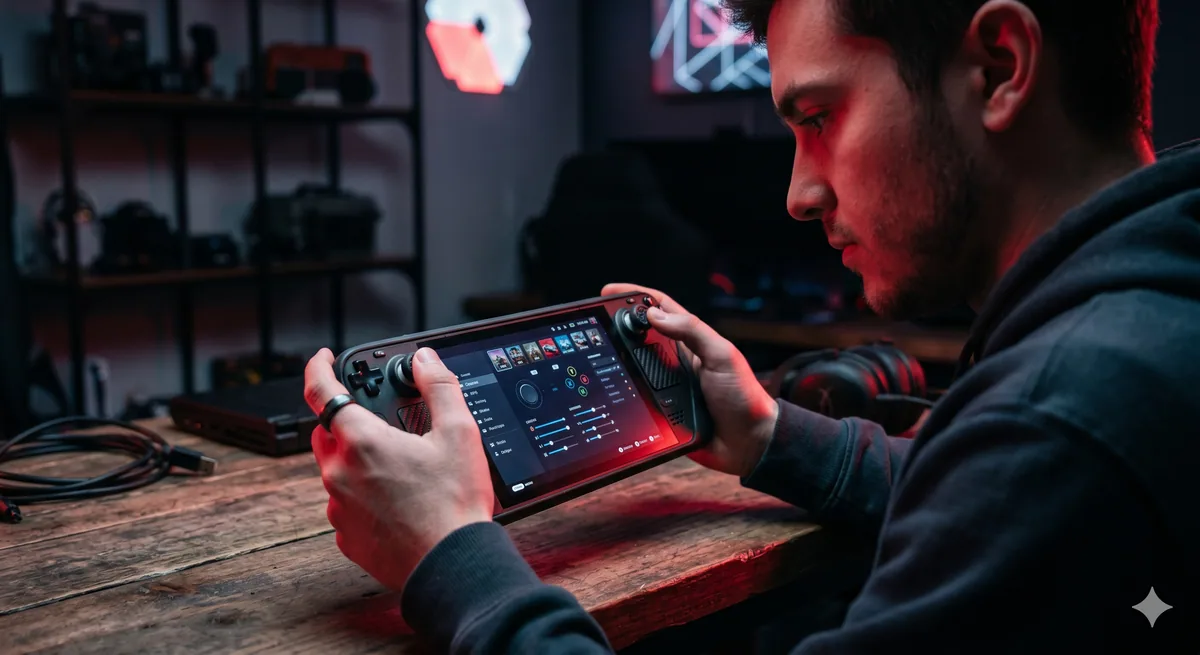
The Digidang team often receives questions about "6. create custom controller layouts for every game" from the Indonesian gaming community. Most questions come from first-time transactions or trying out new gaming products. This section is based on real cases we've handled at Digidang since 2020, so you can apply these tips directly without trial and error.
7. Enable FSR for Better Performance in Unsupported Games
FidelityFX Super Resolution (FSR) is AMD's upscaling technology that's built into the Steam Deck. It renders games at a lower resolution and intelligently upscales them to your display, improving performance while maintaining visual quality.
While newer games often support FSR natively, older titles and indie games don't. The Steam Deck lets you enable FSR globally, which works with any game. You can access this through Quick Access while gaming and toggle it on or off instantly.
The visual difference between native and FSR rendering at FSR's highest quality setting is minimal on the Deck's small screen, but the performance boost is substantial. Games that previously struggled at 30fps might hit 45-60fps with FSR enabled. It's one of the most impactful performance tweaks available.
Experiment with FSR on demanding games. Start with Quality mode and adjust to Balanced or Performance if needed. You'll find your personal sweet spot where performance and visuals align perfectly.
The Digidang team often receives questions about "7. enable fsr for better performance in unsupported games" from the Indonesian gaming community. Most questions come from first-time transactions or trying out new gaming products. This section is based on real cases we've handled at Digidang since 2020, so you can apply these tips directly without trial and error.
8. Keep Your Steam Deck Updated Religiously
Valve continuously releases updates that improve compatibility, fix bugs, and add features. Keeping your Steam Deck updated ensures you're getting the best possible experience and accessing the latest Proton improvements that make more games playable.
Updates happen automatically when your Deck is in sleep mode and plugged in, but you can manually check for updates anytime through Settings > System > System Updates. It takes just a few minutes, and the improvements are often substantial.
Proton updates are particularly important. Each new Proton version expands compatibility and fixes issues with specific games. If you find a game isn't working well, updating your Deck often resolves the problem. This is why checking ProtonDB for Proton version recommendations is crucial - sometimes a specific version works better than the latest.
Regular updates should be as habitual as charging your Deck. It's a simple practice that prevents problems and ensures you're always getting the optimized experience Valve intends.
The Digidang team often receives questions about "8. keep your steam deck updated religiously" from the Indonesian gaming community. Most questions come from first-time transactions or trying out new gaming products. This section is based on real cases we've handled at Digidang since 2020, so you can apply these tips directly without trial and error.
9. Leverage Cloud Saves for Seamless Device Switching
Steam's cloud save feature syncs your progress automatically across devices. This means you can play on your Steam Deck, continue on a desktop PC, and return to your Deck with all progress intact. It's seamless and automatic.
Most games support cloud saves out of the box. Some require you to enable it in game settings, but the vast majority handle it automatically. This feature is invaluable if you game across multiple devices or frequently switch between portable and desktop gaming.
Check individual game settings if you want to manually sync or manage cloud saves. You can even back up saves locally through Desktop Mode if you want extra security. This Steam Deck tip ensures you're never locked into playing on one device.
The Digidang team often receives questions about "9. leverage cloud saves for seamless device switching" from the Indonesian gaming community. Most questions come from first-time transactions or trying out new gaming products. This section is based on real cases we've handled at Digidang since 2020, so you can apply these tips directly without trial and error.
10. Build Your Library Strategically and Save Money at Digidang
Your Steam Deck is only as good as your game library. Building a diverse collection that takes advantage of your portable gaming device is crucial to long-term enjoyment. Strategic purchasing saves money while maximizing variety.

Focus on games that shine on portable displays: indie titles, strategy games, turn-based RPGs, and games with shorter play sessions. These often deliver better experiences on the Deck than demanding AAA titles. Mix in some beloved classics and experimental indie gems you might not have played otherwise.
To build your library affordably, shop at Digidang.com, where you can purchase Steam game keys and gift cards at discounted prices. Whether you're looking for the latest releases or classic favorites, Digidang offers competitive pricing that lets you build a massive library without breaking the bank. Game keys activate instantly in your Steam library and download directly to your Deck.
Purchasing during sales is smart, but strategic shopping at discount key retailers like Digidang stretches your budget even further. You'll build a library faster and have more variety to explore.
The Digidang team often receives questions about "10. build your library strategically and save money at digidang" from the Indonesian gaming community. Most questions come from first-time transactions or trying out new gaming products. This section is based on real cases we've handled at Digidang since 2020, so you can apply these tips directly without trial and error.
Frequently Asked Questions
What's the Best Frame Rate for Steam Deck Gaming?
The ideal frame rate depends on the game. Most action games
Pro Tips from the Digidang Team
Based on the Digidang team's experience handling thousands of gaming transactions every month since 2020, here are the tips we share most often with our loyal customers.
- Verify info across multiple sources: Gaming news is often published fast with little verification. Check 2-3 credible sources before trusting a rumor.
- Subscribe to official channels: For official launches and events, follow publisher Twitter accounts and community Discords directly rather than leakers.
- Wait for post-launch reviews: Many games get 8/10 in pre-launch reviews and drop to 6/10 a week later. Check community feedback 7-14 days post-launch before buying.
- Back accounts with 2FA: Before any big transaction or device change, make sure 2FA is active on all your gaming accounts (Steam Guard, Riot Authenticator, etc.).
- Track price history: Use a price tracker like IsThereAnyDeal to see historical prices. Avoid buying when prices are spiking before an event.
Why Buy Gaming Products at Digidang
As a digital gaming marketplace operating since 2020, Digidang is built by and for Indonesian gamers. Here's why thousands of gamers trust Digidang for their top-up and gift card needs:
- Competitive pricing: We continuously monitor other marketplace prices and adjust so you always get the best deal without hidden cost drama.
- Instant automated process: Digital codes arrive in your inbox in minutes, not hours or days. We know gamers want to play right away.
- 24/7 customer service: Our support team is ready to respond via WhatsApp and email anytime. Not a bot - you chat with humans who understand gaming.
- Safe and trustworthy: Payments are processed via official payment gateways (Midtrans, Xendit), not personal transfers. Your data is protected with 256-bit SSL encryption.
- Complete product variety: From Mobile Legends, PUBG, Genshin Impact top-ups, to Steam, Roblox, PlayStation gift cards - all available on one platform.
- Active community: Digidang has an active Discord and Instagram community sharing tips, builds, and discussions about Indonesian gaming.
Check the Digidang catalog to see all available gaming products, or visit our about page to learn more about Digidang's mission to build a healthy Indonesian gaming ecosystem.
Conclusion & Key Takeaways
10 Essential Steam Deck Tips Every Owner Should Know isn't a static gaming topic - it evolves quickly with new game releases, publisher updates, and trends in the Indonesian gaming community. The Digidang team will continue to update this article to keep it relevant to current conditions.
Key points to remember from this guide:
- Always prioritize account security: Enable 2FA, never share passwords, and avoid buying from untrusted sellers.
- Compare prices across multiple sources: Even though Digidang offers competitive pricing, the habit of comparing before buying is a healthy behavior.
- Take advantage of events and promotions: Significant savings come from combining Digidang discounts with publisher in-game events.
- Verify every transaction detail: User ID, region, and denomination - small mistakes can lead to non-refundable losses.
- Use Digidang's support: Our customer service is active 24/7 via WhatsApp and email. Don't hesitate to reach out with any questions.
Have more questions? Check the FAQ section below, or contact the Digidang team directly via WhatsApp for free consultation on the gaming products you need.
Marcus Chen
Gaming enthusiast and marketplace expert sharing tips, guides, and the best gaming deals.