How to Check Your PC Specs for Gaming: A Complete Guide
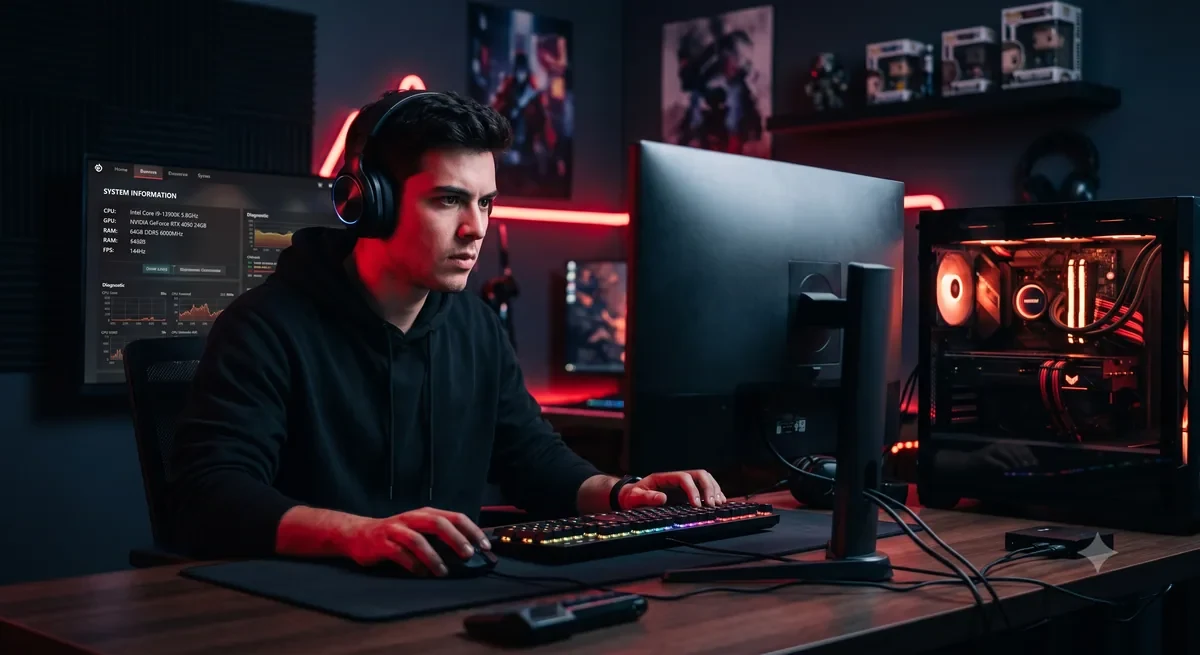
To check your PC specs for gaming, open Windows Settings, select System, then About to read your processor, installed RAM, and system type. Use dxdiag to inspect graphics hardware, then compare the exact models, operating system, and available storage with the game developer’s requirements. Matching specs helps assess compatibility, not guarantee performance.
Why should you check PC specs before buying a game?
Checking PC specs before buying a game helps identify hardware or software mismatches before you spend money. Record your processor, graphics hardware, installed memory, operating system, and available storage. Compare them with the developer’s stated requirements. Meeting a listed tier is useful evidence, but it cannot guarantee the settings or performance you prefer.
Knowing your specs also helps you make smarter spending decisions. If you understand exactly what your PC has, you can buy games that suit it, choose the right graphics settings from day one, and plan future upgrades that give the biggest boost for your budget. A few minutes of checking turns guesswork into a confident purchase, especially for demanding modern titles.
How can you check your PC specs in Windows?
To check PC specs in Windows, open Settings, then System and About for processor, installed memory, and system type. Use System Information for a broader inventory and dxdiag for graphics details. Microsoft’s official PC specifications guide explains these built-in tools. Record exact model names before comparing your computer with a game’s requirements.
For a deeper look that includes your graphics card, use the built in DirectX Diagnostic Tool. Press the Windows key, type dxdiag, and open it. The System tab shows your processor, memory, and Windows version, while the Display tab lists your graphics card name and the amount of dedicated video memory. This tool is the go to choice for confirming your GPU, since gaming performance depends heavily on it.
Task Manager is the third handy tool, and it is great for live monitoring. Press Control, Shift, and Escape together, then open the Performance tab. There you can watch how hard your CPU, memory, disk, and graphics card are working while a game runs. It also displays your GPU name and total memory, which makes it a quick way to confirm your graphics hardware without opening any other window.
Which PC components should you record for gaming?
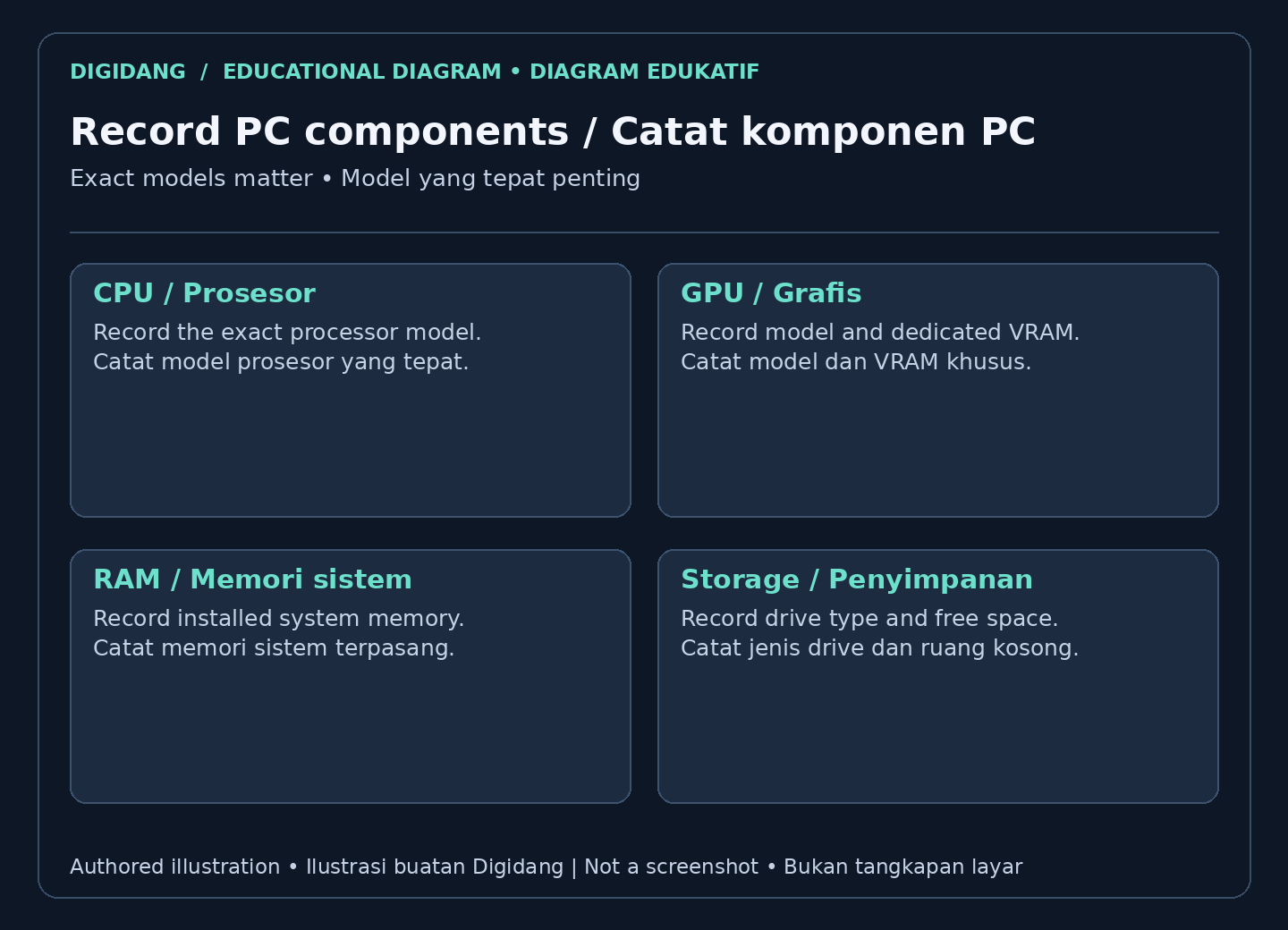
The PC components to record for gaming are the processor, graphics hardware, installed RAM, storage capacity and free space, and operating system. Exact model names matter more than broad marketing labels. Keep dedicated graphics memory separate from system memory, and check whether the game specifies storage type or additional software requirements before deciding it fits.
RAM holds working data, while graphics memory serves a different role; do not add the two figures together when comparing requirements. Check storage type and free space separately, because loading behavior varies by game and drive. Some games require a 64 bit operating system: Microsoft’s PC specifications guide explains where Windows shows system type. This source supports the Windows checking steps, not a specific SSD speed or game performance claim.
What do minimum and recommended requirements mean?
Minimum and recommended requirements are the developer’s hardware and software guidance for a particular game, not universal performance standards. Check whether the listing specifies resolution, graphics settings, or a frame rate target. Without those details, do not assume a guaranteed experience. Recommended hardware is generally a stronger starting point, but your settings and updates still matter.
The recommended requirement describes the hardware needed to enjoy the game as the developer intended, with higher settings and a steadier frame rate. Even recommended hardware can encounter performance issues; look for the developer’s stated target and relevant tests before choosing settings. A smart rule is to aim above the minimum and as close to recommended as you can, since games tend to feel better and remain enjoyable longer when you have headroom rather than scraping by.
How should you compare your PC with game requirements?
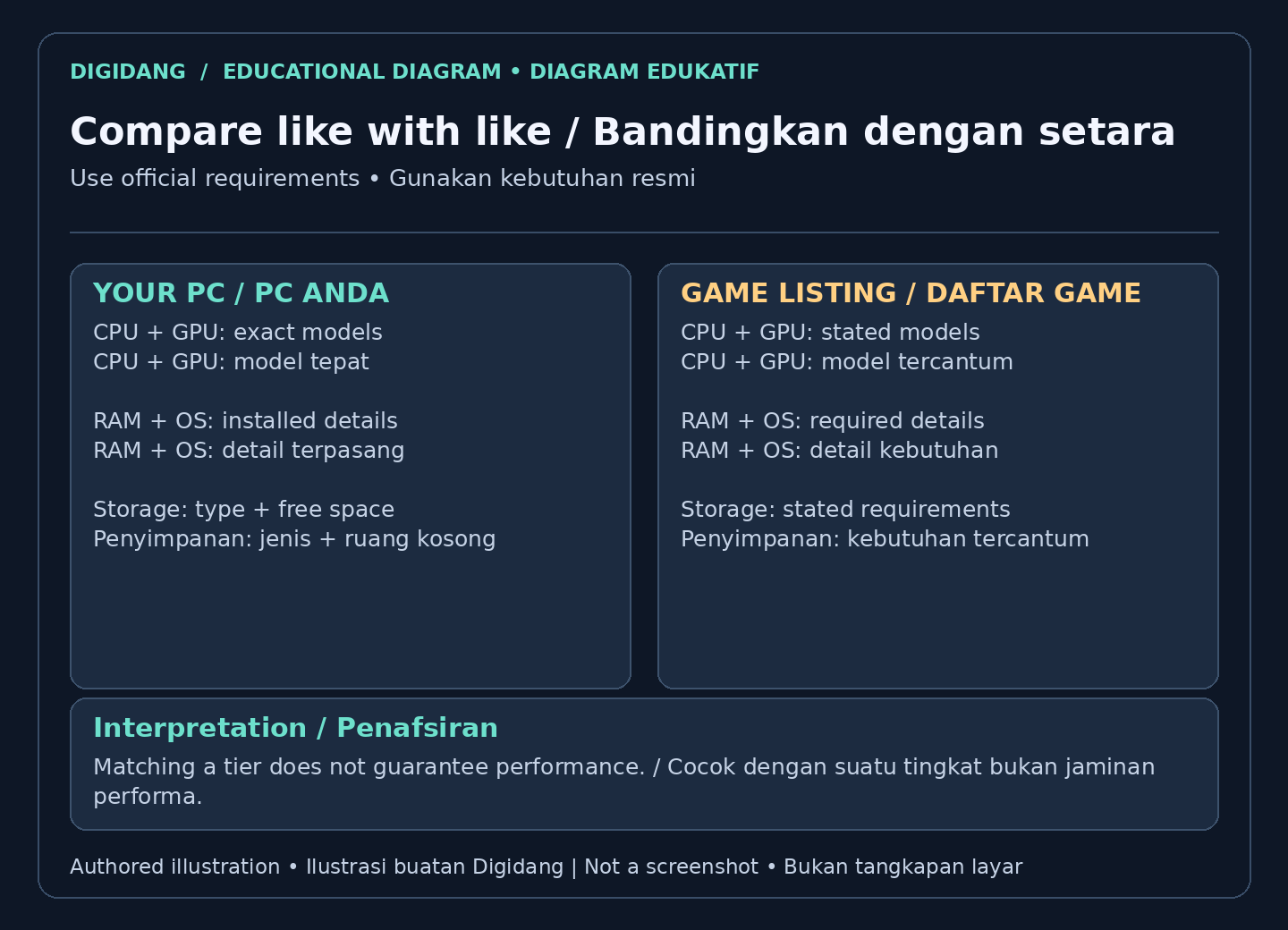
Compare your PC with game requirements component by component, using exact CPU and GPU models alongside RAM, operating system, and storage. A newer model or larger core count alone does not prove equivalent performance. For unfamiliar components, consult relevant comparisons and the developer’s notes. Check laptop and desktop variants separately rather than assuming matching family names mean identical hardware.
Do not forget the operating system line, since a perfectly powerful machine can still be blocked by an unsupported Windows version. When a single component falls short, the whole experience suffers, so the weakest matching part sets your real ceiling. If your graphics card barely clears the minimum but everything else is strong, expect to play on lower settings until you upgrade that one piece.
Can compatibility checking tools predict game performance?
Compatibility checking tools can help organize a comparison, but they cannot reliably predict every game’s performance on your PC. Their databases may miss laptop variants, recent updates, or unusual configurations. Start with the official requirements, then use credible tests on similar hardware as context. Avoid installing unfamiliar detection software merely to obtain a simple verdict.
Treat these tools as a helpful guide rather than an absolute ruling. Real performance also depends on your settings, your screen resolution, background programs, and how well a game is optimized. Use the checker to get a sensible starting point, then rely on community feedback and your own testing to fine tune. When possible, look for gameplay footage captured on hardware similar to yours to set realistic expectations before you buy.
Which PC upgrade should you prioritize for gaming?
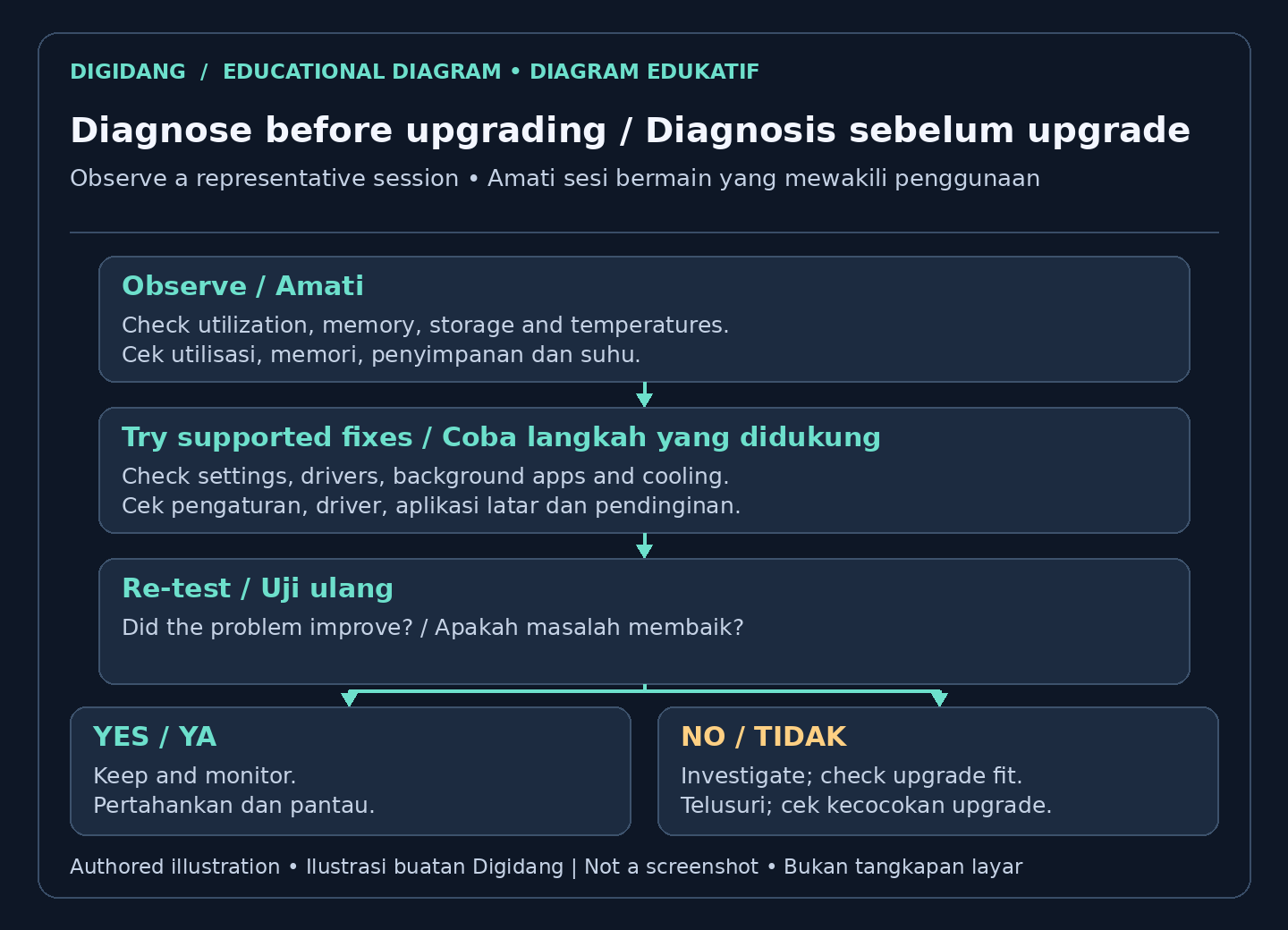
The PC upgrade to prioritize is the component that limits the games you play, not automatically the graphics card. Check utilization, memory pressure, storage behavior, and temperatures during a representative session. Before purchasing parts, confirm compatibility, power requirements, and physical space. Laptop upgrades may be limited, and a suitable settings adjustment may cost less than replacement.
Swapping a slow mechanical drive for a solid state drive transforms loading times and general responsiveness, even if it does not raise your frame rate. A processor upgrade helps in titles that lean heavily on the CPU, though it often requires a matching motherboard, which raises the cost. Before buying anything, confirm your power supply and case can support the new part, and prioritize the single component that is holding you back the most.
How can you improve gaming on a low spec PC?
Gaming on a low spec PC can improve when you choose compatible games and reduce demanding settings. Start with resolution, graphics presets, and unnecessary background programs, then test stability. Keep supported drivers updated and check cooling. These steps may help, but they cannot replace missing hardware features or guarantee a modern game will run acceptably.
Keep your graphics drivers current, because updated drivers frequently improve performance and fix stability problems in popular games. Make sure your computer stays cool, as overheating forces hardware to slow itself down and causes sudden drops in frame rate. With a clean machine, trimmed settings, and updated drivers, many older PCs can run modern games at a steady, enjoyable pace far better than their raw numbers might suggest.
For DirectX information specifically, use Microsoft’s official DirectX version instructions. The installed runtime version alone is not proof that your graphics hardware supports every feature a game requires. Read the game’s requirements alongside the diagnostic details and keep your component record available for future purchases.
Where can you find each PC component in Windows?
The table below maps each line of a system requirements list to where you can find it in Windows, based on Microsoft's guide to checking PC specs, Microsoft's DirectX version instructions, and the Windows storage guide for the Storage menu. Record the result for each line, then compare them one by one with the minimum and recommended requirements of the game you want.
| Component | Where to find it in Windows | What to match against the system requirements |
|---|---|---|
| Processor (CPU) | Settings, System, About; or System Information | The full model name on the Processor line, not just the brand or product family |
| Graphics card (GPU) | Display tab in dxdiag; Performance tab in Task Manager | The exact GPU model and its graphics memory on the Graphics line |
| RAM | Settings, System, About (Installed RAM) | System memory on the Memory line, kept separate from graphics memory |
| Storage | Settings, System, Storage | Free space on the Storage line, plus room for updates |
| Operating system | Settings, System, About (Windows version and system type) | Windows version and system type on the OS line |
| DirectX | System tab in dxdiag, under System Information | The requested DirectX version, read together with the graphics hardware feature support |
If a line does not match, note the gap instead of immediately concluding that the game cannot be played. Missing storage space can usually be solved; the Windows storage guide explains how to free up drive space, and you can also choose another drive as the install location if the launcher allows it. An unsupported operating system or a graphics card below the minimum, on the other hand, is a more serious obstacle. Telling the two apart helps you decide whether tidying up your PC is enough or whether you should hold off on the purchase.
How do you read the system requirements on a store page?
System requirements on a store page are usually listed line by line: operating system, processor, memory, graphics, DirectX, and storage. You can see this on the Stardew Valley Steam page, which lists its minimum requirements in that layout. Some games only show minimum requirements, so do not assume that a missing recommended column means the game will run comfortably at high settings.
Pay attention to the small notes under the list as well. Store pages sometimes carry extra remarks, for example about which operating systems are still supported or upcoming changes in support. Notes like these can matter more than the lines above them, especially if you use an older version of Windows or uncommon hardware.
On laptops, match the graphics model exactly. Many laptops have integrated graphics inside the processor in addition to a separate graphics card. If dxdiag or Task Manager shows more than one graphics device, make sure the one you compare with the requirements is the one the game actually uses. For example, a student using a laptop bought for classes should check this before buying a demanding game, because a similar series name does not always mean the same capability.
What mistakes are common when matching specs?
- Looking only at the brand or series. Requirements refer to specific models, so compare the full model names of the processor and graphics card, not just the brand.
- Leaving too little storage space. Game updates need space too, so keep some room free on the drive where the game will be installed.
- Skipping the operating system line. Powerful hardware can still be held back by an unsupported Windows version.
- Buying a code for the wrong platform. Your specs may match, but a Steam code can only be redeemed on Steam and other launcher codes only in their own launcher. Check the platform on the listing with the game key activation guide.
- Relying on a single source. Combine the official requirements, your Windows checks, and reviews from players with similar hardware.
A short routine you can repeat every time you buy: record your specs from Settings and dxdiag, open the system requirements section on the store page, compare line by line, then decide on realistic settings. If your PC sits near the minimum, the guide to optimizing your PC for gaming covers tweaks worth trying before you decide on an upgrade.
This matters because game codes bought from third parties generally cannot be returned through the platform store. Steam's refund policy, for example, states that Valve cannot provide refunds for CD keys purchased from third parties. Keep a note of your specs, match it against the requirements, and only then compare code prices from several sellers.
FAQ
What is the fastest way to check my PC specs?
Open Settings, go to System, then About for your CPU, RAM, and Windows version. For your graphics card, type dxdiag in the search box and open the Display tab to see the GPU model and video memory.
Which component matters most for gaming?
The graphics card usually has the biggest effect on gaming performance, followed by the processor and the amount of memory. When comparing a game to your PC, study the GPU line most closely.
What is the difference between minimum and recommended specs?
Minimum and recommended specs describe the developer’s stated compatibility tiers; performance targets vary by game and are not always specified. Aim for recommended when you can.
How do I find out my graphics card?
Use dxdiag and open the Display tab, or open Task Manager, go to the Performance tab, and select GPU. Read dedicated and shared graphics memory separately; shared memory is not equivalent to dedicated video memory.
Can I run a game if I only meet the minimum requirements?
Meeting the minimum makes compatibility more plausible, but it does not guarantee launch or a particular frame rate. Check the stated targets and test when possible.
What upgrade gives the best gaming boost?
For most players, upgrading the graphics card brings the largest gain in frame rate and visuals. Adding more memory or moving to a solid state drive also helps a great deal.
Do compatibility checker websites give accurate results?
They offer a useful starting point, but real performance depends on your settings, resolution, and how well the game is optimized. Use them as a guide, then confirm with gameplay footage from similar hardware.
Digidang Team
Gaming enthusiast and marketplace expert sharing tips, guides, and the best gaming deals.