What Is Anisotropic Filtering in Games and Why Max It Out
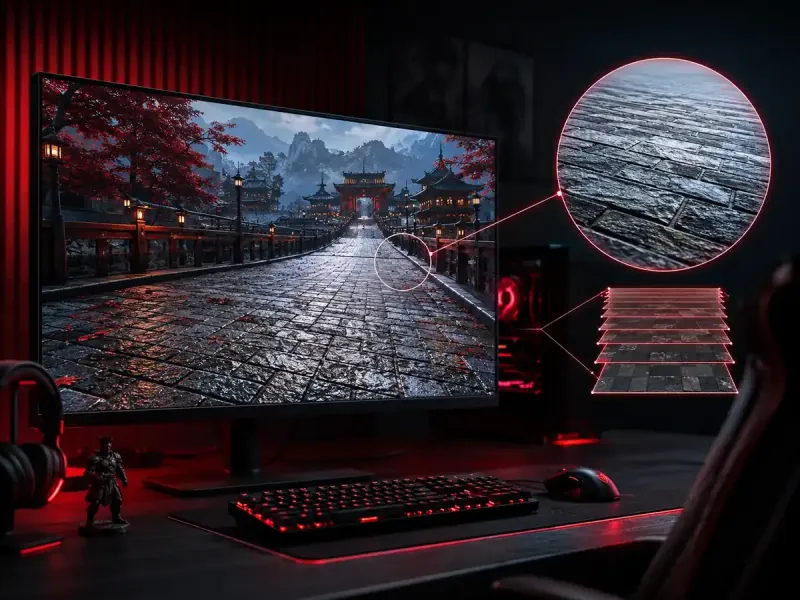
Anisotropic filtering in games is a texture sharpening technique that keeps surfaces crisp and detailed even when you view them at a steep, glancing angle, such as a long floor stretching into the distance or a road running toward the horizon. Without it, those angled surfaces turn into a blurry, smeared mess a short way from your character, which is one of the most common reasons a game looks soft and dated even on capable hardware. The best part is that this setting costs almost nothing in modern games, which is exactly why so many guides tell you to crank it all the way up. This article explains what anisotropic filtering does, why angled textures go blurry in the first place, how it compares to other filtering methods, and how to set it correctly.
What Anisotropic Filtering Actually Does
To understand this setting, you first need to know how games store and display textures. A texture is an image wrapped around a surface in the game world, like the photo of bricks on a wall or the pattern on a tiled floor. Because surfaces appear at many distances and sizes on your screen, the graphics hardware does not use one fixed copy of each texture. Instead it keeps several pre shrunken versions, called mipmaps, and picks an appropriately sized one depending on how far away and how large the surface looks from your viewpoint.
This mipmap system works beautifully for surfaces you look at head on, like a wall directly in front of you. The trouble starts with surfaces viewed at an angle. When you look down a road or across a floor, the surface is compressed much more in one direction than the other as it recedes into the distance. Standard filtering cannot handle that uneven, lopsided compression well, so it falls back to a blurrier, lower detail mipmap to avoid shimmering. Anisotropic filtering solves this by sampling the texture differently along each direction, taking more samples where the surface is stretched and fewer where it is not, which keeps the detail sharp all the way to where the surface meets the horizon.
Why Angled Surfaces Go Blurry Without It
The word anisotropic simply means direction dependent, and that is the whole idea. A floor stretching away from you is squashed vertically on your screen but barely squashed horizontally, so the amount of detail it needs differs depending on direction. Older and simpler filtering methods treat every direction the same, which forces a compromise. To prevent ugly flickering on the heavily compressed direction, the hardware blurs the whole surface, sacrificing the detail that the other direction could easily have shown.
The result is the telltale look that many gamers recognize without knowing the cause. The ground right under your feet looks reasonably sharp, but just a few steps ahead it dissolves into a vague, muddy blur, and the transition between the sharp zone and the blurry zone can even be visible as a distinct line that moves with you. Roads, runways, large open fields, tiled corridors, and any long flat surface are where this is most obvious. Anisotropic filtering removes that blur and pushes the sharp zone out toward the horizon, making the entire surface look consistent and detailed.
How It Differs From Other Filtering Methods
Texture filtering comes in a few flavors, and it helps to see where anisotropic filtering sits among them. The simplest is point or nearest filtering, which picks the single closest texture pixel and produces a blocky, pixelated look that flickers in motion. Bilinear filtering blends the four nearest pixels for a smoother result, but it still blurs angled surfaces badly. Trilinear filtering adds a smooth blend between mipmap levels so the transition between detail layers is no longer a hard line, yet it still cannot fix the angled blur problem on its own.
Anisotropic filtering builds on top of these by adding direction aware sampling, and it is usually labeled by a multiplier such as 2x, 4x, 8x, or 16x. That number describes how aggressively it samples along the stretched direction. Higher values keep textures sharp at steeper viewing angles and farther into the distance, with 16x being the maximum offered in most games and giving the cleanest result. The jumps in visual quality are largest at the lower steps and shrink as you climb, but because the cost is so small, there is little reason not to choose the highest level your game allows.
The Almost Free Performance Cost
The single most important practical fact about anisotropic filtering is how cheap it is on modern graphics hardware. Sampling a texture a few extra times is a trivial workload for a current graphics card, and the difference between 16x and turning it off entirely is often only a tiny percentage of frame rate, frequently within the margin of measurement error. Compared to heavy settings like high resolution shadows, ray tracing, or anti aliasing, which can each cost a large chunk of performance, anisotropic filtering is one of the best deals in all of graphics options.
This is exactly why experienced players and optimization guides recommend setting it to the maximum and forgetting about it. You gain a clear, lasting improvement in how sharp and grounded the world looks, especially during movement, while giving up an amount of performance so small that most people will never notice it. If you are tuning a game for the best balance of looks and smoothness, anisotropic filtering should be at or near the top of the list of settings to raise rather than lower.
When the Cost Can Be Noticeable
While it is nearly free on modern desktops and laptops, there are a few situations where you might still think about it. On very old or extremely low end hardware, on some integrated graphics, and on memory starved devices, the extra texture sampling and memory bandwidth it uses can have a slightly larger relative impact. Handheld systems and budget machines running demanding games at the edge of their ability may benefit from dialing it down a step rather than maxing it out, simply because every frame counts on those devices.
Even then, anisotropic filtering is rarely the first setting to cut. Texture resolution, shadow quality, view distance, and post processing effects usually offer far bigger frame rate savings for a similar or smaller hit to image quality. A sensible approach on weaker hardware is to lower the truly expensive settings first and only reduce anisotropic filtering if you are still a few frames short of your target. On any reasonably modern setup, leaving it at the maximum is almost always the right call.
Where to Find and Set It
You can usually control anisotropic filtering in two places, and it helps to know how they interact. The first is inside the game itself, in the graphics or video options, where it often appears as a slider or dropdown labeled anisotropic filtering, texture filtering, or simply AF with values from off up to 16x. Setting it here is the most reliable method because the game knows exactly how its own textures should be handled.
The second place is your graphics driver control panel, which lets you force a global filtering level across all games or override what an individual game requests. This is useful for older titles that do not expose the option in their own menus, letting you push their textures to a modern level of sharpness. If both the game and the driver are set, the driver override generally wins. As a simple rule, set it inside the game when the option exists, and reach for the driver override only when a game lacks the setting or you want to apply a consistent level everywhere.
How to Tell It Is Working
Confirming that anisotropic filtering is active is easy once you know what to look for. Find a long, flat, textured surface such as a road, a tiled hallway, a runway, or a wide stone floor, then look along it toward the distance. With the setting off or low, the surface will turn into a soft blur a short way ahead, often with a visible boundary between the sharp near zone and the blurry far zone. Walk forward and that blurry line will slide along with you, a clear giveaway that filtering is limited.
With anisotropic filtering set high, the same surface stays crisp and readable much farther into the distance, the pattern remains legible toward the horizon, and the moving blur boundary disappears or pushes far out of view. Toggling the setting between off and 16x while standing in the same spot is the most convincing test, since the before and after difference on angled ground is immediate and obvious. Once you see it, you tend to notice missing anisotropic filtering in every game that lacks it.
A Quick Recommendation
For the vast majority of players on modern hardware, the recommendation is short and simple. Set anisotropic filtering to 16x in every game that offers it, leave it there, and enjoy sharper ground, roads, and floors with effectively no impact on your frame rate. It is one of the rare graphics options that delivers a real, visible upgrade for almost no cost, which is why it sits near the top of nearly every optimization checklist.
Only consider lowering it if you are gaming on genuinely weak or thermally limited hardware and you have already trimmed the heavier settings without reaching your target frame rate. In that narrow case, stepping down from 16x to 8x or 4x can recover a little headroom while still looking far better than turning it off. For everyone else, treat anisotropic filtering as a set and forget upgrade that quietly makes your games look better every time you play.
A practical 16x baseline for modern PCs
My practical starting point is 16x because it improves the surfaces you stare at most often, while the heavier frame rate decisions usually sit elsewhere. NVIDIA's official 3D settings reference confirms that anisotropic filtering targets textures viewed at sharp angles and that higher levels favor image quality. Start with the in-game 16x option, play through a repeatable scene, and lower it only when testing proves your particular hardware needs the headroom.
Do not confuse texture clarity with lighting depth. If corners and contact points look flat rather than blurry, read our guide to ambient occlusion in games. Separating those two symptoms prevents you from changing the wrong setting and gives each adjustment a clear visual goal.
FAQ
Does anisotropic filtering hurt my frame rate?
On modern graphics hardware the cost is tiny, often only a small fraction of a percent, which is frequently within measurement error. That is why it is widely recommended to set it to the maximum. The cost can be slightly more noticeable on very old, integrated, or memory limited hardware.
What value should I use, 8x or 16x?
If your hardware can handle it, which almost any modern setup can, use 16x for the sharpest result at the steepest angles and farthest distances. The visual gains shrink as the number climbs, but since the performance cost is so small, choosing the maximum is usually the easiest and best choice.
What is the difference between anisotropic and trilinear filtering?
Trilinear filtering smoothly blends between texture detail levels to avoid hard transition lines, but it still blurs surfaces viewed at an angle. Anisotropic filtering adds direction aware sampling on top of that, keeping angled surfaces like floors and roads sharp where trilinear alone would blur them.
Why do floors and roads look blurry without it?
Angled surfaces are compressed much more in one direction than the other as they recede into the distance. Simple filtering treats every direction the same and blurs the whole surface to avoid flickering, which is why the ground ahead of you dissolves into a soft blur until anisotropic filtering corrects it.
Should I set it in the game or in my graphics driver?
Set it inside the game when the option is available, since the game knows best how to handle its own textures. Use the graphics driver control panel to force a level only for older games that lack the setting, or when you want one consistent level applied everywhere. If both are set, the driver override usually wins.
Is anisotropic filtering the same as anti aliasing?
No. Anti aliasing smooths jagged edges on objects and lines, while anisotropic filtering sharpens the detail of textures on angled surfaces. They solve different visual problems and are usually separate settings, so you typically use both together for the cleanest image.
Digidang Team
Gaming enthusiast and marketplace expert sharing tips, guides, and the best gaming deals.