How to Redeem a Nintendo eShop Code on Switch and Switch 2
To redeem a Nintendo eShop code, connect your Nintendo Switch or Switch 2 to the internet, open Nintendo eShop, pick your user, select Enter Code and type the 16-character download code. The download starts once you confirm. These steps follow Nintendo Support, checked on 2 October 2026.
This page is part of our game code activation hub, which also covers Steam, PlayStation, Xbox, Epic Games, Battle.net and Roblox. Digidang does not sell or give away codes. We compare prices and link to G2A, so this guide only explains how redemption works on Nintendo's side.
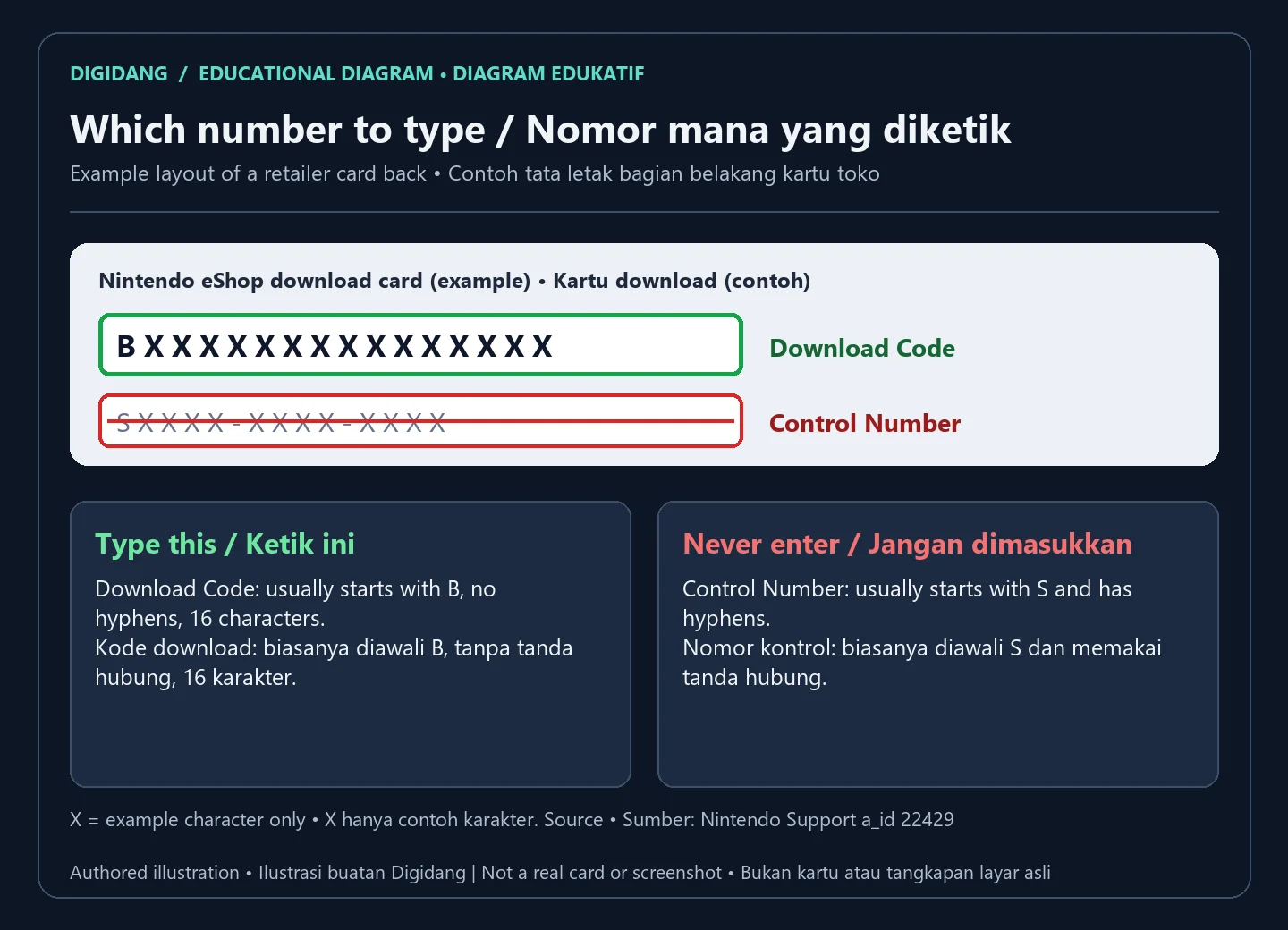
Which code do you actually enter on a Nintendo eShop card?
On a Nintendo eShop card or retail receipt, the code you enter is the Download Code, which usually begins with a B and has no hyphens. Some retailer cards also print a Control Number that begins with an S and contains hyphens. Nintendo eShop never accepts the Control Number (Nintendo Support).
Mixing up the two numbers is one of the most common reasons a fresh card seems invalid, so check which line you copied before assuming the card is faulty.
Download code, eShop Card or membership code: same box, different result
Nintendo uses one Enter Code box for several kinds of code. Its redemption article says codes for Nintendo Switch Online memberships and Nintendo eShop Cards are redeemed through the same process as game download codes (Nintendo Support). What changes is the result, as the table below shows.
| Code type | Where it usually comes from | Where you enter it | What happens after redeeming |
|---|---|---|---|
| Game download code | Retailer receipt or card, an insert in a hardware bundle, or an email | Enter Code in Nintendo eShop, or ec.nintendo.com/redeem in a browser | The game is added to your Nintendo Account and starts downloading |
| DLC download code | Retailer card or receipt | Enter Code in Nintendo eShop | The add-on is added to the account and shows as Purchased in that game's Downloadable Content section |
| Nintendo eShop Card | Prepaid card, with the code under a scratch-off area or printed only on the receipt | Enter Code in Nintendo eShop, or Add funds on the Account Home website | The full card value goes to your eShop balance; nothing downloads |
| Nintendo Switch Online code | Prepaid membership card or retailer code | Enter Code in Nintendo eShop | Membership time is added to the Nintendo Account |
The table draws on Nintendo Support articles about codes for software and DLC, adding funds with an eShop Card, eShop Card balances, lost or missing codes and Nintendo Switch Online memberships. For the bigger picture of how a code turns into a licence on your account, our guide on how digital game keys work covers it across platforms.
One practical detail matters for buyers: Nintendo notes that some eShop Cards sold through retailers have no scratch-off code at all, because the code is printed only on the purchase receipt (Nintendo Support). Losing that receipt can mean losing the code, so photograph it as soon as you get it.
What you need before you start
Nintendo Support lists three requirements for redeeming on the console (source):
- The download code itself, from the card, receipt or email.
- A Nintendo Switch 2 or Nintendo Switch console connected to the internet.
- A Nintendo Account set to a country where Nintendo eShop is available.
The country setting is the same idea as a region lock on other platforms: the account has to belong to a market where the eShop runs before any code can be applied.
Check the account country before anything else
Nintendo eShop always matches the country set on your Nintendo Account, and a download code only redeems on an eShop set to the same region as the game. Nintendo's own example is a code meant for the Americas, which cannot be redeemed with an account and eShop set to Japan (Nintendo Support). Nintendo eShop Cards follow the same rule: a card bought in one country can only be redeemed by accounts set to that country (source).
Nintendo's profile settings article lists the country or region of residence among the Nintendo Account details you can review and links to the steps for changing it. For a wider explanation of why gift cards and codes are tied to regions, read our guide to digital gift card regions.
Changing the country is not a quick fix
Moving your account to another country to fit a code has side effects. Nintendo says the eShop balance does not carry over when the account country changes, and remaining funds must be used before the country can be changed. Credit cards issued in one region also will not work in a different region's eShop (Nintendo Support). In practice it is simpler to buy a code for the country your account already uses.
Redeem a Nintendo eShop code on Switch or Switch 2
The steps are the same on Nintendo Switch, Switch Lite, Switch OLED and Switch 2 (Nintendo Support):
- Connect the console to the internet.
- Select Nintendo eShop on the HOME Menu.
- Select the user account you want to use. If user verification is turned on, enter your password or PIN when asked.
- Select Enter Code on the left side of the screen.
- Enter the download code, then select OK to confirm.
Nintendo notes that some letters and symbols are never used in download codes, such as O, I, Z and hyphens, and they are disabled on the on-screen keyboard. If your code seems to contain one of them, it is almost certainly a different character, for example a zero rather than the letter O (source).
After the code is accepted, the game icon appears on the HOME Menu with a download status bar, which disappears once the download finishes.
Screen by screen on the console
If your console is not online yet, open System Settings on Nintendo Switch 2, or Settings on Nintendo Switch, then go to Internet and Internet Settings, pick your network name (SSID), enter the Wi-Fi password and let the connection test finish (Nintendo Support). If the test fails, the console shows an error code, and Nintendo suggests searching its support site for that code.
Inside Nintendo eShop, the first screen asks which user to use. Pick the user linked to the Nintendo Account that should own the content. If user verification is on and you have forgotten the PIN, Nintendo's steps are to press the + button on the PIN screen, select Sign In and sign in to the Nintendo Account. The PIN is then deleted and verification switches to your account password (source).
Enter Code sits in the menu on the left. The on-screen keyboard disables characters that never appear in codes, which is a useful hint: if a key you need is greyed out, you are misreading that character. Type all 16 characters, select OK, and the download begins once the code is confirmed (Nintendo Support).
What you see after the code is accepted
A game code puts the game icon on the HOME Menu with a download bar. If you redeemed the code on a console that can load your virtual game cards, the game is loaded automatically when the download completes (Nintendo Support). Nintendo treats digital games and DLC bought through Nintendo eShop as virtual game cards, and up to two consoles can be linked to load them (Virtual Game Card Guide).
If you later delete the game or switch consoles, you do not need the code again. The history section further down shows where redeemed content is listed and how to download it a second time.
Codes for Nintendo Switch 2 games, editions and upgrade packs
Nintendo's article on the Switch 2 message lists four kinds of code that an original Nintendo Switch refuses: Nintendo Switch 2 exclusive games, bundles with both a Switch 2 game and a Switch game, Nintendo Switch 2 Edition games, and upgrade packs (Nintendo Support). With a bundle or a Switch 2 Edition, you can redeem the code on a Switch 2 or online and then download only the Nintendo Switch game onto your original Switch. Without a Switch 2, Nintendo points you to the retailer to ask about a refund.
If you are still choosing a console, our Nintendo Switch 2 overview explains what the newer console adds, and Nintendo's list above tells you which codes need it.
Redeem a Nintendo eShop code online
If you are away from the console, Nintendo also lets you redeem a download code online through Nintendo.com with your Nintendo Account. Its online redemption article adds one condition: you must have opened Nintendo eShop on a Nintendo Switch 2 or Nintendo Switch with that account first. The game then downloads to the console linked to the account.
Step by step on ec.nintendo.com
Nintendo's online steps are short (Nintendo Support):
- Open ec.nintendo.com/redeem in a browser.
- Select Sign in and enter the Nintendo Account email address and password. If you are already signed in, check the user name in the top-right corner.
- Enter the download code and select Next.
- Re-enter your Nintendo Account password when asked, then select Redeem.
Nintendo then sends a confirmation email to the address registered on the account, which is worth keeping with your proof of purchase. Nintendo also lists online redemption as one of the things to try when a code does not work on the console (source).
Adding eShop Card funds from the Account Home website
For eShop Cards there is a second web route. On the Account Home website (accounts.nintendo.com), sign in, open Funds and Payment Methods, select Add funds in the Nintendo eShop Funds section, re-enter your password and choose the eShop Card option. Nintendo of America says this route is available in the countries of its region that have Nintendo eShop, and a confirmation email follows once the funds are added (Nintendo Support).
Redeeming an eShop Card, DLC or Nintendo Switch Online code
All three use the same Enter Code screen as a game, but each ends differently. Knowing what to expect stops you from thinking a working code has failed just because no download appeared.
Nintendo eShop Card: funds, not a download
Open Nintendo eShop, choose the user, select Enter Code, type the 16-character code from the card and select OK, then Confirm and Add. The money goes to your eShop balance and nothing starts downloading (Nintendo Support). For U.S. accounts the total balance cannot exceed $800 USD, so spend some funds first if a card would push you over the limit.
A card always holds either its full value or nothing, because the entire balance moves to the account in one go. Nintendo's way to check an unused card is simply to try it in Nintendo eShop, which tells you if the card was already used (source). Our Nintendo eShop gift card guide explains what the balance can buy.
DLC download codes
Add-on codes go through the same Enter Code steps as games (Nintendo Support). To confirm the add-on reached your account, find the game in Nintendo eShop and look at its Downloadable Content section: anything marked Purchased is already yours (source). Purchases are listed per Nintendo Account, so redeem DLC on the account that owns the game.
Nintendo Switch Online membership codes
Nintendo confirms that membership codes are redeemed through the same Enter Code process (Nintendo Support). Two rules from its membership article are worth knowing first: memberships of different plans may run at the same time, and if you already have a family membership you cannot redeem a code for an individual Nintendo Switch Online + Expansion Pack membership (source). Plans, prices and what each tier includes are covered in our Nintendo Switch Online guide.
What the common error messages mean
Nintendo Support names two messages that confuse buyers most (Nintendo Support):
- "This download code is for software that includes content that is only accessible on Nintendo Switch 2." The code is for Switch 2 content and you are trying to redeem it on an original Nintendo Switch.
- "This code has already been used." The code was redeemed before, on your account or someone else's. Nintendo has a separate help article for this message.
For any other error, write down the exact message, keep a photo of the card or receipt, and search the code number on Nintendo Support. The seller will also ask for this evidence if you open a dispute.
Message and error code lookup
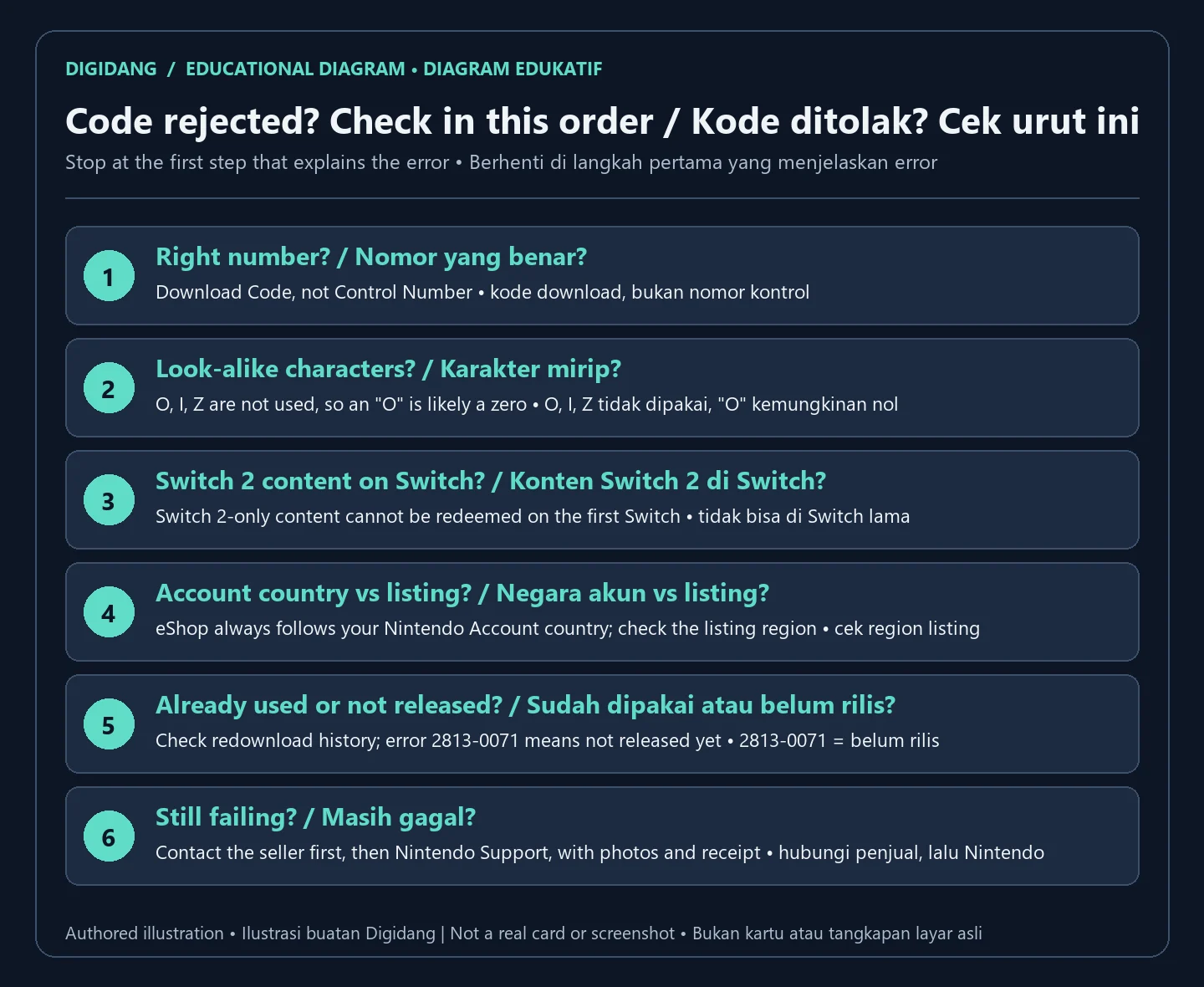
This table collects the messages and the one error code that Nintendo Support ties to download code and eShop Card problems, taken from its articles on download code problems, codes already used, Switch 2 only content and eShop Cards that do not work.
| Message or symptom | What it means | What to do |
|---|---|---|
| A number starting with S and containing hyphens is rejected | You typed the Control Number, not the Download Code | Enter the Download Code, which usually begins with B and has no hyphens |
| "This download code is for software that includes content that is only accessible on Nintendo Switch 2." | The code is for Switch 2 content and you are on an original Switch | Redeem on a Switch 2 or online; without a Switch 2, ask the retailer about a refund |
| "This code has already been used." | The code was redeemed before, on your account or another one | Check Virtual Game Cards or Transaction History; if the item is there, download it again, otherwise contact the retailer |
| Error Code 2813-0071 | You may be redeeming a code for a game that is not released yet | Check the release date on Nintendo.com and redeem after launch |
| Code refused on an account from another region | Codes only redeem on an eShop set to the same region as the game | Use an account set to the code's country, or give the code to someone who can redeem it |
| Nintendo eShop Card does not add funds | A character may be misread, or the account country differs from the card's country | Try look-alike characters, such as a 5 that might be a G or an S, and check the account country |
If the code is still refused
Nintendo's troubleshooting order is worth following as written (Nintendo Support, source):
- Type the code again, trying look-alike characters if you are unsure, for example a 0 that might be an 8 or a 5 that might be a 2.
- Try redeeming online at ec.nintendo.com/redeem.
- Check that the account country matches the country the code is for.
- Check your purchase history. If the item is there, the code was already redeemed and you can download it again without the code.
- If it is not there, the code may not have been activated correctly at the store, so contact the retailer that provided it.
- If the retailer cannot help, contact the game's publisher, or Nintendo when Nintendo published the game.
Lost the code instead? Nintendo's lost or missing code article separates retailer receipts, sealed game cases and hardware bundles, and notes that promotional codes from digital bundles can be found again in the email receipt and the account's purchase history.
How to check your redemption history and download again
Redeemed content belongs to the Nintendo Account, so the history can be checked in two places (Nintendo Support):
- On the console: select Virtual Game Cards on the HOME Menu and choose the user. The digital games bought with that Nintendo Account appear there; content from other accounts on the same console does not.
- On the web: sign in to the Account Home website, open Funds and Payment Methods and select Transaction History. It shows account activity going back up to two years, including promotional or bundled download codes.
Nintendo also emails a receipt for each Nintendo eShop transaction to the account that made it, and for child accounts the email goes to the parent or guardian (source). Searching your inbox is often the fastest way to find out which account a code went to.
Downloading a redeemed game again
If the game icon is still on the HOME Menu, select it and choose Download. If not, open Virtual Game Cards, pick the user, select the game and choose Load on This System. The game and any DLC you bought for it start downloading (Nintendo Support). You do not need to re-enter a code for content that already appears in your history (source).
A quick checklist before you type the code
Most redemption problems can be caught in under a minute if you run through these points first. None of them need special tools, only the card or email and your console.
- You are signed in to the Nintendo Account that should own the game, not a family member's profile.
- The account country matches the region printed on the card or shown on the listing.
- You copied the Download Code line, not the Control Number line.
- Any character that looks like O, I or Z is read as a number instead, because those letters are never used.
- The code is meant for the console you are holding, especially when it mentions Nintendo Switch 2.
- You have taken a photo of the card or saved the email before redeeming, so you still have proof if something goes wrong.
If every point checks out and the code is still refused, the problem is with the code itself rather than your setup, and the next step is the seller or Nintendo Support.
Buying a Nintendo eShop code safely
Read the region on the listing before paying and compare it with the country on your Nintendo Account. Check the console too, because Nintendo's error list shows that Switch 2 content will not redeem on an original Switch. On Digidang every Buy Now button opens a matching listing on G2A, and the order, warranty and refund follow G2A's terms for that listing, as explained on Is Digidang Safe?.
Treat offers of free Nintendo eShop codes with suspicion, especially when they ask for your Nintendo Account password. A code is only confirmed when Nintendo eShop accepts it.
Buying a code from a marketplace in Indonesia
On online marketplaces a seller may list a card or receipt photo, or send the code by chat after payment. Before paying, check that the listing names the code type (game, eShop Card or membership), the country it is for and the console, because those three facts decide whether Nintendo accepts it. Use our guide to checking whether a game code is genuine and the tips on safe digital product shopping before you order.
Redeem as soon as the code arrives and keep the chat, the receipt photo and a screenshot of any error. If Nintendo says the code has already been used and the item is not in your purchase history, Nintendo's own advice is to go back to the retailer that provided it (Nintendo Support). Our guide on checking digital game codes before redeeming lists more warning signs.
If your Nintendo Account uses another country
If your Nintendo Account is set to a country other than Indonesia, for example the United States or Japan, buy codes and eShop Cards issued for that same country. A card from one country only redeems on accounts set to that country (Nintendo Support), and moving the account to another country means using up the remaining balance first (source). Pick one country and stay with it.
Protect the account the code is redeemed on
Never send your Nintendo Account password or a verification code to a seller, even if they offer to redeem the code for you. Nintendo describes 2-step verification as an additional layer of security that can help prevent unauthorized access, and its profile settings article links to the setup steps. Our guide to securing game accounts with 2FA walks through it.
Other platforms
The activation hub lists the redeem steps for every major platform, and there are dedicated guides for redeeming a PlayStation Store code and redeeming an Xbox code.
For a side-by-side view of where each store expects its code, see where to activate game codes by platform.
Frequently Asked Questions
Which number on the card do I type into Nintendo eShop?
Type the Download Code, which usually begins with a B and has no hyphens. The Control Number, which usually begins with an S and has hyphens, is never accepted.
Can I redeem a Nintendo eShop code without my console?
Yes. Sign in at ec.nintendo.com/redeem with your Nintendo Account, enter the code and select Redeem, as long as that account has opened Nintendo eShop on a Nintendo Switch console at least once.
What happens after I redeem a Nintendo eShop Card?
The whole card value is added to your Nintendo eShop balance and nothing downloads. You then spend the balance on games, DLC or memberships in Nintendo eShop.
Why does Nintendo eShop say my code has already been used?
The code was redeemed before, on your account or someone else's. Check Virtual Game Cards or Transaction History, and if the item is not there, contact the retailer that sold the code.
Can I redeem a code from another region on my account?
No. A download code only redeems on a Nintendo eShop set to the same region as the game, and an eShop Card only works on accounts set to the country where it was sold.
Will a Nintendo Switch 2 code work on my original Switch?
No. Codes for Switch 2 games, Switch 2 Editions, bundles and upgrade packs must be redeemed on a Switch 2 or online, according to Nintendo Support. For a bundle or an Edition you can then download only the original Switch game onto your Switch.
Do I need to keep the card after redeeming?
Not to play, because redeemed content stays on your Nintendo Account and can be downloaded again without the code. Keep a photo of the card or receipt anyway as proof if a problem comes up.
Can I redeem Nintendo Switch Online codes the same way?
Yes, membership codes use the same Enter Code screen. If you already have a family membership, you cannot redeem a code for an individual Expansion Pack membership.
Does Digidang sell Nintendo eShop codes?
No. Digidang compares prices and links to G2A, and the order, warranty and refund follow G2A's terms for that listing.
Digidang Team
Gaming enthusiast and marketplace expert sharing tips, guides, and the best gaming deals.