How to Create a Steam Account
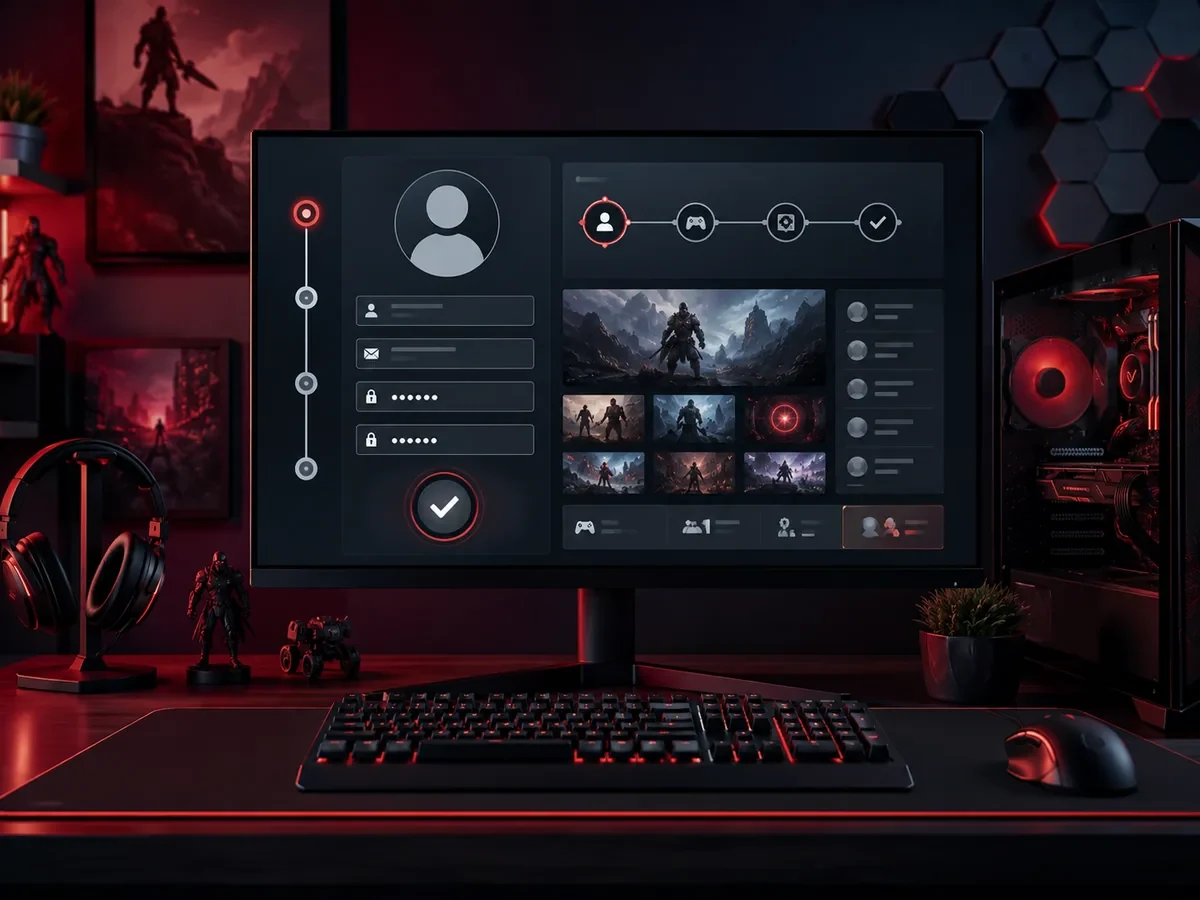
Creating a Steam account takes a few minutes and costs nothing: open the official Steam sign-up page, enter your email and country, verify the email, then choose an account name and password. After that, turn on Steam Guard so your games and wallet balance stay protected from day one.
A Steam account lets you buy, download, and play games, join communities, chat with friends, and keep every purchase tied to one login. This guide walks you through every step, from registering with your email to securing your account and completing your profile.
What Is Steam and Why Do You Need an Account?
Steam is Valve's digital store and game launcher for PC, and an account is what ties every game you buy to you. Because purchases live in your account rather than on a disc, you can install them on any computer simply by signing in. You create the account for free on Valve's official sign-up page.
An account also unlocks the social side of Steam. You can add friends, see what they are playing, join group chats, leave reviews, and collect achievements. Your saved games, settings, and purchase history all live in your account, which means you never lose access to a game you bought, even if your hardware changes. For these reasons, a Steam account is the foundation of modern PC gaming.
How to Create a Steam Account on the Website
The most reliable way to sign up is through the official Steam website. Open your browser and go to Steam's Create Your Account page, which you can also reach from the sign-in link at the top right of the Steam homepage. You will be asked for an email address and your country of residence. Use an email you control and check often, because Steam sends a verification message and important security alerts there.
After you enter your email, complete the box that confirms you are human, then accept the Steam Subscriber Agreement and privacy policy. Steam will send a confirmation email to the address you provided. Open that message and click the verification link or button to prove the email is yours. Once verified, you return to the sign up page to finish the final details.
The last step is choosing an account name and a password. The account name is the unique login you will type every time you sign in, and it cannot be changed later, so pick something you are comfortable keeping. The password should be strong and unique. When everything is filled in correctly, click the button to finish, and your new Steam account is ready to use.
How to Create a Steam Account in the Desktop App
You can also sign up directly inside the Steam desktop client. Download the installer from the official website, run it, and let it install on your computer. When you open the app, you will see a login window with an option to create a new account. Selecting it walks you through the same steps as the website: enter an email, verify it, then choose an account name and password.
Some players prefer the app because once you finish, you are already signed in and ready to browse the store and install games. Whichever route you choose, the account you create is identical. The website and the app share the same login, so you can switch between them freely. If you ever sign in on a friend computer through the website, remember to sign out afterward to keep your account private.
Setting Up Steam Guard for Security
Steam Guard is the built in two factor protection that keeps strangers out of your account even if they learn your password. After your account is created, the strongest option is the Steam Guard Mobile Authenticator inside the official Steam mobile app. Install the app, sign in, open the Steam Guard section, and follow the prompts to turn on the authenticator. It generates a fresh code every few seconds that you enter when logging in on a new device.
If you prefer not to use the phone app, Steam can instead email you a special code each time you log in from an unrecognized device. This email based protection is better than nothing, but the mobile authenticator is far more secure because it does not depend on your email staying safe. Whatever you choose, never share these codes with anyone. Legitimate support staff will never ask you for a Steam Guard code.
Completing Your Steam Profile
With your account secured, take a moment to set up your profile. Choose a friendly display name, which is different from your login name and can be changed any time. You can add an avatar, write a short bio, and pick a profile theme. A complete profile makes it easier for real friends to recognize you and adds a personal touch to your gaming presence.
You may also want to review your privacy settings. Steam lets you decide who can see your game library, your activity, and your friends list. New players often keep these private at first and open them up later as they get comfortable. Spending a few minutes here gives you control over how much of your gaming life is visible to others.
Adding a Payment Method (Optional)
You do not need to add any payment details to enjoy free games and demos, but if you plan to buy titles you can save a payment method for convenience. Steam supports many options that vary by country, including cards, digital wallets, and prepaid Steam Wallet codes, as described on Valve's Steam Wallet support page. Adding funds with a Steam Wallet code is popular because it lets you control spending without linking a card directly to your account.
If you add a card, make sure your account already has Steam Guard turned on so that sign-ins from new devices and trade confirmations need your approval. Treat your wallet balance and payment details with the same care as real money. Only enter payment information on the official Steam store, never on a link sent to you in chat or email, since fake pages are a common trick used to steal accounts and funds.
Account Security Tips Every Gamer Should Know
Your account holds real value once it has games and wallet funds, so protecting it matters. Use a password that is long, mixes letters, numbers, and symbols, and is not reused on other websites. A password manager makes this effortless. Keep Steam Guard turned on at all times, because it is your single strongest defense against account theft.
Never share your login details, and be deeply suspicious of anyone who asks for them, even if they claim to be staff or a friend. Phishing is the most common way accounts get stolen. Scammers send fake login pages, fake trade offers, and fake giveaways that look real. Always check that the web address is the official Steam domain before you type your password, and bookmark the real store so you are not tempted to click random links.
How to Check That Your Account Is Safe
Steam gives you tools to confirm your account is healthy. In your account settings you can view a list of devices that have recently signed in, so you can spot anything you do not recognize. If you see an unfamiliar login, change your password at once and revoke access from other devices. Reviewing this list every so often is a simple habit that catches problems early.
It also helps to keep your recovery email secure with its own strong password and two factor protection, because whoever controls your email can often reset other accounts. Make sure the email linked to Steam is one you still use and can access. With Steam Guard active, a strong password, and a protected recovery email, your account is well defended against the most common threats.
Troubleshooting Common Sign Up Problems
Sometimes the verification email does not arrive right away. Wait a few minutes, then check your spam or junk folder, since automated messages often land there. If it still does not appear, confirm you typed your email correctly and try requesting the message again. Using a well known email provider tends to be the most reliable for receiving these confirmations.
Another common snag is the human verification box failing repeatedly. If that happens, refresh the page, make sure your browser is up to date, and try disabling any extension that might interfere with images or scripts. If the desktop app gives you trouble, the website usually works as a backup, and you can always switch to it to finish signing up.
Is a Steam Account Really Free
Yes, creating a Steam account is completely free, and it stays free for as long as you have it. There is no membership fee and no required subscription. You can browse the entire store, install free games, join communities, and chat with friends without ever paying. Money only enters the picture when you decide to buy a game, add wallet funds, or purchase in game items.
This free model is part of why Steam is so popular. New players can explore the platform with zero risk, try free titles and demos, and only spend when they find something they truly want. Once you understand how the store and your library work, buying genuine game keys from trusted sellers and redeeming them on Steam is a smart way to grow your collection while staying safe.
FAQ
Is creating a Steam account free?
Yes. Making a Steam account is completely free. You only spend money when you choose to buy a game, add wallet funds, or purchase items.
Can I change my Steam account name later?
Your login account name is permanent and cannot be changed. However, your public display name is separate and you can change it any time in your profile settings.
Do I need a phone number to make a Steam account?
You do not need a phone number to sign up. You only need a valid email address. A phone with the Steam mobile app is recommended later for the strongest Steam Guard protection.
What is Steam Guard and should I use it?
Steam Guard is two factor protection that adds a code requirement when logging in. You should always use it, ideally through the mobile authenticator, because it is the best defense against account theft.
The verification email did not arrive, what do I do?
Wait a few minutes and check your spam or junk folder. Confirm your email was typed correctly, then request the message again. Using a well known email provider improves reliability.
How do I keep my Steam account safe from scams?
Use a strong unique password, keep Steam Guard on, never share login codes, and only enter your password on the official Steam site. Be wary of fake giveaways, trade offers, and login pages.
Can I use the same Steam account on more than one computer?
Yes. Your games and account follow you, so you can sign in on any computer and install your library. Just sign out when using a shared or public machine.
Digidang Team
Gaming enthusiast and marketplace expert sharing tips, guides, and the best gaming deals.