How to Connect a PS4 Controller to Steam via USB and Bluetooth
There are two ways to connect a PS4 controller to Steam: plug it into your PC with a USB cable, or pair it over Bluetooth by holding the SHARE and PS buttons until the light bar flashes. Once Windows recognizes the controller, Steam reads it through Steam Input, so most games work without extra drivers.
This guide walks through both methods step by step, the PS4 controller settings inside Steam, how to check whether a game supports controllers, and what to do when the controller is not detected. Every step was checked against the official PlayStation Support page and the Steamworks documentation, both opened on November 12, 2026.
Can You Use a PS4 Controller on Steam?
Yes. You can use a PS4 controller on Steam because Steam officially supports PlayStation controllers through its Steam Input feature. Connect the controller to your PC with a USB cable or Bluetooth, and Steam translates its buttons for the game you are playing, including games originally built only for Xbox controllers.
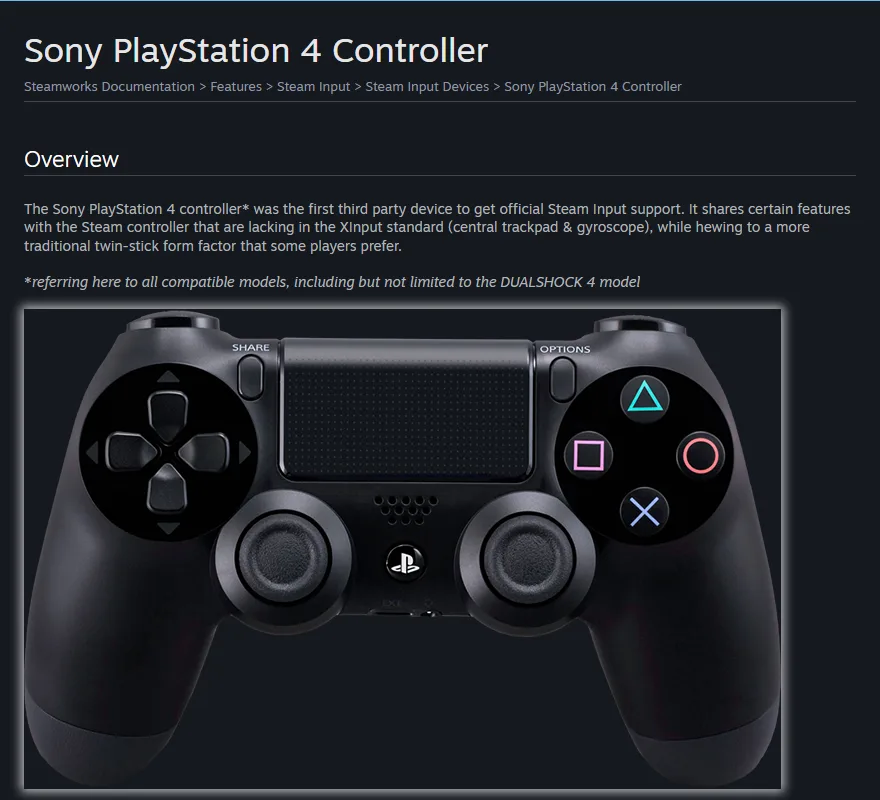
According to the Steamworks documentation from Valve, the PlayStation 4 controller was the first third party device to get official Steam Input support. The same page explains that it has features missing from the XInput standard used by Xbox controllers: a central touchpad, a gyroscope, and a programmable light bar.
In practice, you do not need a third-party controller emulator just to play Steam games. Those tools were popular before Steam Input matured, but today they often conflict with Steam because two programs try to read the same controller at once.
What to Prepare Before Connecting
Preparation is simple. Make sure the controller is charged, Steam on your PC is up to date, and you know which connection you will use: wired or wireless. The table below compares the three connection paths mentioned on the PlayStation support page.
| Connection | What you need | Advantages | Notes |
|---|---|---|---|
| Micro USB cable | A micro USB cable that carries data | Most stable, charges the controller at the same time | Charge-only cables will not be detected |
| Built-in PC Bluetooth | A laptop or PC with Bluetooth turned on | No cable and nothing extra to buy | Quality depends on the PC Bluetooth adapter |
| DUALSHOCK 4 USB Wireless Adaptor | The official Sony adaptor | Wireless without relying on PC Bluetooth | An older product that is hard to find new |
The PlayStation Support page says a DUALSHOCK 4 controller can be connected to a Windows PC using the official USB wireless adaptor or a compatible micro USB cable. If your desktop PC has no Bluetooth, the cable is the cheapest option and the one with the fewest problems.
How to Connect a PS4 Controller to Steam with a USB Cable
The wired method suits beginners best because there is almost nothing to configure. Follow these steps:
- Open Steam and sign in to your account.
- Plug the small end of a micro USB cable into the controller and the other end into a USB port on your PC.
- Wait a few seconds for Windows to recognize the device. The controller light bar turns on.
- In Steam, open the Steam menu, choose Settings, then the Controller section. Detected controllers appear on this page.
- Launch a game from your Steam Library and try pressing the controller buttons.
If the light bar does not turn on at all, the cable is most likely charge-only. Swap it for a data cable, for example an old phone cable that you can still use to move files to your PC.
How to Connect a PS4 Controller to Steam over Bluetooth
For a wireless connection, the controller first needs to enter pairing mode. The official steps are published on the PlayStation support page and summarized below.
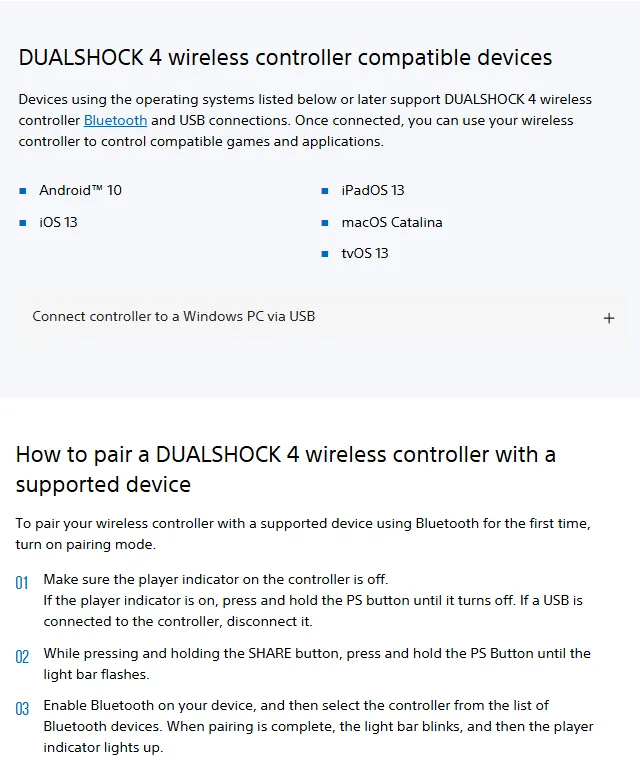
- Make sure the player indicator on the controller is off. If it is on, hold the PS button until it turns off. Disconnect any USB cable.
- While holding the SHARE button, press and hold the PS button until the light bar flashes quickly.
- In Windows, open Settings, choose Bluetooth & devices, then Add device and pick Bluetooth.
- Select Wireless Controller from the list of devices.
- When pairing succeeds, the light bar blinks and then the player indicator lights up. Open Steam and the controller is ready.
Bluetooth menu names can differ slightly between Windows versions, but the flow is the same: add a new Bluetooth device, then choose the controller listed as Wireless Controller. If the controller was paired with a PS4 before, this step connects it to your PC instead. To go back to the console, PlayStation Support says to connect the controller to the console with a USB cable and press the PS button.
Setting Up a PS4 Controller in Steam Input
Once the controller is detected, open the controller settings in Steam. Valve's official player guide explains that these settings are available from both the desktop client and Big Picture Mode.
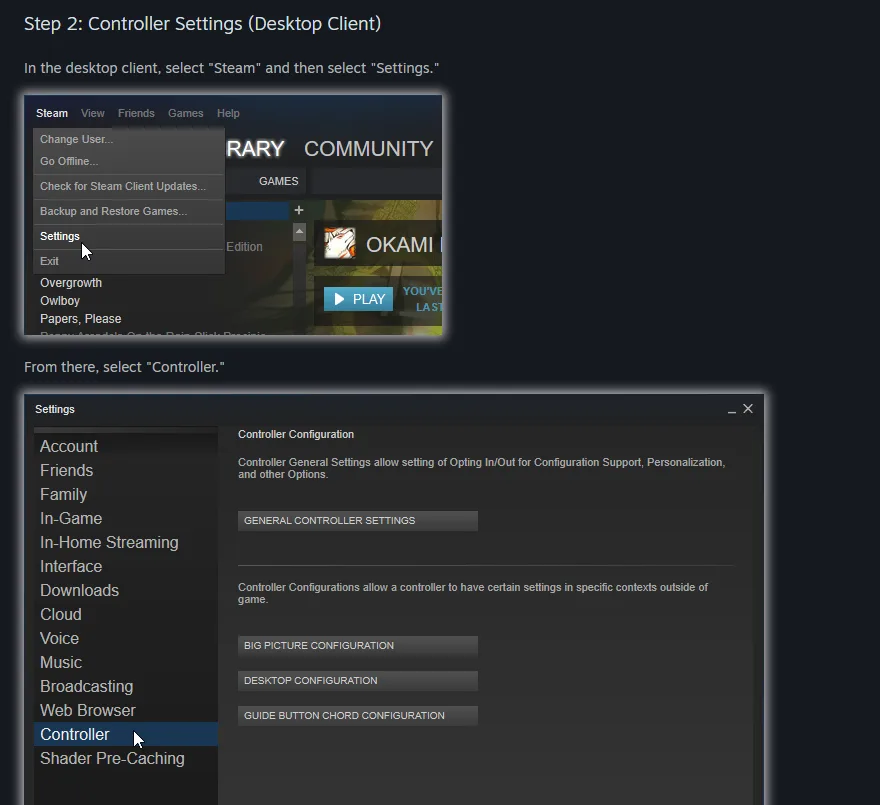
On the controller settings page, three things are the most common to adjust:
- PlayStation controller support. Make sure PlayStation support is enabled. Valve's guide asks players using a PlayStation 4, Xbox, or generic controller to tick the matching configuration support option.
- Per-game configuration. Right-click a game in your Library, open Properties, then the Controller section. Here you can use the default layout, pick a community layout, or turn Steam Input off for that game only.
- Guide button. The PS button acts as the Guide button in Steam, for example to open the Steam overlay while playing.
The PS4 controller also has hardware features you can use through Steam Input. The table below summarizes them based on the Steamworks documentation and how Steam uses each one.
| Controller feature | Input type | What Steam Input can do |
|---|---|---|
| Touchpad | Two-axis analog plus a click button | Used whole or split into two halves, can act as a mouse |
| Gyro sensor | Three-axis analog | Aim by tilting the controller in supported games |
| L2 and R2 triggers | One-axis analog | Steam can set a threshold between a soft pull and a full pull |
| SHARE and OPTIONS buttons | Digital | Free for games to use on PC, equivalent to SELECT and START |
| Light bar | Light output | Its color can be changed in Steam controller settings |
One note from that documentation: the L2 and R2 triggers on a PS4 controller are purely analog with no click at the end of the pull, unlike the Steam Controller. Steam Input works around this with a threshold you can set yourself, so games can still tell a soft pull from a full pull. Details are on the Sony PlayStation 4 Controller page on Steamworks.
How to Check Whether a Steam Game Supports Controllers
Not every Steam game is designed for controllers. Before buying, open the game's store page and look for the controller support information on the right side. The PlayStation gaming on PC page says the labels to look for are Full Controller Support or Partial Controller Support.
- Full Controller Support means the entire game, including menus, can be played with a controller.
- Partial Controller Support means some parts may still need a keyboard and mouse, such as settings menus or chat boxes.
- No controller label usually means the game was designed for keyboard and mouse. Steam Input can still map controller buttons to keyboard keys, but the result depends on the layout you build or choose from the community.
If you often buy games as codes, check this label before redeeming. We cover redeeming game codes on Steam in our guide to redeeming game codes on Steam, and how digital game codes work in general in our guide to how digital game keys work.
PS4 Controller Not Detected on Steam? Try These Steps
Most PS4 controller problems on Steam share the same causes: the wrong cable, a half-finished pairing, or two programs fighting over the controller. Try these steps in order, and test the controller after each one so you know which step worked.
- Swap the cable. Use a data cable, not a charge-only cable, and try another USB port on your PC.
- Remove the old pairing. In Windows Bluetooth settings, remove Wireless Controller and pair it again from scratch.
- Close controller emulator apps. Programs that turn a PS4 controller into an Xbox controller can conflict with Steam Input. Close them and test again.
- Adjust Steam Input per game. If buttons register twice or behave oddly, try turning Steam Input off for that game, or force it on if the game does not detect the controller.
- Reset the controller. Use the small reset button on the back of the controller.
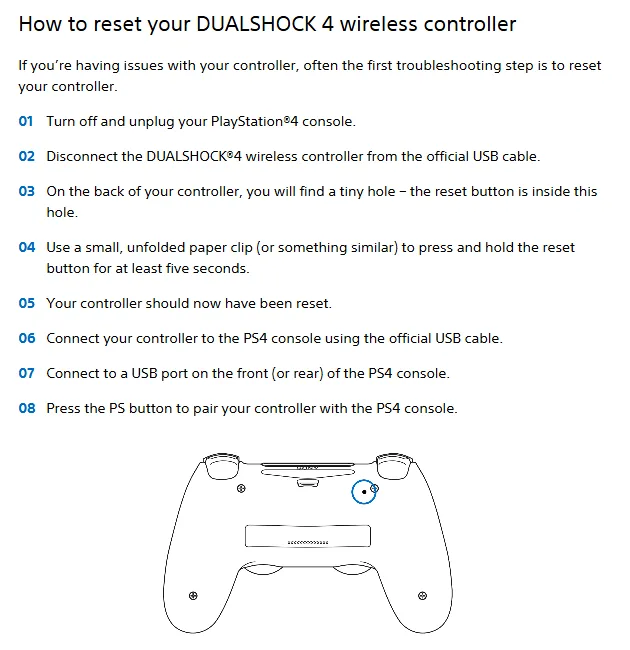
According to the PlayStation troubleshooting page, the reset button sits inside a tiny hole on the back of the controller. Press and hold it with an unfolded paper clip for at least five seconds. Then pair the controller with your PC again using the Bluetooth steps above, or connect it with a cable.
If you have tried everything and the controller is still not detected on another PC as well, the problem is probably the hardware itself, such as a loose micro USB port or a worn-out battery.
Features That Do Not Always Work on PC
A PS4 controller on PC does not always behave exactly as it does on the console. The PlayStation Support page states that on devices other than the console, some features are not available over Bluetooth: rumble, the motion sensor, and audio through the controller headphone jack.
On Steam, Steam Input can use the gyro and touchpad in games that support them, as the Steamworks documentation explains. Rumble and audio support still depend on the game and the connection type. If you need headset audio, plug the headset into your PC instead of the controller. If rumble matters to you, try the USB cable first before deciding the feature does not work.
Players who use a controller for competitive games should also know that some games enable aim help for controllers. We explain it in our article on aim assist in games. A stable internet connection also matters a lot for online games, and we share tips in our guide to internet plans for gaming.
PS4 Controller or Another Controller for Steam Games?
If you already own a PS4 controller, there is no reason to buy a new one just for Steam. Steam Input support for this controller is long-standing and mature. Its only drawbacks are the aging micro USB port and the weaker battery life that second-hand controllers often have.
If you are buying a new controller, choose one that Steam Input clearly supports and that fits how you play. Newer PlayStation controllers are also supported by Steam and pair in a similar way. Once the controller is ready, the next step is filling your library. You can add funds with a Steam Wallet code, and if you do not have an account yet, follow our guide on creating a Steam account. If a game turns out to be a poor fit for a controller, refund rules are covered in our digital game refund guide.
Frequently Asked Questions
Do I need extra drivers for a PS4 controller to work on Steam?
Usually not. Steam officially supports the PS4 controller through Steam Input, so a controller that Windows already recognizes over cable or Bluetooth works in Steam games right away. Third-party emulator apps often make buttons register twice.
How do I put a PS4 controller into pairing mode?
Turn off the player indicator by holding the PS button, disconnect any USB cable, then hold SHARE while pressing and holding the PS button until the light bar flashes. Then choose Wireless Controller in your PC Bluetooth list.
Why does my PS4 controller light up but not work over a cable?
The most common cause is a charge-only cable without data lines. Switch to a micro USB data cable and try another USB port. If it still fails, close any controller emulator app that may be running.
Can a PS4 controller play Steam games that only support Xbox controllers?
Yes. Steam Input translates PS4 controller input for games designed around the Xbox controller standard. On-screen button icons may still appear in Xbox style, depending on the game.
Does PS4 controller rumble work on PC?
Not always. PlayStation Support says rumble, the motion sensor, and headphone jack audio are not available on devices other than the console when connected over Bluetooth. On Steam, rumble support depends on the game, and a USB cable usually works better.
How do I move my PS4 controller back to the console after using it on PC?
Connect the controller to the PS4 console with a USB cable, then press the PS button. You can then unplug the cable and the controller works wirelessly with the console again. You may need to pair it with your PC again later.
How do I reset a PS4 controller?
Find the tiny hole on the back of the controller. Press the reset button inside it with an unfolded paper clip and hold for at least five seconds, then pair the controller with your PC or console again.
How can I tell whether a Steam game plays well with a controller?
Check the controller support information on the right side of the game's Steam store page. Full Controller Support means the whole game works with a controller, while Partial Controller Support means some menus may still need a keyboard and mouse.
Conclusion
Connecting a PS4 controller to Steam takes two big steps: connect the controller to your PC with a USB data cable or Bluetooth pairing using the SHARE and PS buttons, then check the controller settings in Steam. Steam Input handles the rest, including translating buttons for games built for Xbox controllers. If the controller is not detected, start with the simplest fixes: swap the cable, remove the old pairing, close emulator apps, and reset the controller. Before buying a game, check the controller support label on its store page so playing with a controller stays comfortable.
Digidang Team
Gaming enthusiast and marketplace expert sharing tips, guides, and the best gaming deals.