What Microsoft PowerPoint Is Used For: Window Parts, Key Features, and Licenses

Microsoft PowerPoint is used to create, edit, and present slide-based presentations that combine text, pictures, charts, video, and animation. People use it for class presentations, office meetings, training material, and even posters and short videos. It is available from the official PowerPoint page as part of Microsoft 365, as a one-time purchase, and as a free web version.
This guide explains what PowerPoint is, what it is used for, the parts of its window, the features worth learning first, the file formats it supports, its strengths and weaknesses, and how to get a legitimate license without falling for suspiciously cheap keys.
What Is Microsoft PowerPoint?
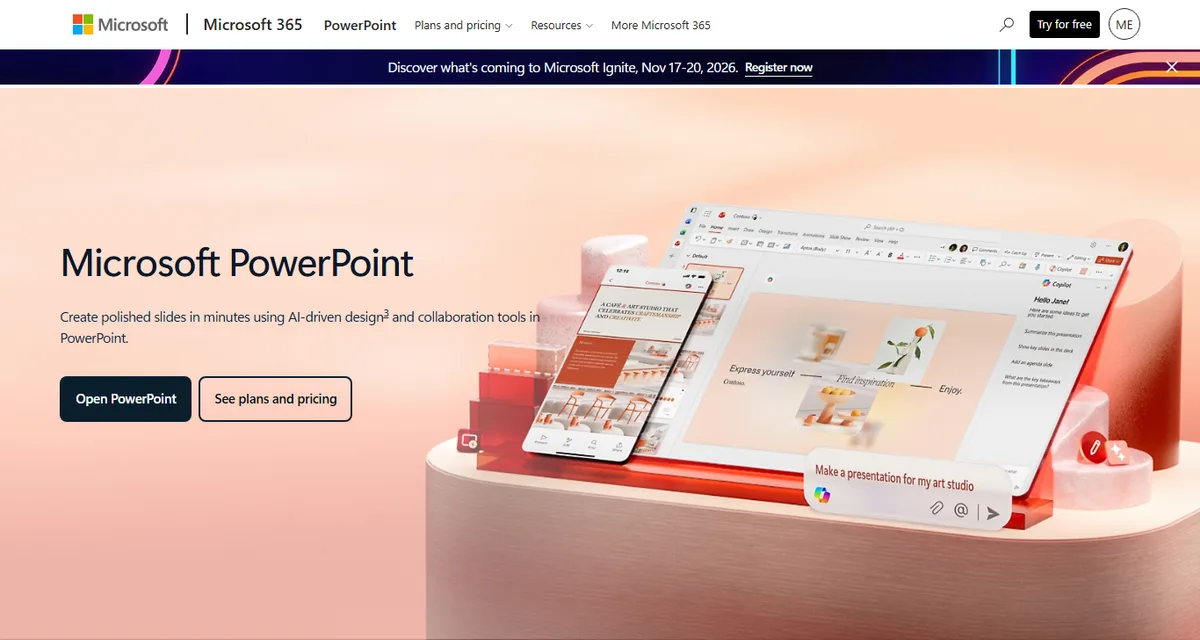
Microsoft PowerPoint is Microsoft's presentation app. A PowerPoint presentation is made of slides, pages that are shown one at a time on a screen or projector. Each slide can hold a title, short bullet points, photos, diagrams, tables, video, sound, and animation.
According to Wikipedia, PowerPoint was originally created by Robert Gaskins, Tom Rudkin, and Dennis Austin at a software company called Forethought, Inc. The first version was released on April 20, 1987, for Macintosh computers only. During development the product was called "Presenter", but the name was dropped because someone else had already registered it.
The same source says Microsoft bought PowerPoint for about 14 million US dollars roughly three months after its release. PowerPoint then became part of the Microsoft Office suite, first on Macintosh in 1989 and on Windows in 1990. Since then it has become the presentation app most schools, universities, and offices expect you to use.
In everyday language, a PowerPoint page is called a slide and the whole file is called a presentation, or a deck. Keeping these terms straight helps when you follow tutorials, because a "document" belongs to Word and a "workbook" belongs to Excel.
What PowerPoint Is Used For
PowerPoint does more than make slides. Broadly, there are six jobs that home users, students, and office workers rely on it for.
| Use | What it means | Typical example |
|---|---|---|
| Building presentations | Arranging slides with text, pictures, and charts | School projects, meeting reports, seminar material |
| Presenting to an audience | Full screen Slide Show and Presenter View | Talks in a classroom or meeting room |
| Visualising data | Charts, tables, SmartArt, and icons | Sales charts, process flows, org charts |
| Making other visuals | Slide size can be changed for posters or social posts | Event posters, infographics, greeting cards |
| Recording and exporting video | Presentations can be saved as MP4 or WMV | Tutorial videos, online class material |
| Collaborating | Several people edit one file through OneDrive | Group projects, team presentations |
The first two uses are why most people install PowerPoint. The others are often forgotten even though they are handy. Many people, for example, design simple posters in PowerPoint because the slide size can be set freely and the result can be saved as a PDF or PNG image.
If you use other Office apps, PowerPoint works well with them. Charts from Excel can be pasted onto slides, and an outline from Word can become your slide bullets. The basics of those two apps are covered in what Microsoft Word is and what Microsoft Excel is.
The Parts of the PowerPoint Window
Knowing the parts of the window makes you faster. The names are the same in almost every modern desktop version of PowerPoint, whether it comes from a subscription or a one-time purchase edition.
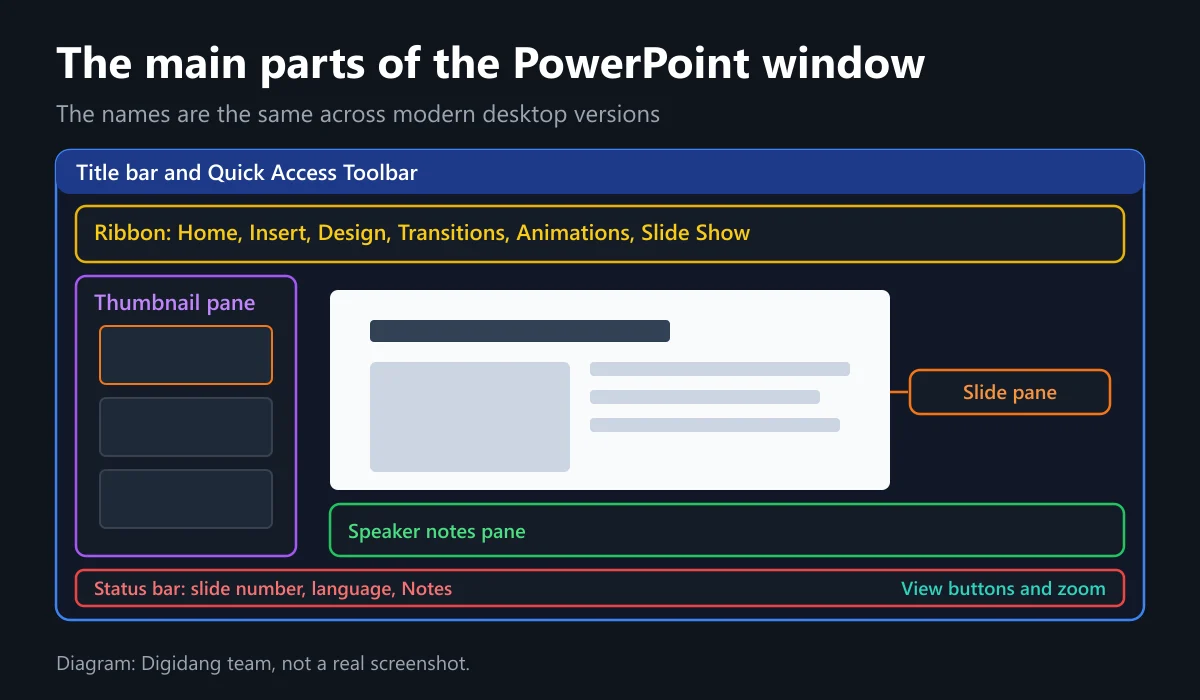
- Title bar and Quick Access Toolbar sit at the very top. They show the file name and quick buttons such as Save and Undo.
- The Ribbon holds the Home, Insert, Design, Transitions, Animations, Slide Show, Review, and View tabs. Each tab groups the buttons for one kind of task.
- The thumbnail pane on the left shows small previews of every slide. You can reorder slides by dragging them.
- The slide pane in the middle is the main work area where you type and arrange slide content.
- The speaker notes pane below the slide holds notes that only the presenter sees.
- The status bar at the bottom shows the slide number, language, view buttons (Normal, Slide Sorter, Reading, Slide Show), and the zoom slider.
The most underrated part is the notes pane. When you present with two screens, these notes appear on the presenter's laptop through Presenter View while the audience only sees the slides on the big screen.
PowerPoint Features Worth Learning First
PowerPoint has hundreds of features. These five make the biggest difference for everyday users.
Themes and templates. The Design tab offers themes that set the colours, fonts, and backgrounds of every slide at once. With a theme, the whole deck looks consistent without formatting each slide by hand.
Designer. According to Microsoft's support guide to Designer, this feature automatically suggests slide layouts for Microsoft 365 subscribers. The suggestions appear in a pane on the right when you add pictures or text, and you can open them from the Design tab at any time.
Presenter View. The Presenter View guide explains that the presenter can see notes, the next slide, and a timer on the laptop while the audience screen only shows slides. Newer versions of PowerPoint set it up automatically when a second monitor is connected.
Speaker Coach. This feature helps you rehearse before you present. The coach evaluates your pacing, filler words, and whether you are simply reading the slide text, then gives you a report after each rehearsal.
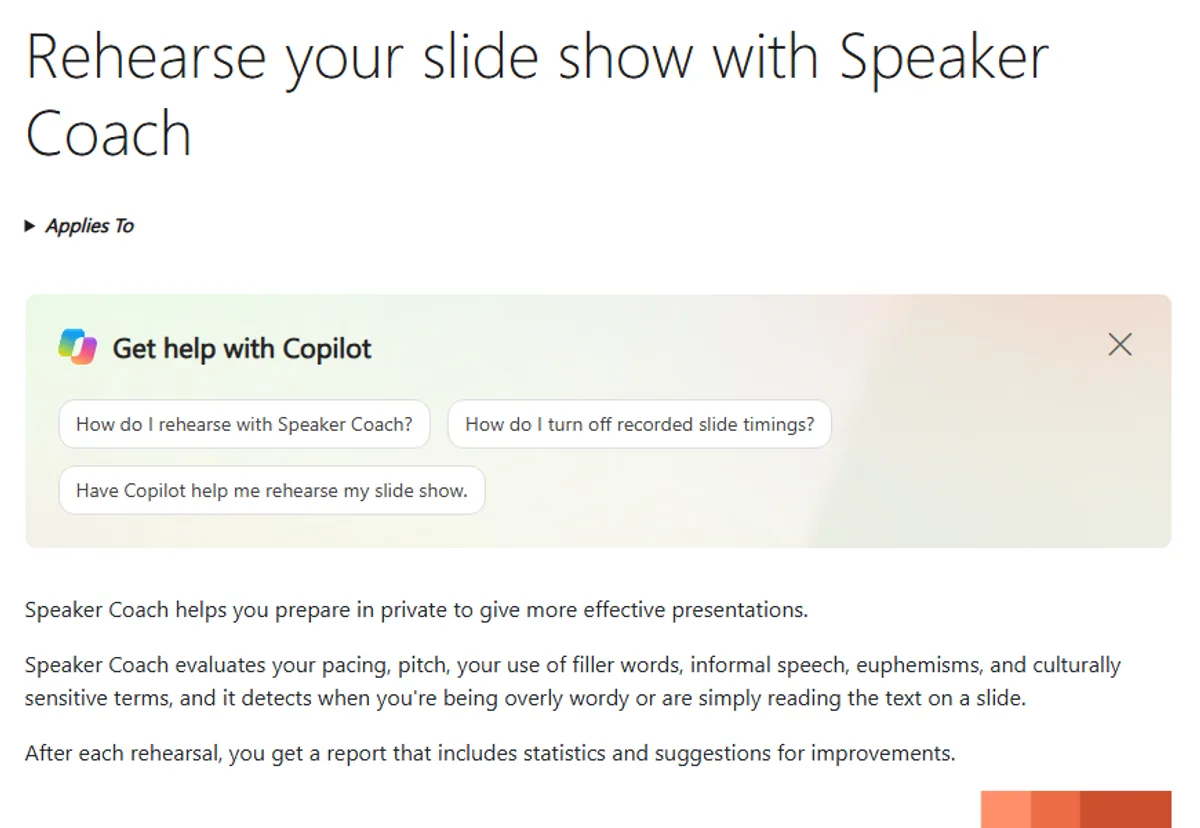
There is one limit people rarely mention. According to the Speaker Coach support page, it currently only understands English and is only available when your Microsoft 365 interface language is English. That makes it most useful for English presentations, such as international coursework or job interviews.
Copilot. The official PowerPoint page says Copilot can rewrite, reorganise, and add slides from a text request. Copilot is included in Microsoft 365 plans for individuals, but you still need to check what it produces, especially figures and names.
File Formats PowerPoint Supports
Modern PowerPoint files use the PPTX format. The older PPT format from PowerPoint 97 to 2003 still opens, but it is best to save it again as PPTX so every newer feature works.
| Format | What it is for |
|---|---|
| .pptx | The standard presentation format, opens on PC, Mac, and mobile devices |
| .pptm | A presentation that contains VBA macros |
| .potx | A design template for future presentations |
| .ppsx | A presentation that always opens in Slide Show view |
| A share-ready document whose layout does not change | |
| .mp4 and .wmv | A presentation saved as a video |
| .png, .jpg, .gif | A slide saved as an image |
| .odp | The OpenDocument format for other presentation apps |
This list is summarised from the official list of PowerPoint file formats. When you send material to someone who may not have PowerPoint, PDF is the safest choice. For a deck that will loop on a screen at a shop or event, save it as an MP4 video.
How to Make a Simple Presentation in PowerPoint
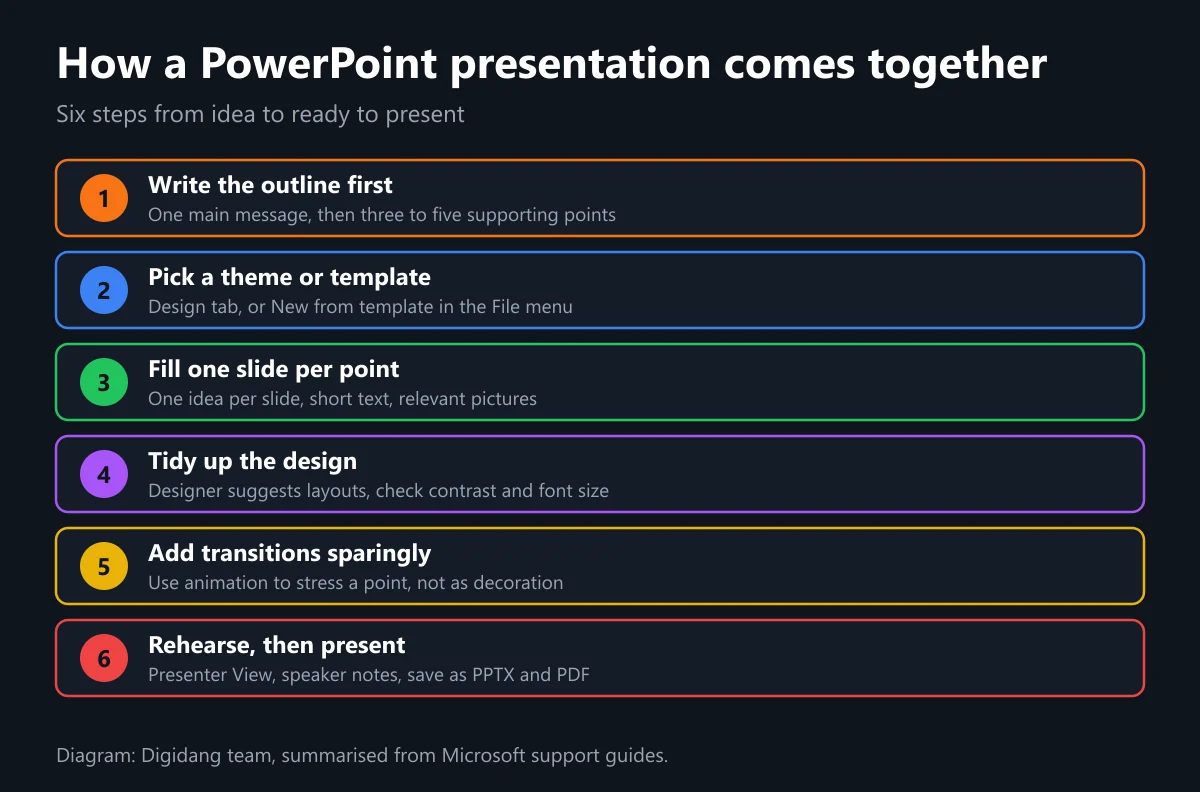
These steps suit beginners making their first presentation. The order is the same in desktop PowerPoint and PowerPoint for the web.
- Open PowerPoint and choose Blank Presentation or one of the templates.
- Type the presentation title on the first slide, then add new slides from the Home tab.
- Give each slide one main idea and three to five short points.
- Add pictures, charts, or icons from the Insert tab.
- Pick a theme on the Design tab so every slide matches.
- Add transitions sparingly on the Transitions tab.
- Write speaker notes in the pane below each slide.
- Run it from the Slide Show tab, then save it as PPTX and PDF.
The most common beginner mistake is filling slides with long sentences. The audience starts reading the slide and stops listening to you. Keep the full explanation in your speaker notes and let the slide carry keywords and supporting pictures.
The second mistake is using too much animation. Animations on every bullet make a presentation slow and tiring. Save animation for the one point you want to stress, such as a key sales figure.
Tips for PowerPoint Slides People Can Actually Read
PowerPoint only does its job when the slides are readable from the back row. These simple habits help.
- Use large enough fonts. Titles and key points must stay readable on a dim projector.
- Keep strong colour contrast. Dark text on a light background, or the other way round. Avoid red text on blue because it is hard to read.
- One slide, one message. If a slide needs two titles, split it into two slides.
- Use relevant pictures. Photos and icons should support the explanation, not just fill empty space.
- Embed your fonts. When saving, turn on font embedding so the layout does not change on other computers.
Finally, test the deck on the device you will use. Office and classroom projectors often have different resolution and colours from your laptop screen.
Strengths and Weaknesses of Microsoft PowerPoint
Before you buy a license, it helps to weigh the strengths and weaknesses honestly.
| Strengths | Weaknesses |
|---|---|
| PPTX is accepted by almost every school, university, and office | The full desktop app needs a subscription or a license purchase |
| Themes, templates, and Designer speed up design | Speaker Coach only supports English |
| Presenter View makes two screen presentations easy | Files with lots of video can become very large |
| Exports to PDF, images, and video | Custom fonts can change on another computer unless embedded |
| Collaboration through OneDrive and a free web version | Copilot needs an account and a qualifying plan |
For most students and workers the strengths clearly win. The font problem can be solved by embedding fonts when you save, or by sending a PDF copy as a backup.
How to Get PowerPoint Legitimately
There are three official ways to use PowerPoint. Choose the one that fits your needs and budget.
PowerPoint for the web, free. Microsoft offers free web versions of Word, Excel, and PowerPoint through the Microsoft 365 for the web page. All you need is a Microsoft account. It has fewer features than the desktop app, but it is enough for school work and simple presentations.
A Microsoft 365 subscription. As of October 2026, Microsoft's Indonesian plan comparison page lists Microsoft 365 Personal at Rp1,359,999 per year or Rp135,999 per month, and Microsoft 365 Family at Rp1,699,999 per year for one to six people. Both include desktop PowerPoint that is always up to date, plus cloud storage.
A one-time purchase. The same page lists Office Home 2024 at Rp2,279,999 for one PC or Mac. The version is fixed and does not receive new features the way the subscription does. We break down the subscription plans in our Microsoft 365 guide, and the full app list is in Microsoft Office apps.
| Option | Official price (October 2026, Indonesia) | Best for |
|---|---|---|
| PowerPoint for the web | Free with a Microsoft account | Students and light use |
| Microsoft 365 Personal | Rp1,359,999 per year | One person, several devices |
| Microsoft 365 Family | Rp1,699,999 per year | Families, one to six people |
| Office Home 2024 | Rp2,279,999 one-time | One computer you rarely replace |
At Digidang, licenses such as Microsoft 365 Personal 12 months and Microsoft 365 Family 12 months are available as digital codes. Compare them with the official prices above first, then make sure the region and activation method match your account.
Safety Tips for Buying PowerPoint and Office Licenses
Office licenses are among the most commonly faked digital products. Dishonest sellers offer very cheap keys that turn out to be stolen volume keys, keys already used by someone else, or "activators" that install malware. These five habits help you avoid that.
- Compare the price with Microsoft's official page. A price far below the official one is a warning sign.
- Redeem the license on your own Microsoft account, never on an account the seller creates for you.
- Do not install activators or "crack" programs. Besides breaking the license terms, they often carry malware.
- Protect your Microsoft account with two-step verification, as we explain in how to secure accounts with 2FA.
- Keep the proof of purchase and license code somewhere safe in case you need to make a claim.
A fuller checklist is in our safe digital shopping tips. If you also need Windows for a new computer, read the Windows license guide so your Windows and Office editions match. For tax questions, VAT on digital products explains why local store prices can differ from prices you see abroad.
Frequently Asked Questions
What is Microsoft PowerPoint used for?
PowerPoint is mainly used to create, edit, and present slide-based presentations. It is also used to visualise data with charts, design simple posters, record presentations as video, and collaborate with other people through OneDrive.
What is a page in PowerPoint called?
A page in PowerPoint is called a slide. A set of slides in one file is called a presentation, and the file is saved in the PPTX format.
Who created PowerPoint?
According to Wikipedia, PowerPoint was created by Robert Gaskins, Tom Rudkin, and Dennis Austin at Forethought, Inc. The first version was released on April 20, 1987, for Macintosh, and Microsoft bought it about three months later.
What are the parts of the PowerPoint window?
The main parts are the title bar, the Quick Access Toolbar, the Ribbon, the slide thumbnail pane, the slide pane, the speaker notes pane, and the status bar with the view buttons and zoom.
Can I use PowerPoint for free?
Yes. PowerPoint for the web is free with a Microsoft account in your browser. It has fewer features than the desktop app, but it is enough to build and present simple presentations.
Does Speaker Coach support languages other than English?
Not yet. According to Microsoft's support page, Speaker Coach currently only understands English and is only available when the Microsoft 365 interface language is set to English.
Which format is safest for sharing a presentation?
PDF is the safest because the layout does not change on other devices. Send the PPTX file as well if the recipient needs to edit the content.
Is a Microsoft 365 subscription better than a one-time purchase?
A subscription suits you if you use several devices and want the newest features such as Designer and Copilot. A one-time purchase suits you if you only use one computer and do not need new features.
Digidang Team
Gaming enthusiast and marketplace expert sharing tips, guides, and the best gaming deals.