What Is Microsoft Word: Uses, Interface, and License Options

Microsoft Word is a word processing app from Microsoft for writing, editing, formatting, and printing documents such as letters, reports, papers, and CVs. Its main job is producing tidy text complete with images, tables, and a table of contents. Word is available through a Microsoft subscription, a one-time purchase, and a free web version.
This article covers what Word is, a short history, the parts of the Word window, the features people use most, its file formats, and the legitimate license options. At the end you will find comparison tables and the questions people ask most before buying.
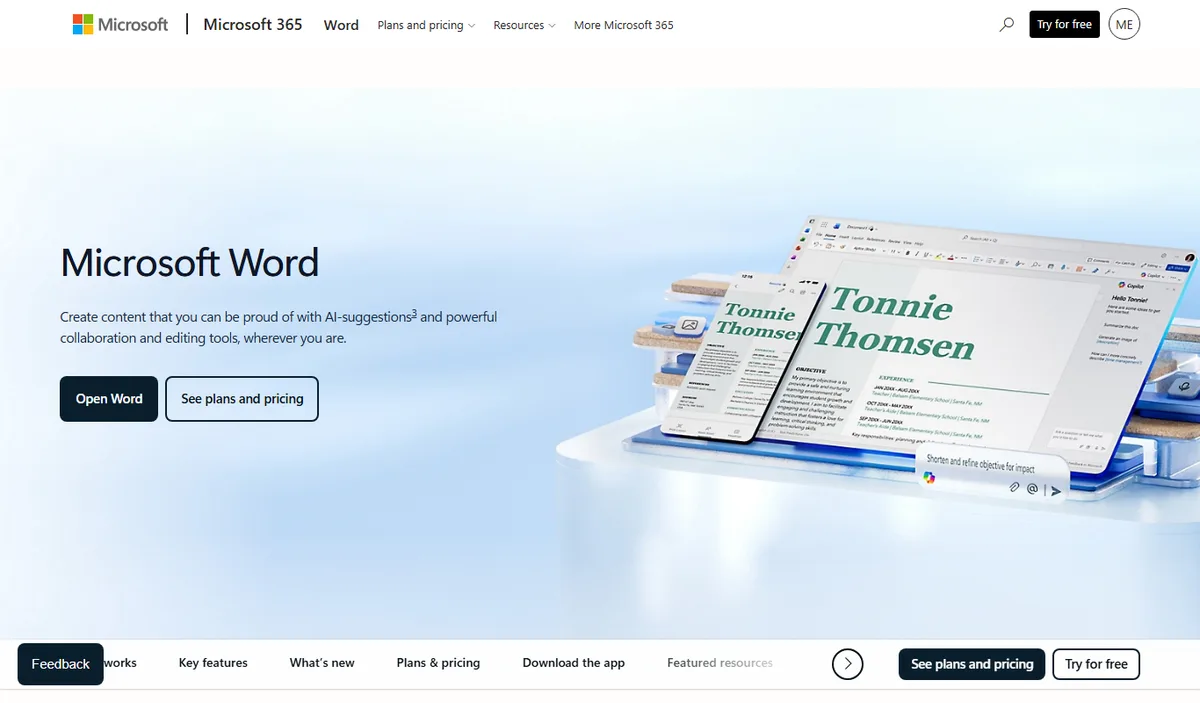
What Is Microsoft Word?
Microsoft Word is a word processor, the computer replacement for the typewriter. In Microsoft Word, the text you type can be changed at any time, moved around, styled, and then printed or shared as a file. The result is a clean document without retyping anything from scratch.
According to Wikipedia, Word was first released on October 25, 1983 under the name Multi-Tool Word for Xenix systems. It later arrived on Windows and Mac and became the most common word processor in offices, schools, and universities.
Today Word comes as a desktop app for Windows and Mac, mobile apps for Android and iPhone, and Word for the web, which runs in a browser. The same document opens in all of them, so you can start writing on a laptop and make edits from your phone.
Word is usually used alongside the other apps in the same bundle. For data and calculations, see what Microsoft Excel is. For the full picture of the bundle, read our list of Microsoft Office apps.
What Is Microsoft Word Used For?
Microsoft Word does far more than typing. These are the groups of features people use every day.
- Writing and editing text. Typing, copying, moving, and finding and replacing words across a whole document.
- Formatting documents. Setting fonts and sizes, spacing, alignment, margins, and heading styles.
- Inserting elements. Adding images, tables, charts, symbols, links, and page numbers.
- Building long documents. Automatic tables of contents, footnotes, captions, and bibliographies.
- Checking your writing. The spelling and grammar checker helps catch typos.
- Collaborating. Comments, Track Changes, and sharing through OneDrive make teamwork easier.
- Mass mailings. Mail Merge creates many letters or labels at once from a single data list.
At school and university, Word is used for papers, theses, and lab reports. At work it is the main tool for official letters, proposals, meeting minutes, and contracts. For personal use, many people rely on it for CVs and cover letters.
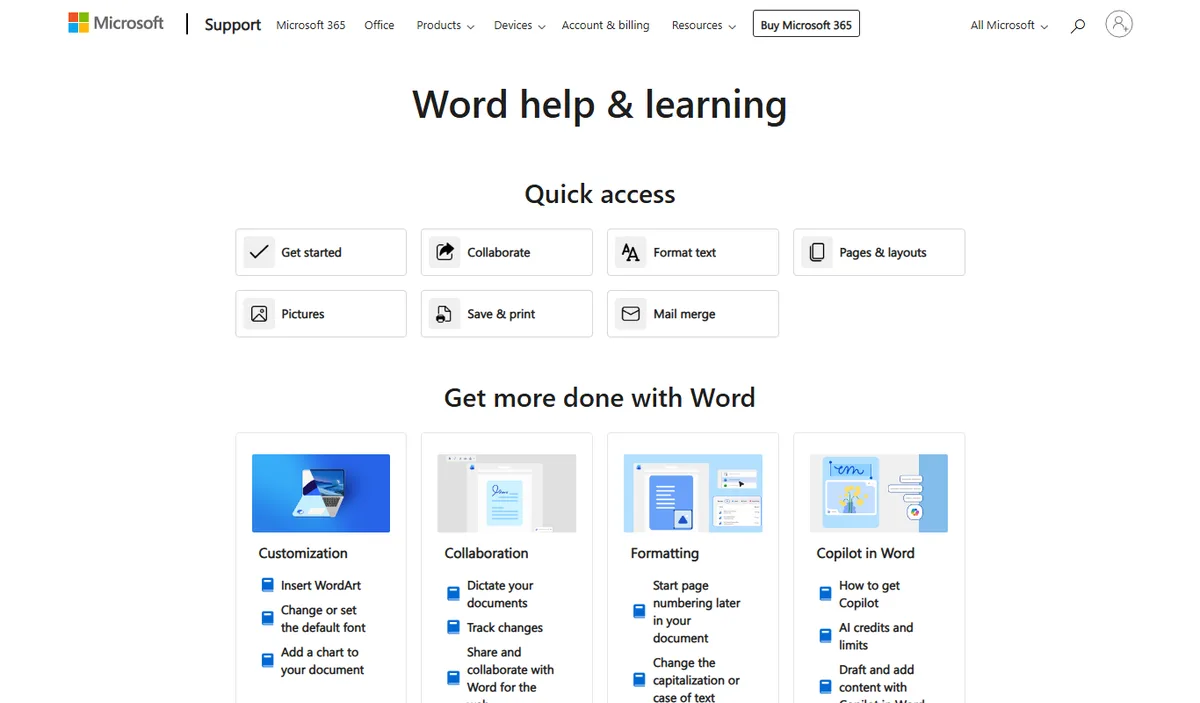
Microsoft publishes official guides for each of these features in the Word help and learning center, from text formatting and page layout to collaboration and Mail Merge. It is handy whenever you forget where a menu lives.
The Parts of the Microsoft Word Window
Knowing the parts of the Word screen makes tutorials easier to follow, because the names are the same in almost every modern version.
- Title bar, which shows the name of the open document.
- Quick Access Toolbar, with shortcuts such as Save and Undo.
- Ribbon, the row of tabs such as Home, Insert, Design, Layout, References, Mailings, Review, and View. Each tab holds groups of commands.
- Ruler, for setting paragraph indents and tabs.
- Document area, where you type and see the page.
- Status bar, which shows the page number, word count, and proofing language.
- View and zoom controls, for switching between read mode, print layout, and web layout, and for zooming in.
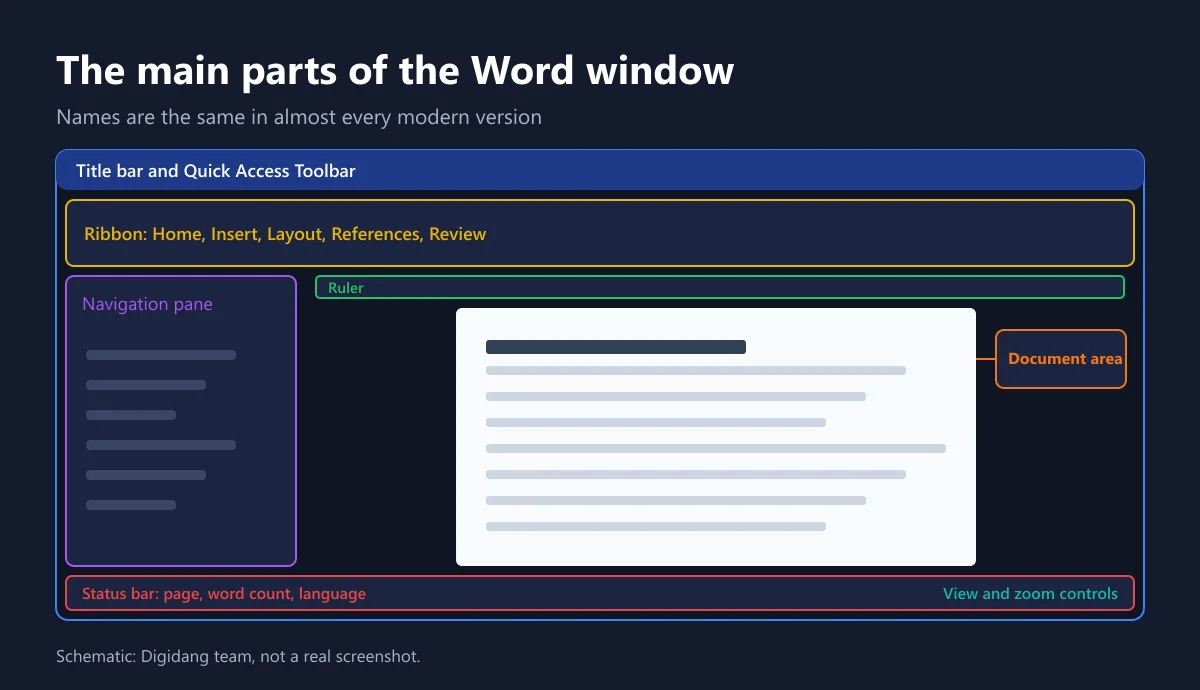
The tabs beginners open most are Home for text formatting, Insert for pictures and tables, and Layout for margins and page orientation. References is useful for tables of contents and footnotes, while Review holds the spelling checker and Track Changes.
File Formats Word Uses
Word's default format is a document with the .docx extension. According to Wikipedia, this Office Open XML format became the default for Microsoft Office starting with Office 2007. Older .doc files can still be opened and edited.
| Format | Use | Notes |
|---|---|---|
| .docx | Standard document | The default for almost every need |
| .doc | Older document | Still opens, best re-saved as .docx |
| .dotx | Document template | The base for new documents with consistent formatting |
| .docm | Macro-enabled document | Only open from trusted sources |
| Export for sharing | Looks the same on any device | |
| .rtf and .txt | Exchanging text with other apps | Some or all formatting is lost |
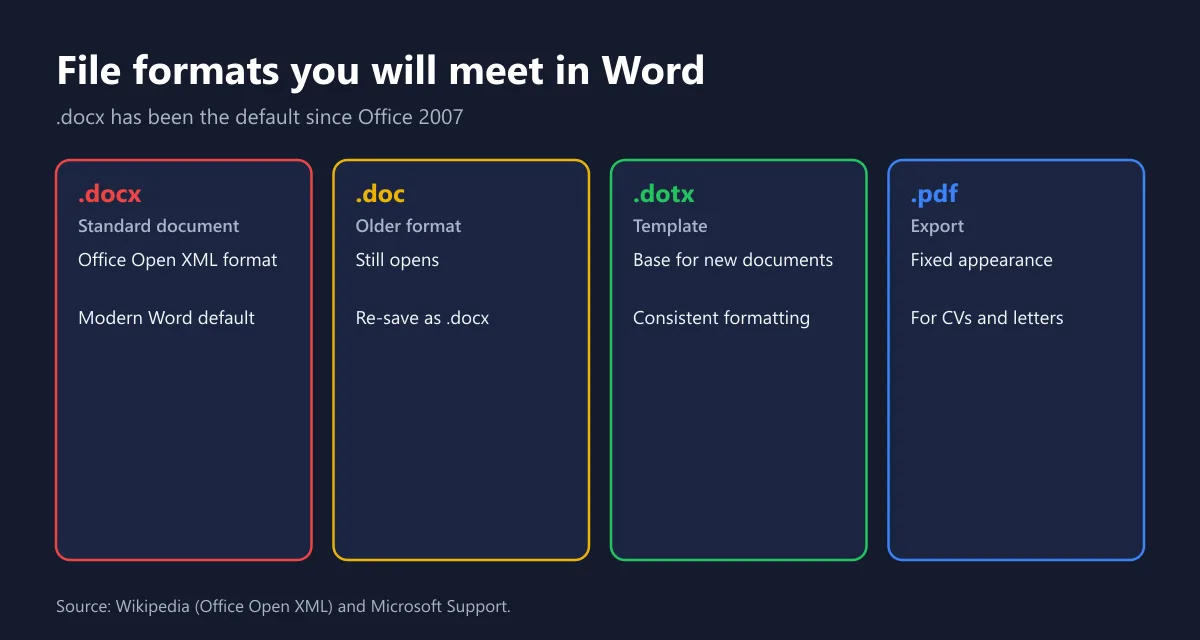
For documents that will be sent and must not change appearance, such as a CV or cover letter, save a PDF copy. For documents that are still being edited together, send the .docx file or share a OneDrive link.
Free Word, a Subscription, or a One-Time Purchase?
There are three legitimate ways to use Word. The right one depends on the features you need, how many devices you use, and how you want to pay.
- Word for the web. Free with a Microsoft account in your browser. Enough for typing and editing simple documents.
- Microsoft subscription. Gives you the latest desktop Word together with Excel, PowerPoint, Outlook, OneNote, and OneDrive storage.
- One-time purchase. Word can be bought on its own or in an Office bundle for one computer, with a fixed version.
Microsoft offers the free web apps through its Office for the web page. In the Indonesian Microsoft Store, the one-time Word license is listed at Rp2,899,999 for one PC or Mac, while the Personal plan, which already includes Word, Excel, and other apps, is listed at Rp1,359,999 per year.
Because Word on its own costs more than a year of the Personal plan, most home users come out ahead with a subscription, unless they truly only need Word on one computer for many years. The full plan comparison is in our Microsoft subscription guide.
Comparing Word License Options
The table below sums up the three legitimate ways to use Word. Use it as a starting point before you compare seller prices.
| Aspect | Word for the web | Subscription | One-time purchase |
|---|---|---|---|
| Payment | Free with a Microsoft account | Monthly or yearly | Pay once |
| Apps included | Word in the browser | Word, Excel, PowerPoint, Outlook, OneNote | Word only, or whatever the Office bundle contains |
| Feature updates | Follows the web version | Always the latest | Fixed version |
| Advanced features | Limited | Full | Full for that version |
| Best for | Light documents, access from anywhere | Regular use on several devices | One computer with stable needs |
If you only use Word now and then for light tasks, the web version is enough. For a thesis with an automatic table of contents, footnotes, and a long bibliography, the desktop app is more comfortable because the features are complete and it does not depend on an internet connection.
How to Buy a Word License Safely
Office keys that are extremely cheap often come from licenses that were never meant for individuals. Follow these steps so your money is not wasted.
- Choose the route first: subscription or one-time purchase.
- Match the product name with personal use. Professional Plus and LTSC editions are generally meant for organizations.
- Compare with the official price in the Microsoft Store.
- Ask how activation works and make sure the code is linked to your own Microsoft account.
- Keep the receipt and activation code.
- Check the license status on your Microsoft account page after activation.
Microsoft Learn explains that Office LTSC 2024 is available to organizations through volume licensing agreements. So before buying a Professional Plus key, ask where it comes from. On Digidang you can compare Microsoft 365 Personal, Microsoft 365 Family, and Office 2024 Professional Plus with the official prices.
Once the license is active, protect your Microsoft account, because that is where your subscription and OneDrive documents live. Microsoft explains two-step verification on its support site. The steps are also in our Microsoft account guide and our guide to securing accounts with two-step verification. Keep your passwords in a password manager as described in our 1Password guide.
How to Create an Automatic Table of Contents in Word
The automatic table of contents is the feature students and report writers search for most. It pulls chapter headings straight from the document, so page numbers stay correct after an update.
- Select the first chapter title and apply the Heading 1 style on the Home tab.
- Repeat for every chapter title. Use Heading 2 for sections and Heading 3 for smaller parts.
- Place the cursor on the page where the table of contents should appear.
- Open the References tab, click Table of Contents, and pick one of the automatic styles.
- Whenever the content changes, right-click the table of contents and choose Update Field.
- Choose Update entire table if there are new headings, or Update page numbers only if only pages moved.
A common mistake is typing the table of contents by hand or bolding headings without using a Heading style. That makes page numbers go wrong as soon as content grows. With Heading styles, the navigation pane on the left also comes alive, letting you jump between chapters in one click.
The same steps apply to lists of figures and tables. Add a caption to every image and table with Insert Caption, then build the list from the References tab. Numbering adjusts on its own when you move images around.
Word on Phones and Tablets
The Word app for Android and iPhone makes it easy to open document attachments, read drafts, and make quick edits away from your laptop. Documents saved to OneDrive show up in the recent list right away, so there is no need to email files to yourself.
On a small screen, use the mobile view so text fits the width of the display. Heavy work such as laying out a thesis or running Mail Merge is still more comfortable on a computer. Think of the mobile app as a companion for reading, commenting, and small fixes.
Word or Google Docs: Which Fits You Better?
Many people compare Word with Google Docs because both are word processors. Google Docs runs in the browser and shines at live collaboration. Word shines at long documents with complex formatting, such as theses, books, or legal documents that must follow a specific template.
The choice also depends on where you work. If your office or campus asks for .docx files based on an official template, Word is the safest choice because formatting does not shift when the recipient opens it. If your team already lives in the Google ecosystem, Google Docs is fine for simple documents and can export to Word format when needed.
Tips for Tidy Documents in Word
A tidy document is not about pretty fonts but about consistency. These habits make long documents much easier to manage.
- Use Heading styles. They power the automatic table of contents and the navigation pane.
- Do not press Enter over and over. Use a Page Break so each chapter always starts on a new page.
- Set spacing through paragraph settings, not blank lines.
- Caption images and tables with Insert Caption so numbering is automatic.
- Turn on AutoSave by keeping documents in OneDrive.
- Check spelling before sending, then reread once in read mode.
Finally, give files clear names, such as a short title and a revision date written out in words, rather than just "new document". Clear names help you and your colleagues find the latest version, especially when a document goes back and forth for review.
For English documents, an extra grammar checker can help spot awkward sentences. We cover the options in our Grammarly guide. If a document contains numerical data, process it in Excel first and then paste it as a table or chart so it is easy to update.
Frequently Asked Questions
What is Microsoft Word in simple terms?
Microsoft Word is a word processing app from Microsoft for writing, editing, formatting, and printing documents such as letters, reports, papers, and CVs.
What is Microsoft Word mainly used for?
It is mainly used for writing and editing text, formatting documents, inserting images and tables, building tables of contents and footnotes, checking spelling, collaborating through comments, and creating mass mailings.
Can I use Microsoft Word for free?
Yes, through Word for the web with a Microsoft account. The web version handles simple documents, while the full desktop features need a subscription or a one-time purchase.
When was Microsoft Word first released?
According to Wikipedia, Word was first released on October 25, 1983 under the name Multi-Tool Word.
What is the difference between .doc and .docx files?
A .docx file uses the Office Open XML format that modern Word saves by default, while .doc is the older format. Both open in current versions of Word, but .docx is recommended for new documents.
Is it cheaper to buy Word alone or subscribe?
According to the Indonesian Microsoft Store, one-time Word costs Rp2,899,999, while the Personal plan at Rp1,359,999 per year already includes Word and other apps. A subscription is cheaper for the first few years.
Can several people work on a Word document together?
Yes. Save the document to OneDrive and share the link. Colleagues can edit at the same time and leave comments, and you can review every change with Track Changes.
How can I make sure my Word license is genuine?
Buy from a seller who explains where the key comes from, match the product name with personal use, link the code to your own Microsoft account, and check the license status on your Microsoft account page after activation.
Digidang Team
Gaming enthusiast and marketplace expert sharing tips, guides, and the best gaming deals.