Microsoft Office Apps: The List, What Each Does, and Which Edition to Pick

Microsoft Office apps are a set of productivity apps from Microsoft, mainly Word for documents, Excel for spreadsheets, PowerPoint for presentations, Outlook for email, and OneNote for notes. These apps come through a Microsoft subscription, a one-time Office purchase, and a free web version.
This guide lists the Microsoft Office apps and what each one does, explains the difference between subscription and one-time editions, shows which apps come in each edition, gives a short history, and walks through choosing a legitimate license without falling for cheap keys.
What Are Microsoft Office Apps?
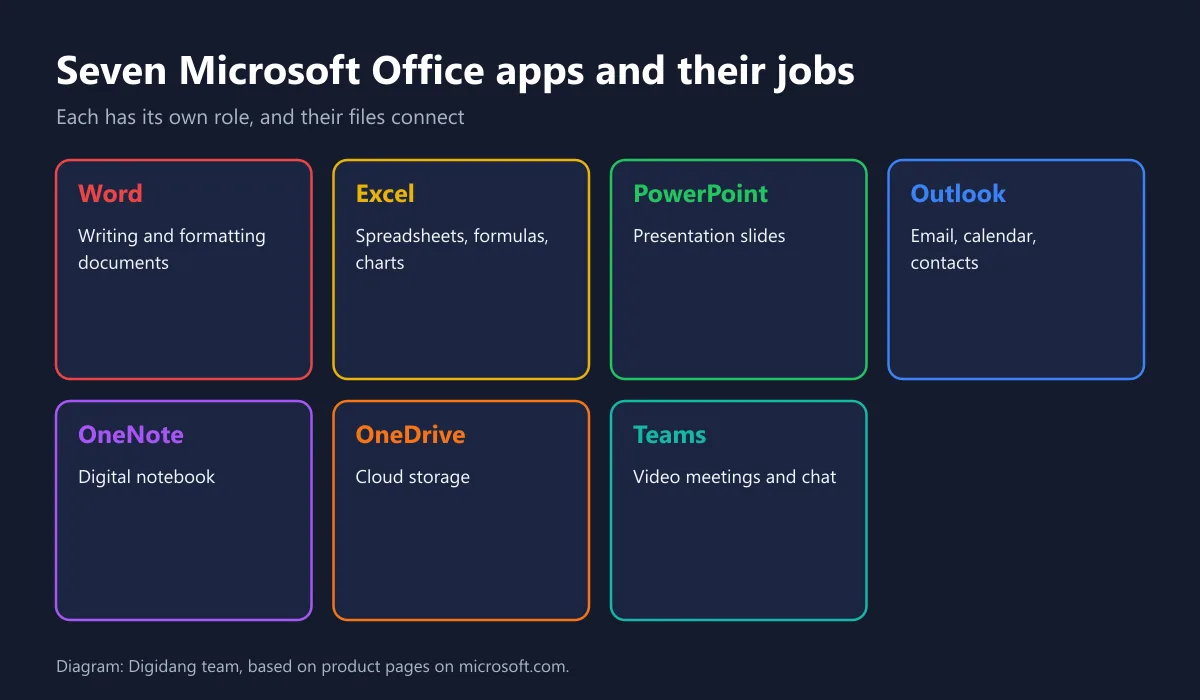
Microsoft Office apps are Microsoft's office software bundle for writing documents, working with data, building presentations, managing email, and keeping notes. Each Office app has its own job, but their files connect to one another and can live in one place through OneDrive.
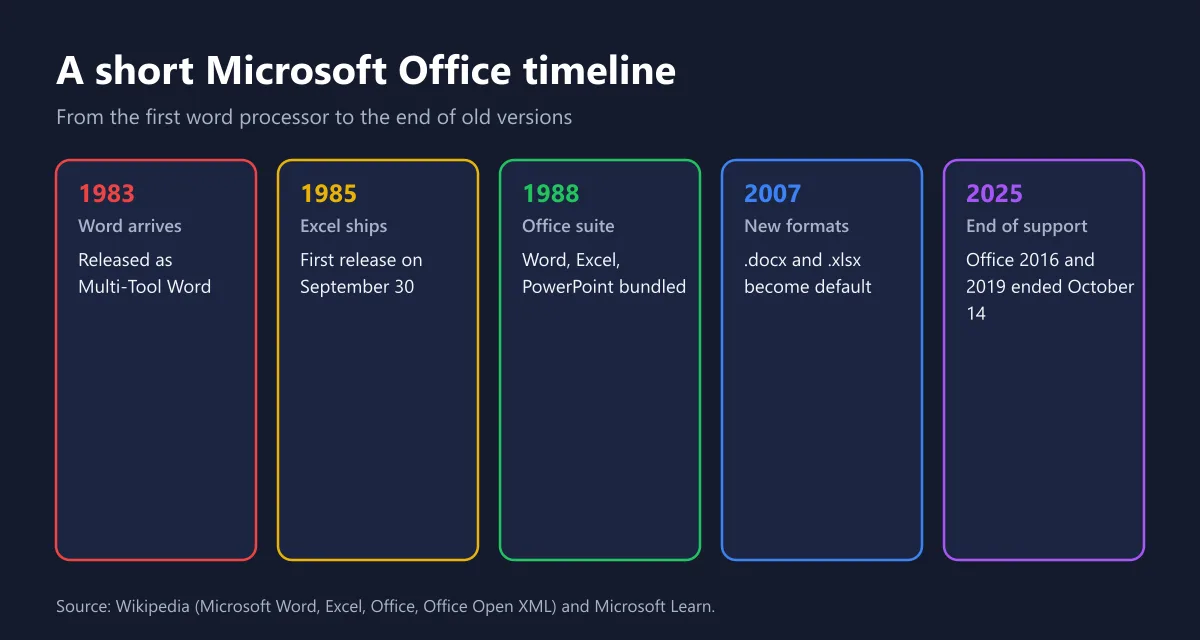
According to Wikipedia, the first version of the Office suite was announced by Bill Gates on August 1, 1988 at COMDEX and contained Word, Excel, and PowerPoint. Since then the bundle has kept growing and the way you buy it has changed too.
Today Microsoft sells Office apps in two main models. The first is a subscription, which gives you the latest version for as long as you pay. The second is a one-time purchase for one computer with a fixed version. Beyond both, the web versions of Word, Excel, and PowerPoint are free with a Microsoft account.
The List of Microsoft Office Apps and What They Do
These are the apps home users, students, and office workers rely on most. A short description of each helps you judge which ones you actually need before buying.
| App | Main purpose | Example use |
|---|---|---|
| Word | Word processor for writing and formatting documents | Letters, papers, theses, CVs |
| Excel | Spreadsheet for calculating and analyzing data | Budgets, sales reports, grade summaries |
| PowerPoint | Creating and presenting slides | Meeting decks, class presentations, pitches |
| Outlook | Email, calendar, and contacts in one app | Managing meetings and the inbox |
| OneNote | Digital notebook with pages and sections | Lecture notes, ideas, to-do lists |
| OneDrive | Cloud storage and file sync | Document backups and link sharing |
| Teams | Chat, video meetings, and teamwork | Online meetings and project groups |
For a deeper look at the two most popular apps, read what Microsoft Word is and what Microsoft Excel is. Both explain the features, the screen layout, and tips for starting from scratch.
A Short Explanation of Each App
Word is a word processor for any document, from a one-page letter to a book. Features such as an automatic table of contents, footnotes, and Track Changes make it the standard for coursework and office documents.
Excel works with numbers and data through formulas, charts, and PivotTables. It is used for personal budgets, stock lists, and sales analysis.
PowerPoint builds slides with text, images, video, and animation. Microsoft describes its features on the official PowerPoint page, including Presenter View, which shows speaker notes only on your screen.
Outlook combines email, calendar, and contacts. It suits you if you manage several email accounts or schedule meetings often, as the official Outlook page explains.
OneNote is a digital notebook. Notes are organized into notebooks, sections, and pages, and can hold text, images, handwriting, and audio recordings.
OneDrive stores files in the cloud and syncs them to every device. Version history helps you recover a document that was saved the wrong way.
Teams is used for group chat and video meetings. Many offices and campuses use Teams as a shared workspace, and Microsoft explains the options on its Microsoft Teams page.
Subscription vs One-Time Editions: What Is the Difference?
The most important difference between a subscription and a one-time purchase is updates and the number of devices. A subscription always gets the latest version and can be installed on several devices, while a one-time purchase runs on one computer with a version that never changes.
According to the Compare Microsoft 365 plans page in Indonesia, the Personal plan is for one person, can be signed in on five devices at once, includes the desktop apps Word, Excel, PowerPoint, Outlook, and OneNote, plus 1 TB of cloud storage, at Rp1,359,999 per year.
The same page lists the Family plan for one to six people at Rp1,699,999 per year, and Office Home 2024 as a one-time purchase at Rp2,279,999 for one PC or Mac. Office Home & Business 2024 is described as including the classic desktop versions of Word, Excel, PowerPoint, Outlook, and OneNote for one PC or Mac.
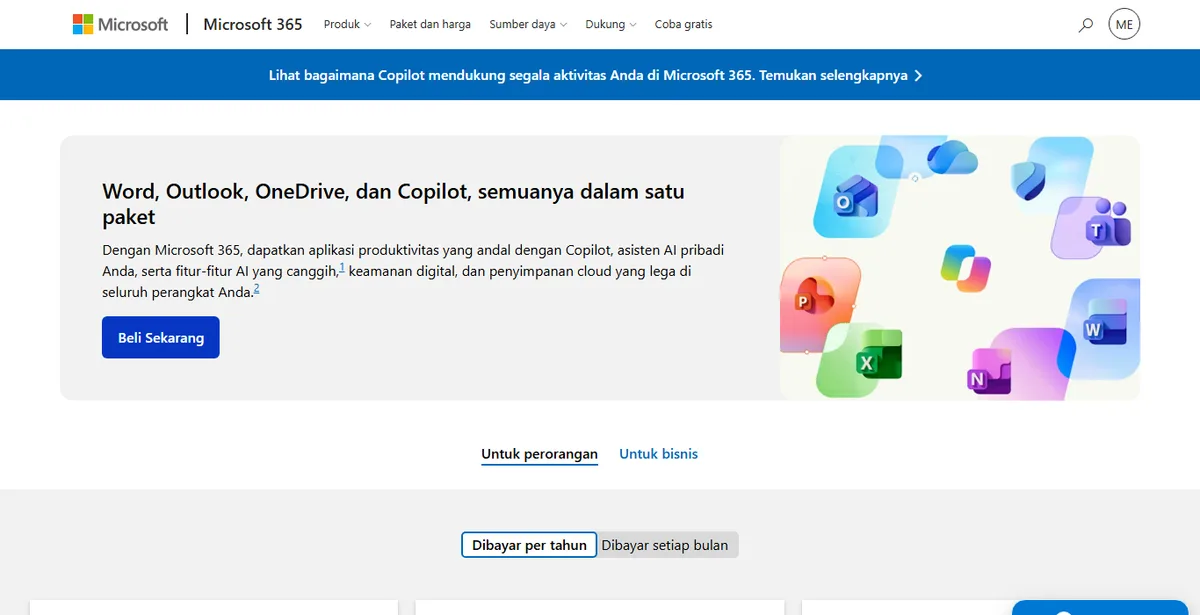
Prices and plan contents can change, so check the official page again before paying. We cover the subscription plans in detail, including how Family sharing works, in our Microsoft subscription guide.
Which Apps Come in Each Edition?
Each edition contains something different. The table below sums up what Microsoft Indonesia lists on its official pages, so you can match your needs with the right edition.
| Edition | Payment | Desktop apps | Users and devices |
|---|---|---|---|
| Microsoft 365 Personal | Yearly or monthly subscription | Word, Excel, PowerPoint, Outlook, OneNote | One person, signed in on five devices at once |
| Microsoft 365 Family | Yearly or monthly subscription | Same as Personal | One to six people |
| Office Home & Business 2024 | One-time purchase | Classic Word, Excel, PowerPoint, Outlook, OneNote | One PC or Mac |
| Office Home 2024 | One-time purchase | Check the app list on the official product page | One PC or Mac |
| Office for the web | Free with a Microsoft account | Word, Excel, PowerPoint in the browser | Access from any browser |
If you need desktop Outlook and prefer a one-time purchase, make sure the edition actually lists Outlook. If you share with family, the Family plan is usually cheaper than buying licenses one by one.
As a rough guide, a student who works on a laptop and a phone is usually fine with Personal. A family with several school-age children saves more with Family, since one subscription can be shared across several accounts. A small business owner who only uses one checkout computer and rarely upgrades hardware could consider a one-time edition. Meanwhile, people who only open documents others send them often get by with the web version.
Office for the Web, the Free Option People Forget
Microsoft offers free web versions of Word, Excel, and PowerPoint through its Office for the web page. You just sign in with a Microsoft account and open documents in the browser. Files save automatically to OneDrive.
The web version is good for light tasks, opening attachments, and editing together. Advanced features such as macros, Power Query, or complex layouts still need the desktop apps. For students who only write assignments now and then, the web version is often enough before deciding to buy a license.
To keep the account you use for Office secure, turn on two-step verification. The steps are in our Microsoft account guide and our guide to securing accounts with two-step verification.
How Office Apps Work Together
The strength of Office apps is how they connect. Data created in one app can be reused in another without retyping, which speeds up work and reduces copy errors.
- Excel charts in Word and PowerPoint. Copy a chart from Excel and paste it as a linked object. When the numbers in Excel change, the chart in the document or slide updates too.
- Mail Merge from Excel to Word. A list of names and addresses in Excel can become dozens of letters or labels in Word in one go.
- Meeting invites from Outlook to Teams. A meeting in your Outlook calendar can carry a Teams meeting link directly.
- Meeting notes in OneNote. A OneNote page can be linked to an Outlook meeting so minutes are easy to find later.
- Every file in OneDrive. Documents, spreadsheets, and presentations sit in one place and can be shared by link.
Because the apps connect so closely, buying one bundle with several apps often makes more sense than buying apps one by one. Think about your daily workflow before choosing an edition.
Office Apps on Phones and Tablets
Microsoft also offers Office apps for Android and iPhone. The mobile apps are handy for opening attachments, reading documents, making quick edits, and presenting from your phone. Documents stored in OneDrive show up right away without moving them by hand.
For heavy work such as a thesis, large data sets, or complex slide design, a computer is still more comfortable. Treat the mobile apps as a companion on the go, for example to check a lecturer's revisions or change one figure in a report before a meeting.
Common Mistakes When Buying Office
Many buyers end up disappointed not because of the apps but because they picked the wrong edition or license source. Avoid these mistakes.
- Buying an organization edition for personal use. Professional Plus or LTSC keys sold at retail often have an unclear origin.
- Falling for prices far below the official price. Licenses like these are prone to being blocked after a while.
- Not checking what an edition contains. Not every one-time edition includes Outlook.
- Using someone else's account. A license tied to the seller's account can be revoked at any time, and your documents end up stored in an account you do not own.
- Not keeping proof of purchase. Without it, a claim to the seller is hard to make.
Avoid these five mistakes and you can use Office with peace of mind for the long term, without having to rebuy a license that suddenly stops working.
Why You Should Replace an Old Office Version
Old Office versions still open, but they stop getting security updates once support ends. According to Microsoft Learn, support for Office 2016 and Office 2019 ended on October 14, 2025.
Without security updates, holes found after that date will not be patched. The risk shows up mostly when you open email attachments or downloaded files. If you are still on an old version, consider moving to a subscription or a one-time edition that is still supported, and move important documents to OneDrive.
Device protection matters during the transition too. We review paid and free antivirus options in our Norton guide and Kaspersky guide.
How to Choose and Buy an Office License Safely
Pick an edition based on real needs, then make sure the license source is clear. The steps below help you decide.
- Write down the apps you actually use, for example just Word and Excel, or Outlook too.
- Count how many people and devices will use it.
- Choose how to pay: a subscription for the latest version on many devices, or a one-time purchase for one computer.
- Compare the seller's price with Microsoft's official price.
- Ask how activation works and make sure the license is linked to your own Microsoft account.
- Keep the receipt, then check the license status on your Microsoft account page.
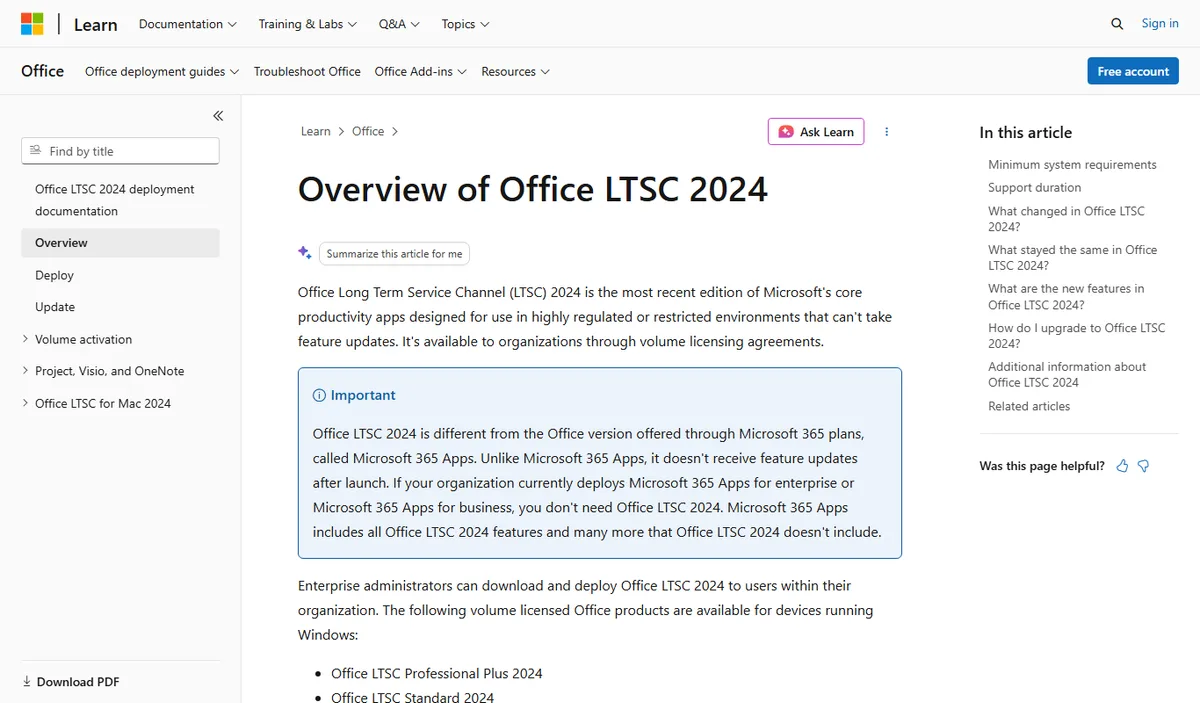
Be careful with very cheap Professional Plus keys. According to Microsoft Learn, Office LTSC 2024 is provided to organizations through volume licensing agreements, so ask the seller where the key comes from. On Digidang you can compare Microsoft 365 Personal, Microsoft 365 Family, and Office 2021 Professional Plus with official prices before deciding.
If Office is going onto a new computer, make sure Windows is genuine too with our guide to the latest Windows license. For digital purchases in general, read our tips for buying digital products safely and the tax explanation in understanding VAT on digital products.
Frequently Asked Questions
Which apps are in Microsoft Office?
The most common apps are Word for documents, Excel for spreadsheets, PowerPoint for presentations, Outlook for email and calendar, OneNote for notes, OneDrive for cloud storage, and Teams for meetings and chat.
What is the difference between a subscription and one-time Office?
A Microsoft subscription always gets the latest version, installs on several devices, and includes a large OneDrive allowance. One-time Office is paid once for one computer with a fixed version and no new features.
Can I use Office apps for free?
Partly. Office for the web offers Word, Excel, and PowerPoint in the browser for free with a Microsoft account, though with fewer features than the desktop apps.
What is the official price of the Personal plan?
According to the Indonesian Microsoft Store, the Personal plan is listed at Rp1,359,999 per year for one person. Prices can change, so check again before buying.
When did Microsoft Office first appear?
According to Wikipedia, the first Office suite was announced on August 1, 1988 and contained Word, Excel, and PowerPoint.
Is an old version of Office still safe to use?
Versions past their end of support no longer get security updates. Microsoft Learn notes that support for Office 2016 and Office 2019 ended on October 14, 2025.
Which edition suits students best?
If you only type assignments now and then, start with the free Office for the web. If you need full features on a laptop and phone, the Personal subscription is more practical. To share with family, choose the Family plan.
How can I make sure an Office license is genuine?
Buy from a seller who explains where the key comes from, match the edition name with personal use, link the license to your own Microsoft account, and check the license status on your Microsoft account page after activation.
Digidang Team
Gaming enthusiast and marketplace expert sharing tips, guides, and the best gaming deals.