What Is Microsoft Excel: Uses, Features, and How to Get It

Microsoft Excel is a spreadsheet app from Microsoft for recording, calculating, analyzing, and presenting data as tables and charts. Its main uses are crunching numbers with formulas, cleaning up data, and building reports. You can get Excel through a Microsoft subscription, a one-time Office purchase, or the free web version.
This guide explains what Excel is, the key parts of its screen, the uses people rely on most, how much data a worksheet can hold, and how to get Excel legitimately. At the end you will find a license comparison table and answers to the questions buyers ask most often.
What Is Microsoft Excel?
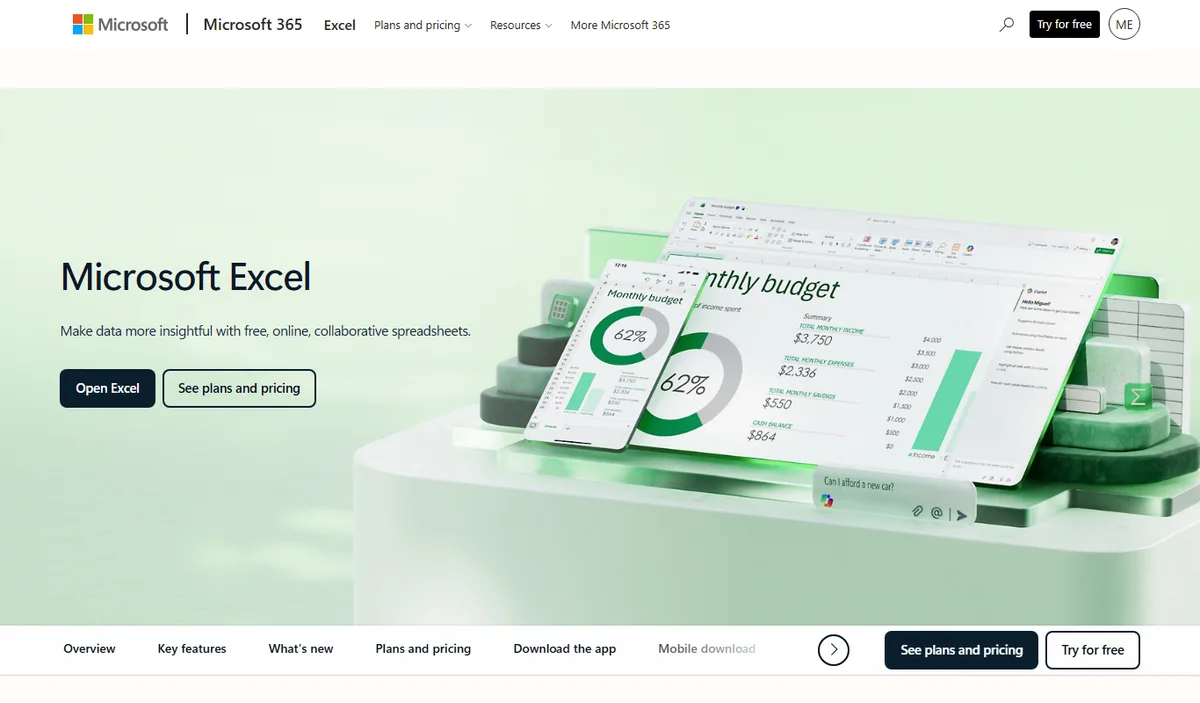
Microsoft Excel is an electronic spreadsheet program that arranges data in rows and columns. Each place where a row meets a column is a cell. A cell in Microsoft Excel can hold text, numbers, dates, or a formula that recalculates automatically whenever the data it depends on changes.
Excel is developed by Microsoft, and according to Wikipedia it was first released on September 30, 1985. Since then it has become one of the best known office apps, used for everything from tracking pocket money to company financial statements.
Today Excel comes in several forms. There is a desktop app for Windows and Mac, mobile apps for Android and iPhone, and Excel for the web, which runs in a browser. All of them open the same files, so you can start a sheet on a laptop and check it later on your phone.
Excel is also part of a larger bundle of Microsoft apps. If you want to know which apps come in that bundle, read our list of Microsoft Office apps. For the word processor people often use alongside Excel, see what Microsoft Word is.
What Is Microsoft Excel Used For?
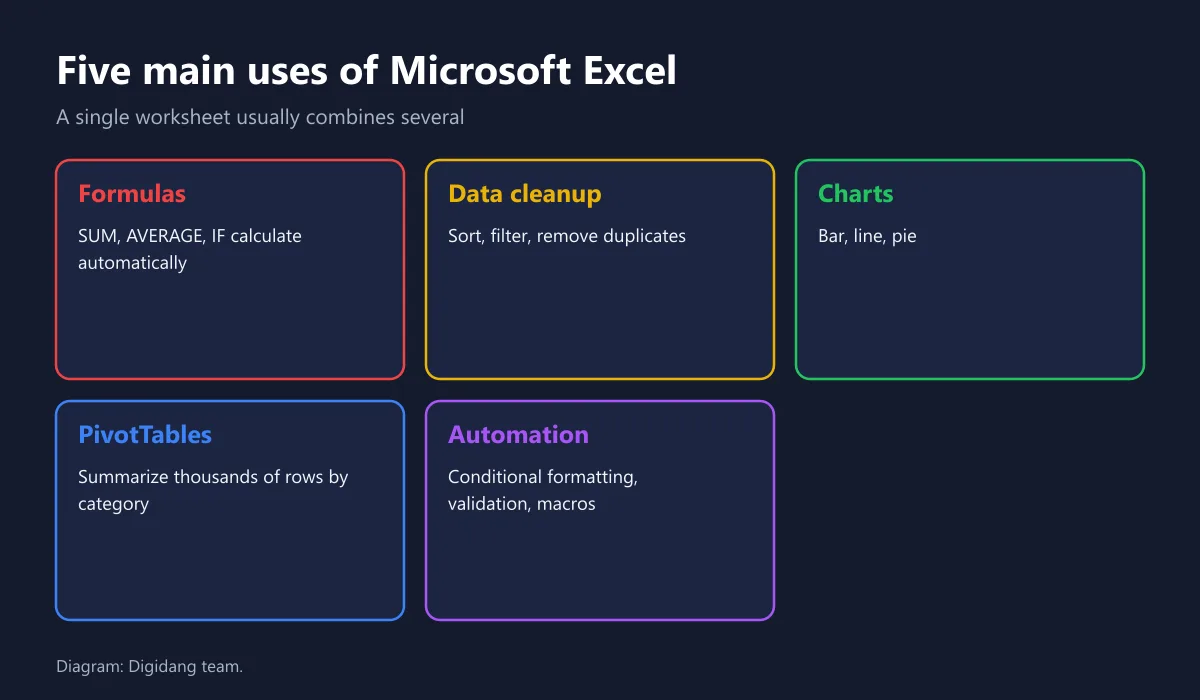
The uses of Microsoft Excel fall into five broad groups. They complement each other, so a single worksheet usually combines several of them.
- Calculating with formulas. Totals, averages, percentages, and conditional calculations happen automatically with formulas such as SUM, AVERAGE, and IF.
- Cleaning and organizing data. Data can be sorted, filtered, stripped of duplicates, and split or combined by column.
- Making charts. Tables of numbers become bar, line, or pie charts so patterns are easier to read.
- Summarizing large data. PivotTables turn thousands of rows into a summary by category, month, or region.
- Automating repetitive work. Conditional formatting, data validation, and macros cut down on the same manual steps every day.
At home these uses cover monthly budgets, shopping lists, or installment trackers. At school and university, Excel helps process assignment data and grades. At work it becomes the tool for sales reports, stock lists, rosters, and attendance summaries.
Plenty of gamers use Excel for lighter things too, such as logging top-up spending each month or comparing voucher prices. If you buy digital products often, a simple log like this helps keep spending in check, as we explain in our tips for buying digital products safely.
The Main Parts of the Excel Window
Before you start with formulas, get to know the parts of the Excel screen. The names are the same in almost every modern version, which makes online tutorials easy to follow.
- Ribbon, the row of tabs at the top such as Home, Insert, Formulas, and Data. Each tab holds command buttons.
- Name Box, which shows the address of the selected cell, for example A1.
- Formula Bar, where you see and edit what is inside a cell, including the formula behind it.
- Worksheet, the grid of numbered rows and lettered columns.
- Sheet tabs, at the bottom, for switching between sheets in one workbook.
- Status bar, which shows quick totals such as the sum and average of selected cells, plus the zoom control.
Two terms that often get mixed up are workbook and worksheet. A workbook is a single Excel file. Inside it you can have many worksheets, much like one folder holding several sheets of paper. Knowing the difference makes it easier to find the right tutorial.
How Much Data Can an Excel Worksheet Hold?
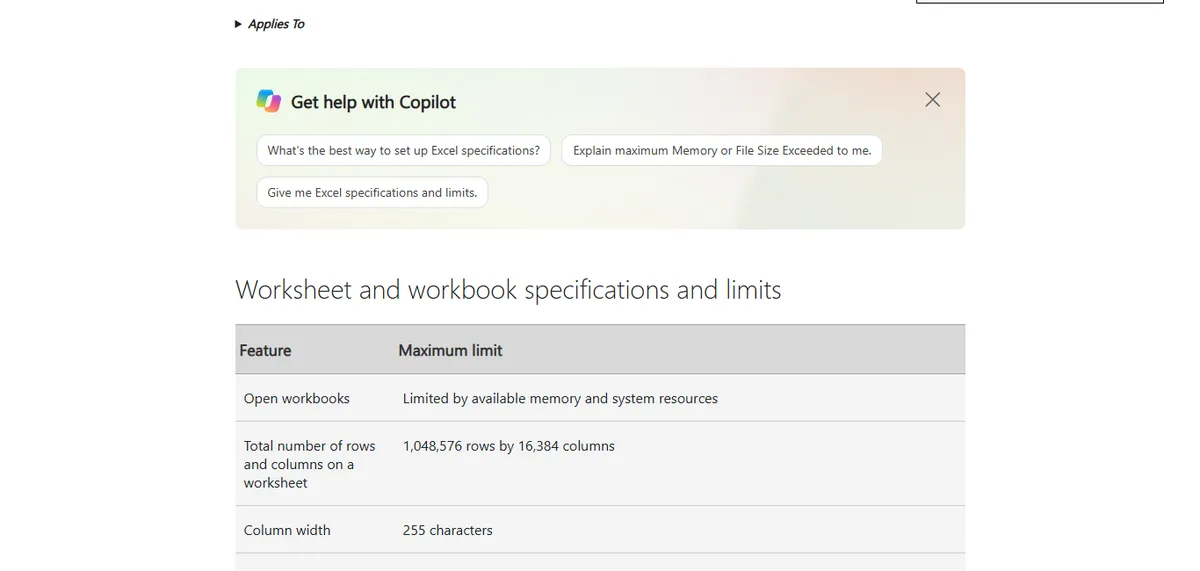
Excel's capacity is far beyond everyday needs. According to the Excel specifications and limits page on Microsoft Support, one worksheet holds 1,048,576 rows by 16,384 columns, while the number of sheets in a workbook is limited only by available memory.
The same page lists a maximum column width of 255 characters and up to 32,767 characters in a single cell, as the screenshot below shows. These figures apply to modern desktop Excel. In practice, very large files feel slow because of limited RAM long before they reach the row limit.
If your data starts approaching hundreds of thousands of rows, consider splitting it by year or using Power Query and PivotTables to keep calculations light. Back your files up regularly to cloud storage too, so your work survives a computer problem.
Excel Formulas Beginners Use Most
Every Excel formula starts with an equals sign. You do not need to memorize hundreds of functions. The formulas below cover most everyday needs.
| Formula | What it does | Example use |
|---|---|---|
| SUM | Adds a group of numbers | Total spending for a month |
| AVERAGE | Calculates the mean | Average exam score |
| COUNT and COUNTA | Counts cells with numbers or with any data | Number of transactions in a list |
| IF | Returns different results depending on a condition | Pass or not yet passed |
| SUMIF | Adds numbers that meet a condition | Total spending in the games category only |
| VLOOKUP and XLOOKUP | Finds a value in another table | Pulling a price from a product list |
XLOOKUP is the more flexible successor to VLOOKUP, but it only exists in newer versions of Excel, such as the subscription version. If your file will be opened by someone on an older Excel, stick to formulas both versions support so the results do not turn into errors.
For practice, build a small sheet with a date, a description, a category, and an amount. With those four columns you can already try SUM, SUMIF, a chart, and a PivotTable in one study session.
Excel in a Subscription, One-Time Office, or the Web Version?
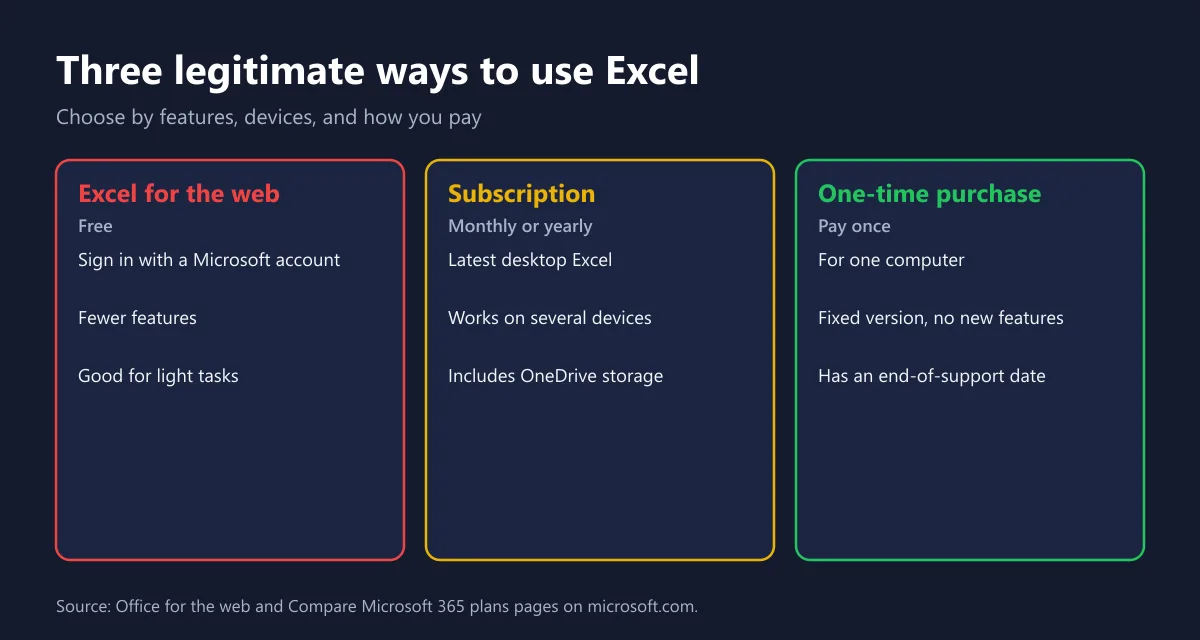
There are three legitimate ways to use Excel. The right one depends on the features you need, how many devices you use, and how you prefer to pay.
- Excel for the web. Free with a Microsoft account in your browser. Good for light work and collaboration, but with fewer features than the desktop app.
- Microsoft subscription. A monthly or yearly plan that gives you the latest desktop Excel together with Word, PowerPoint, Outlook, OneNote, and OneDrive storage.
- One-time Office purchase. Paid once for one computer. The version stays fixed, gets no new features, and has an end-of-support date.
Microsoft offers the free web apps through its Office for the web page. For desktop, the Indonesian Compare Microsoft 365 plans page lists Personal at Rp1,359,999 per year for one person and Office Home 2024 at Rp2,279,999 as a one-time purchase for one PC or Mac.
We cover the differences between the Personal, Family, and Premium plans in our Microsoft subscription guide. If Excel is going onto a new PC, make sure Windows is properly licensed too, using our guide to the latest Windows license.
Comparing Excel License Options
The table below sums up the main differences between the three legitimate options. Use it as a starting point before you compare prices.
| Aspect | Excel for the web | Subscription | One-time Office |
|---|---|---|---|
| Payment | Free with a Microsoft account | Monthly or yearly | Pay once |
| App version | Runs in the browser | Latest desktop, continuously updated | Fixed desktop version |
| Advanced features | Limited | Full | Full for that version |
| Cloud storage | Free OneDrive that comes with the account | Large OneDrive allowance by plan | Free OneDrive that comes with the account |
| Best for | Light tasks and collaboration | Regular use across many devices | One computer with stable needs |
If you only open Excel now and then, the web version is usually enough. If you work with data every day, need features such as Power Query, or use more than one device, a subscription makes more sense. A one-time Office license suits people who want to pay once and stay on one version for the long run.
How to Buy an Excel License Safely
Fake or misused Office licenses are still common. Some keys work for a while and then get blocked. Follow these steps before you pay.
- Decide which route you need first: a subscription or a one-time Office license.
- Check that the product name matches personal use. Editions for organizations are usually sold through volume licensing, not to individual consumers.
- Compare the price with the official price. A price far below the official one is a warning sign.
- Ask how activation works and whether the code is linked to your own Microsoft account.
- Keep the receipt and the activation code somewhere safe.
- After activation, check the license status on your Microsoft account page.
According to Microsoft Learn, Office LTSC 2024 is available to organizations through volume licensing agreements. That is why you should ask the seller where a Professional Plus key comes from before buying it. On Digidang you can look at Microsoft 365 Personal and Microsoft 365 Family and compare the details with the official price.
Digital purchases can also be subject to tax, which we explain in understanding VAT on digital products. To keep your Microsoft account secure once the license is active, turn on two-step verification as described in our Microsoft account guide.
File Formats Excel Uses
When you save your work, Excel offers several file formats. The default is a workbook with the .xlsx extension, part of the Office Open XML standard that, according to Wikipedia, became the default Microsoft Office format starting with Office 2007. Older .xls files still open fine.
- .xlsx, the standard workbook for almost every need.
- .xlsm, a workbook that stores macros. Only open these from trusted sources.
- .csv, comma-separated text for exchanging data with other apps. Formatting, formulas, and extra sheets are not saved.
- .pdf, an export for sharing without editing.
The full list is on the file formats supported in Excel page. A safe habit is to keep working files as .xlsx and only create a .csv or .pdf copy when someone actually asks for one.
Common Beginner Mistakes in Excel
A few small mistakes often make Excel results wrong without anyone noticing. Spotting them early saves time fixing reports later.
- Numbers stored as text. Data copied from websites or other apps is often read as text, so it is left out of totals. The signs are left-aligned numbers and a small green triangle.
- Typing results instead of formulas. Values typed by hand do not change when the source data is updated.
- Shifting cell references. When you copy a formula down, cell addresses shift too. Use dollar signs to lock a specific cell.
- Merged cells inside data. Merged cells break sorting and filtering. Use Center Across Selection instead.
- No backup. One wrong save can wipe out hours of work.
Get into the habit of double-checking important results a second way, for example by comparing a formula total with the summary in the status bar. This simple step catches many errors before a report goes out.
Tips for Learning Excel as a Beginner
The fastest way to learn Excel is with your own data. Start with a record you actually need, such as monthly spending, then add one new feature each week.
- Use Format as Table so your data gets filters automatically and formulas extend with new rows.
- Give columns clear names and avoid merged cells in the middle of your data.
- Learn basic shortcuts such as copy, paste, and fill.
- Use Excel's built-in templates for budgets or schedules.
- Save files to OneDrive so version history is there when you make a mistake.
Microsoft also publishes official material in its Excel help and learning center. If you turn Excel data into written reports, your writing matters as much as the numbers, and tools like the one in our Grammarly guide can help with English text.
Frequently Asked Questions
What is Microsoft Excel in simple terms?
Microsoft Excel is a spreadsheet app from Microsoft for recording, calculating, analyzing, and presenting data in tables and charts. Data sits in rows and columns and is processed with formulas that recalculate automatically.
What is Microsoft Excel mainly used for?
It is mainly used for calculating with formulas, cleaning and filtering data, making charts, summarizing large data with PivotTables, and automating repetitive work such as conditional formatting and data validation.
Can I use Microsoft Excel for free?
Yes, through Excel for the web with a Microsoft account. The web version handles light work, while the advanced desktop features need a subscription or a one-time Office license.
How many rows and columns can Excel hold?
According to Microsoft Support, one worksheet holds 1,048,576 rows by 16,384 columns.
What is the difference between a workbook and a worksheet?
A workbook is a single Excel file. A worksheet is one grid page inside that file. One workbook can contain many worksheets, which you switch between with the tabs at the bottom of the screen.
Is a subscription or one-time Office better for Excel?
A subscription suits you if you want the latest version, use several devices, and need plenty of OneDrive space. One-time Office suits a single computer with stable needs and no recurring fee.
When was Excel first released?
According to Wikipedia, Microsoft Excel was first released on September 30, 1985.
How can I make sure my Excel license is genuine?
Buy from a seller who explains where the key comes from, match the product name with personal use, link the code to your own Microsoft account, and check the license status on your Microsoft account page after activation.
Digidang Team
Gaming enthusiast and marketplace expert sharing tips, guides, and the best gaming deals.