Epic Games Linking Accounts: Connect PlayStation, Xbox, Nintendo, and Steam

Epic Games linking accounts is done from the Linked accounts page on the Epic website: sign in to the Epic account that holds your progress, choose Link under PlayStation, Xbox, Nintendo, or Steam, then sign in with that platform account. Once linked, progress and purchases in Epic games follow you to that device.
The steps are short, but the rules behind them are strict. One wrong click can attach a console to the wrong account, and Epic limits how often you can change it. This guide covers the full steps, the one slot per platform rule, what the most common error messages mean, and how to keep your account safe before you buy V-Bucks or redeem game codes.
Why Link Your Epic Games Account to Consoles and Steam?
Linking your Epic Games account to a console or Steam unifies your player identity. Once your PlayStation, Xbox, Nintendo, or Steam account is linked to a single Epic account, progress, cosmetics, and purchases in Epic games such as Fortnite, Fall Guys, and Rocket League follow that Epic account across every linked device.
Without a link, each device can quietly use a different Epic account. A common case: someone plays on PC with an email based Epic account, then opens Fortnite on a console and skips the prompt to link. The system then creates a separate Epic account, so the skin collection from PC does not show up on the console. Linking correctly from the start prevents that confusion.
Linking also matters before you spend money. When you top up Fortnite V-Bucks, the balance and items are recorded on whichever Epic account is active. If your console turns out to be attached to another Epic account, those purchases will not appear on your main one. Epic states on its Can I merge my Epic Games accounts? page that two Epic accounts cannot be merged, and that V-Bucks, Epic Games Store purchases, items, and friends lists cannot be transferred between accounts.
Core Rules Before You Link
Before pressing Link, understand the one slot per platform rule. According to Epic's official guide on syncing progress, a single Epic account can have only one Nintendo account, one PlayStation account, one Xbox account, and one Steam account linked at any time. In the other direction, one platform account cannot be linked to more than one Epic account.
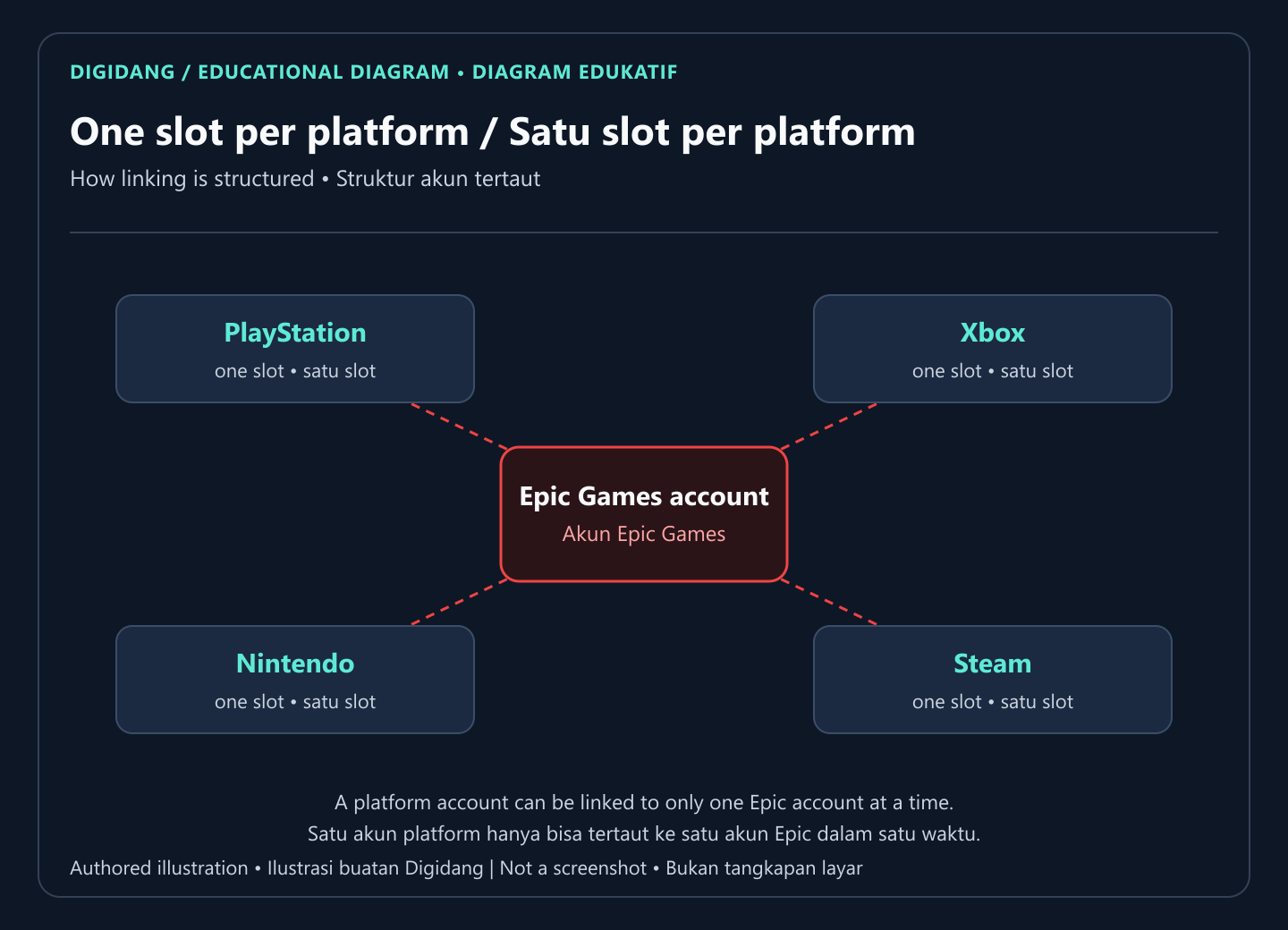
The second rule concerns different progress on several platforms. Epic does not merge progress. If you have played on two platforms with different Epic accounts, you must choose which progress to keep, then link the other platforms to that Epic account. Progress on the Epic account you do not choose stays where it is.
The third rule covers child accounts. A child who creates an account without a parent's help may get a Cabined Account with limited features, so some linking steps may not be available until a parent approves them through Epic's parental controls.
| Rule | What it means for you |
|---|---|
| One slot per platform | Only one PlayStation, Xbox, Nintendo, and Steam account per Epic account |
| One platform account, one Epic account | The same console account cannot sit on two Epic accounts at once |
| Progress is not merged | Pick the one Epic account whose progress you want to keep |
| Accounts cannot be merged | V-Bucks, items, and purchases cannot move between Epic accounts |
| Linking restriction | Switching platform accounts requires removing a time limited restriction |
How to Link Your Epic Games Account on the Website
The safest route is the official website, because you can see exactly which Epic account is active. The steps below follow Epic's guide for syncing PC and mobile progress.
- Leave old sessions. Open epicgames.com, ideally in a private window, so you do not mix it up with another account still signed in to your browser.
- Sign in to the Epic account that holds your progress. Use the email and password of the account you play with on PC or mobile, or the account whose progress you want to keep.
- Open the Linked accounts page. It sits in your Epic account settings, under linked accounts.
- Choose Link under the target platform. Pick PlayStation, Xbox, Nintendo, or Steam depending on the device you want to bring in.
- Sign in with the platform account. You are sent to the PlayStation Network, Microsoft account, Nintendo account, or Steam sign in page. Make sure it is your own console account.
- Finish the on screen steps. When it succeeds, the platform appears in your linked accounts list.
- Open the game on that device. Launch Fortnite or another Epic game on the console and check that the display name, level, and item collection match your main Epic account.
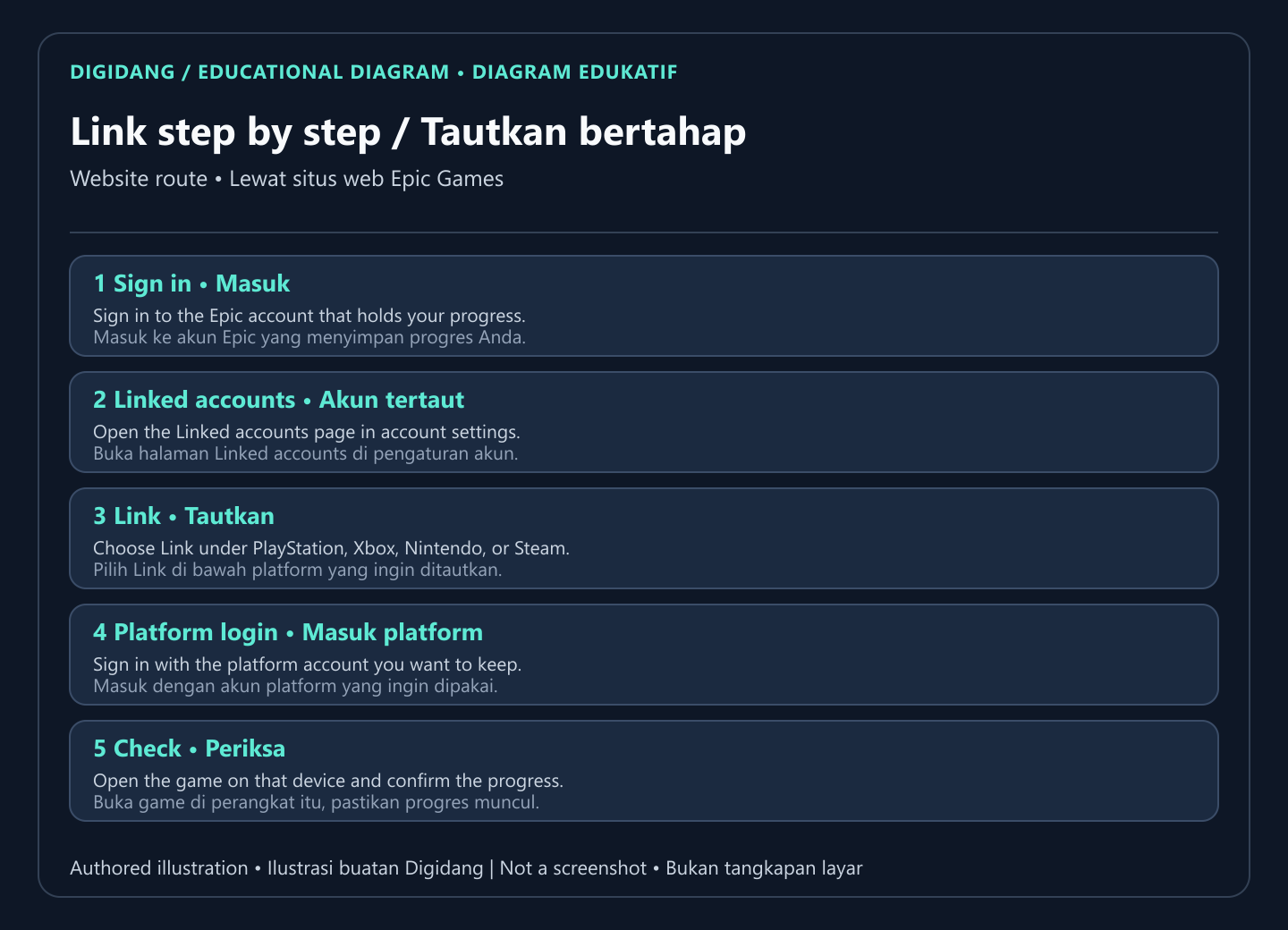
The last step is often skipped, yet it is where you learn whether the link worked. If your progress does not appear, do not rush to unlink. First check that the console is signed in to the right Epic account, because the most common mistake is two different Epic accounts with similar names.
Linking by Platform: PlayStation, Xbox, Nintendo, and Steam
The process is similar on every platform, but small details matter. This table sums up what trips players up most often.
| Platform | Account requested during Link | What to check |
|---|---|---|
| PlayStation | PlayStation Network account | Use the main PSN account on the console, not a family member or guest account |
| Xbox | Microsoft account used on Xbox | The same Microsoft account also works on Windows PC, so confirm the right Xbox profile |
| Nintendo | Nintendo account | One Switch can hold several users; link the Nintendo account of the person who plays |
| Steam | Steam account | Applies to Epic games you play through Steam, such as Fall Guys or Rocket League |
For PlayStation players, watch out for family accounts. Many homes share one console with several PSN accounts, and wrong links often happen because a parent links their own account instead of the account of the child who actually plays. The same applies on a Nintendo Switch with several user profiles.
For Xbox players, remember that the same Microsoft account is also used in the Microsoft Store and the Xbox app on Windows. If you usually redeem Xbox codes on PC, make sure the account you link to Epic is the same one as the profile on your console.
For Steam, the link prompt usually appears the first time you launch an Epic game from Steam. If you already have an Epic account with progress, sign in to that existing account instead of creating a new one. Our guide on how to create a Steam account covers the Steam Guard security settings that should be on before you link anything.
What Linking Error Messages Mean
Two error messages show up most often, and each has a different fix. Reading the message carefully saves a lot of time, because the wrong action can trigger a new restriction.
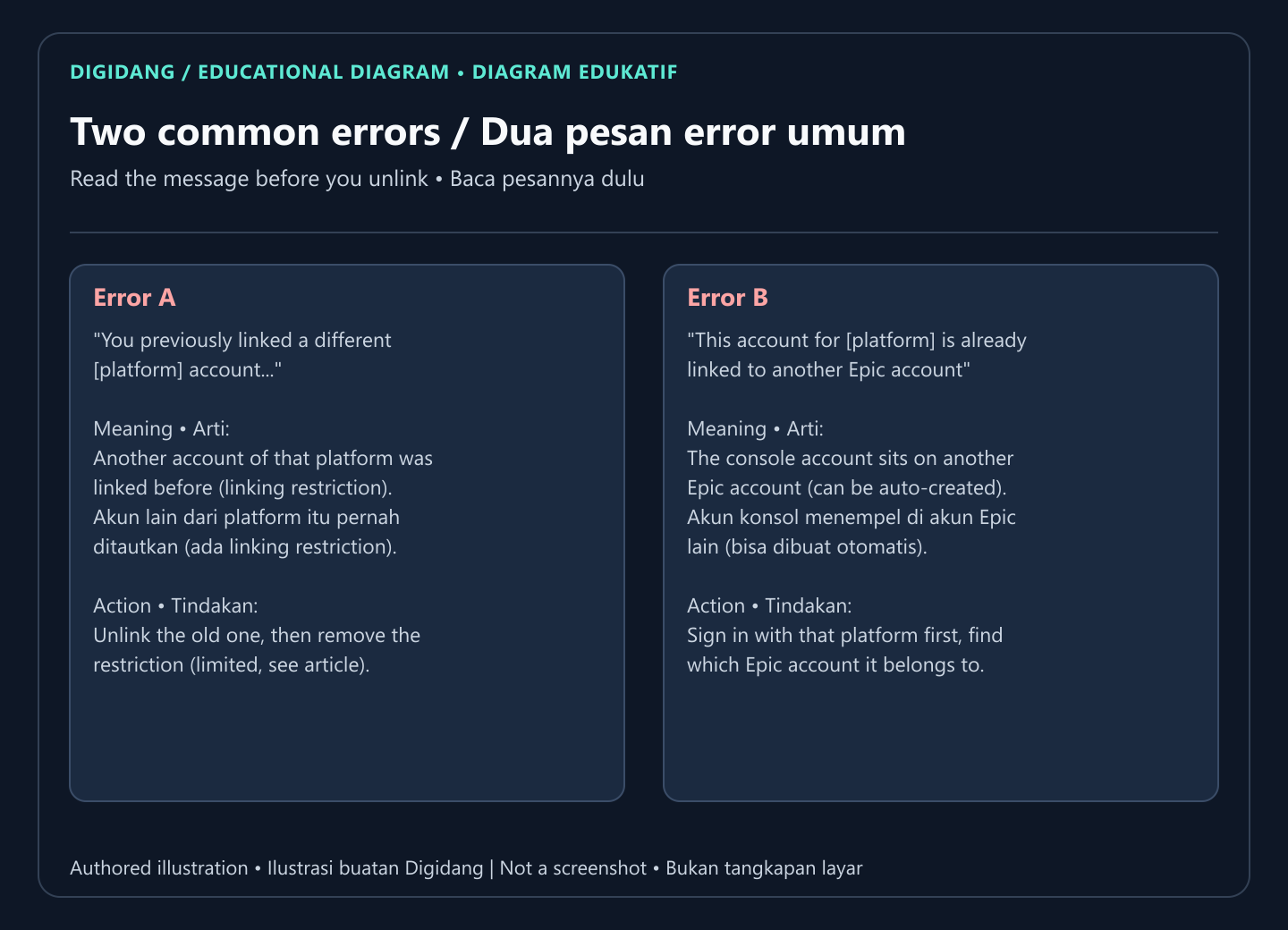
First message: "You previously linked a different [platform] account to your Epic Games account". It means your Epic account was once linked to another account from the same platform, so a linking restriction is in place. According to Epic's guide on linking a different platform account, you must unlink the old account if it is still linked, cancel any Fortnite Crew subscription on the platform account you are removing, then remove the restriction. Removing the restriction can only be done once every 365 days and cannot be bypassed.
Second message: "This account for [platform] is already linked to another Epic Games account". It means your console account is already attached to a different Epic account. This often happens if you created an Epic account straight from the console the first time you opened a game. The first step is not to unlink, but to find out which Epic account it is: open the Epic website in a private window, choose the platform logo on the sign in page, and sign in with your console account. That shows you which Epic account it belongs to.
Once you know which account holds the progress that matters most, decide whether the link needs to move at all. If the progress on the console account is more valuable, it often makes more sense to link your other platforms to that account than to move the console to your email based Epic account.
How to Change or Unlink a Linked Account
If you linked the wrong console account by accident, Epic lists the official steps on its How do I change the console account I have linked page. In short: open the Epic website in a private window, sign out of any other account, sign in to the Epic account linked to the console, open Linked accounts, select the console account you want to remove, then click Unlink after ticking every warning box.
After the old account is removed, you still need to clear the linking restriction before you can link the new console account. Because that restriction can only be cleared after a long gap, treat the process as a one time decision. Double check that the console account you are about to link is the right one before you confirm.
Also remember that unlinking moves nothing. Progress and items stay on the Epic account where they were earned. If you open a game on the console right after unlinking, that console is no longer connected to any Epic account, so the system may create a new, empty Epic account for it. Get your target Epic account ready before you launch the game again.
Account Security Before and After Linking
An Epic account linked to several consoles holds a lot of value: item collections, balances, and purchases. That is why you should turn on two factor authentication before changing any link. Epic's guide on two factor authentication explains that 2FA is enabled from the Password and security section, with codes by email, SMS, or an authenticator app. The same page says 2FA is required to send gifts in Fortnite, to join Fortnite competitive events, and to claim some free games on the Epic Games Store.
Be wary of any offer that asks for login details. There is no legitimate reason for a seller of game codes or gift cards to ask for your Epic, PSN, Xbox, or Nintendo password. Official codes are redeemed by you on your own account. Our guides on shopping safely for digital products and checking that a digital game code is genuine cover the warning signs of a suspicious seller.
If your progress suddenly disappears even though your platform account has been linked for a long time, Epic suggests suspecting a compromised account rather than a linking problem. In that case, follow Epic's account recovery route first before changing any link.
After Linking: Top Ups, Redeems, and Calm Shopping
Once your accounts are linked to the right Epic account, shopping across the gaming ecosystem becomes safer. Items bought inside Epic games follow your Epic account, so you do not have to worry about purchases getting stuck on a forgotten account. Store balances owned by each platform, however, stay separate. PlayStation Store funds only work in the PlayStation store, Xbox funds in the Microsoft Store, and eShop funds in the Nintendo store.
So if you buy a gift card to add console funds, follow the guide for each platform: how to redeem a PlayStation Store code, the Xbox gift card guide, and how to redeem a Nintendo eShop code. Switch players who want to play online can also read our Nintendo Switch Online guide to understand the membership plans.
For PC games, a game key is usually redeemed in the store it was made for, not on your Epic account. Read how digital game keys work and how to redeem a game code on Steam so you never redeem a code on the wrong platform. If you are still weighing formats, our article on digital versus physical games can help.
One small habit pays off: every time you buy a code or top up, check the display name of the active account on the confirmation screen. It stops purchases from landing on a family account or an old account you no longer use.
Quick Checklist Before You Press Link
- I know which Epic account holds my most important progress and purchases.
- I signed in to that Epic account in a private window, not in a mixed browser session.
- The console account I am linking belongs to the person who actually plays.
- Two factor authentication is on for the Epic account.
- I do not have an active Fortnite Crew subscription on the platform account I am removing.
- I read the error message carefully before unlinking anything.
- After linking, I will open the game and check the display name and progress.
If every point above is covered, the chance of a wrong link is very small. If you are unsure about any of them, stop and confirm first, because a wrong link is much harder to fix than to prevent. For server trouble while you play, see our article on checking whether Fortnite servers are down.
Frequently Asked Questions
Is linking an Epic Games account free?
Yes. Linking an Epic Games account to PlayStation, Xbox, Nintendo, or Steam costs nothing. You only need an active Epic account and platform account, then you complete the steps on the Linked accounts page.
Can two Epic Games accounts be merged?
No. Epic states that two accounts cannot be merged, and V-Bucks, purchases, items, and friends lists cannot be transferred between accounts. Pick one main Epic account before you link your consoles.
How many PlayStation accounts can be linked to one Epic account?
Only one. The same rule applies to Xbox, Nintendo, and Steam: one slot per platform on each Epic account, and one platform account can only be linked to one Epic account.
Can progress from two platforms be combined?
No. If progress differs between two platforms, you must choose which progress to keep, then link the other platforms to the Epic account that holds it.
Why did a new Epic account appear after I unlinked?
After unlinking, the console is no longer connected to any Epic account. When the game opens again, the system may create a new, empty Epic account. Prepare your target account before launching the game.
Will unlinking delete my items?
Items and progress stay on the Epic account where they were earned. Only the connection between the console and that Epic account changes, so items do not move to another account.
Can PlayStation Store funds be used on Xbox after linking?
No. Platform store balances stay separate. An Epic link unifies progress and purchases in Epic games, not your PlayStation Store, Microsoft Store, or Nintendo eShop wallet.
Do I need two factor authentication to link accounts?
Two factor authentication is strongly recommended before changing links, and Epic requires it for features such as sending gifts in Fortnite and joining competitive events.
Digidang Team
Gaming enthusiast and marketplace expert sharing tips, guides, and the best gaming deals.